All guides
No guide matches your search.
Control a single site
Turn Tintly off for one site, give that site its own colors, or use Tintly only on the sites you choose. Rules are kept in your browser.
On this page
A site rule is a setting that belongs to one site. Rules are kept in Settings, Sites.
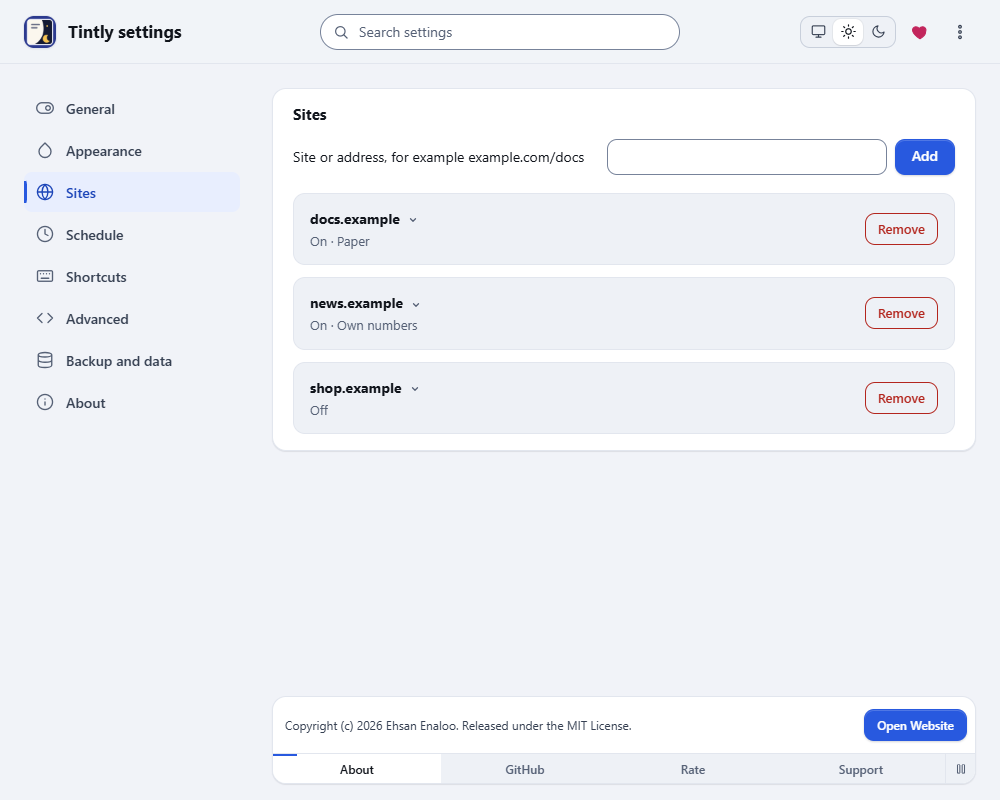
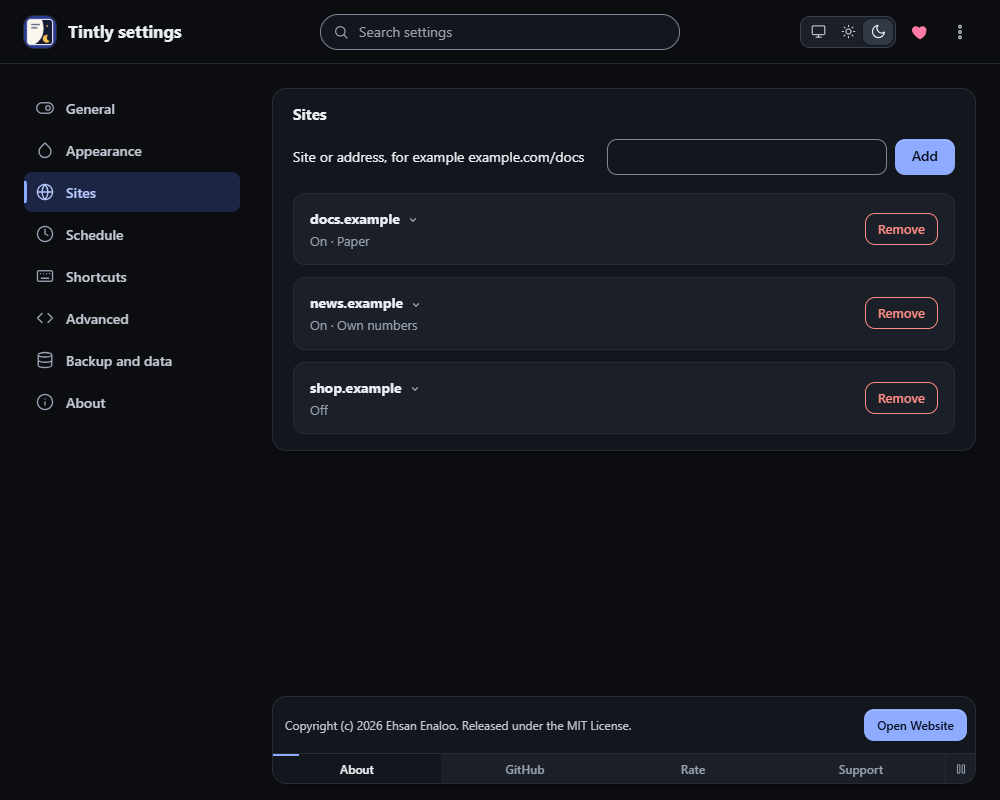
Settings, Sites: one row for each site, with its state and its mode
Each row shows the site and what its rule does: On or Off, and the mode or the numbers it uses. Click the row to open its settings. Remove deletes the rule, and the site follows the general settings again.
Turn one site on or off
Open the toolbar window on the site and use the switch next to the name of the site. Tintly writes a rule for the site and keeps it. The shortcut Alt+Shift+S does the same.
Give one site its own look
The toolbar window can save its changes for all sites or for the site you are on. The choice is the pair of buttons above the mode buttons:
- All sites changes the settings that every site uses.
- This site keeps the change for this site only. The mode, the sliders, the engine, the color vision filter and presets all count.
For example, choose This site and E-ink on one site, then This site and Paper on another. Each site keeps its own mode. Other sites keep the mode of All sites.
When a site already has its own look, the window opens with This site chosen and shows that look. The main switch and the switch of the site are not part of this choice.
Add a rule by hand
- Open Settings and go to Sites.
- Type the site, for example
example.com, or a part of a site, for exampleexample.com/docs. - Choose Add. The new rule sets the site to On and opens its fields.
A rule for example.com also covers www.example.com and other parts of that site. A longer address wins over a shorter one. A frame inside the page, such as a mail editor, follows the rule of the page that holds it.
Each rule has these fields:
- State is On, Off or Same as default.
- Engine and Mode use the default when they say Same as default. When Mode is E-ink, a Style field lets you choose E-ink or Paper.
- Color vision sets the filter for this site.
- Brightness, Contrast, Sepia, Grayscale and Night shift (warm colors) are numbers. Leave a box empty to use the default. The gray text in an empty box shows the default.
- CSS for this site holds CSS that is added to this site.
Each rule shows as a closed row with the site and a short line of what it changes, for example On or Own CSS. Click the row to open its fields, and click it again to close them. The list shows 50 sites at a time. Choose Show more for the next 50, or type a site in Search settings to find it at once.
Choose Remove to delete a rule. A message appears with Undo. Choose it to bring the rule back. If a rule for the same site exists again by then, nothing is restored.
A site that has its own mode
A site rule, a fix or a schedule can fix the mode of a site. With All sites chosen, the mode buttons of the toolbar window would change nothing on that site, so the window shows a note in their place: This site uses its own mode and the name of the mode. Choose Use my mode here to take the mode out of the rule or the fix. The rest of the rule stays, and the mode you choose in the window applies again. When a schedule that switches between two modes decides, the note says so, and Open schedule settings takes you to the schedule. Choose This site to change the mode of this site instead.
Use Tintly on chosen sites only
In the toolbar window, open the list above the name of the site and choose Tintly only on sites I turn on. The site you are on stays on. On every other site, Tintly does nothing until you turn it on with the switch next to the name of the site. Choose Tintly on all sites to go back. Your rules stay.
The same choice is in Settings, General, Where to use Tintly, as All sites except the ones I turn off and Only the sites I turn on.
Each site you turn on can still have its own look. For example, turn on two sites, then choose This site and E-ink on one and This site and Dark on the other.
Dark pages and forcing a site
A rule that sets a site to On also tells Tintly not to skip that site when it looks dark.
A page that asks for no theme
A page author can ask Tintly to leave the page alone with <meta name="tintly" content="off"> in the head, or with data-tintly="off" on the html element. Tintly then does nothing on that page. A rule that sets the site to On overrules the request.
Was this page helpful?