All guides
No guide matches your search.
Use a schedule
Let Tintly turn on at night, follow the dark mode of your system or follow the sun at your place, and choose what it does at those times.
On this page
Open Settings and go to Schedule. Choose when Tintly is used with When to use Tintly.
| Choice | What happens |
|---|---|
| Always | No schedule. Tintly follows the main switch. |
| At set hours | Tintly is used between the two times you set. |
| When the system is dark | Tintly follows the dark mode of your system. |
| From sunset to sunrise | Tintly follows the sun at the place you set. |
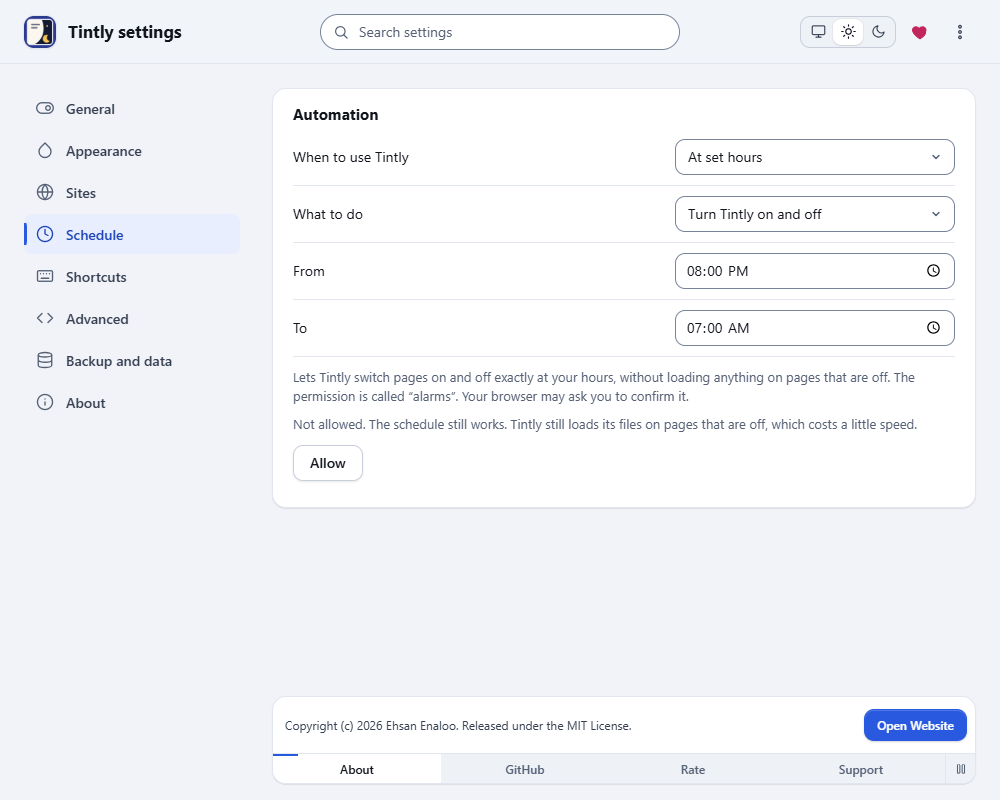
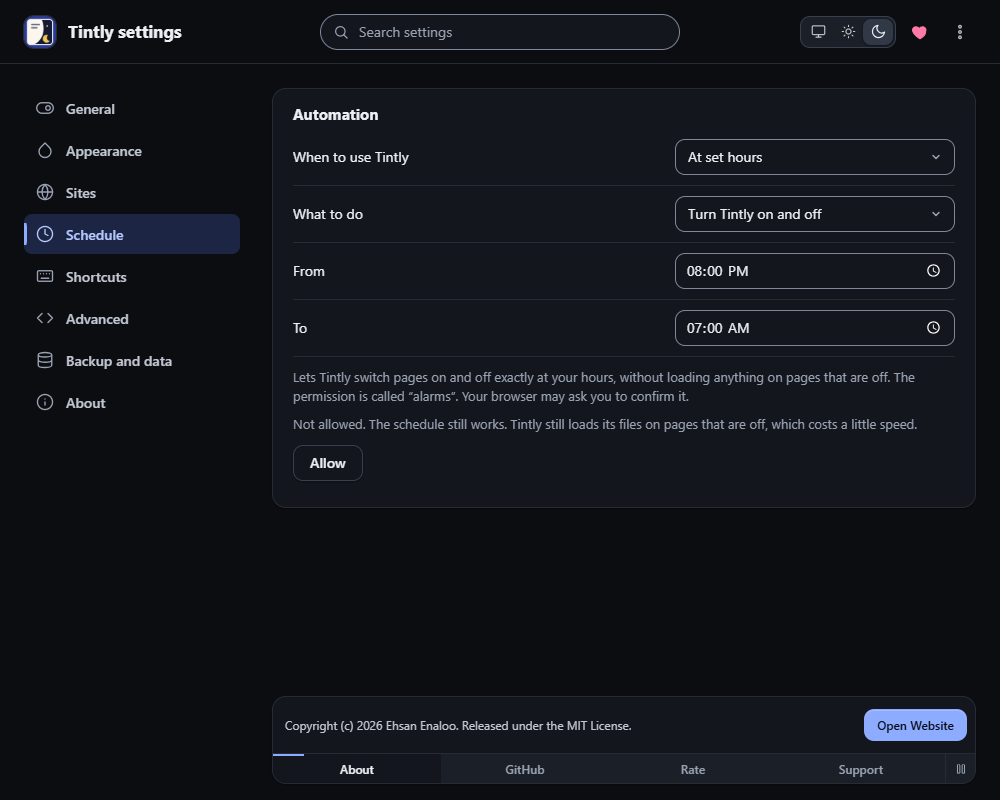
Settings, Schedule: Tintly on from 8 PM to 7 AM
Hours
Set From and To. The hours may cross midnight, for example 18:00 to 07:00. If both times are the same, the schedule is never active. Tintly changes the page at the minute the time arrives.
Sunset and sunrise
Type your Latitude and Longitude. Tintly keeps only these two numbers in your browser. Near the poles, in a polar day or night, Tintly keeps one state for the whole day.
Exact switching
When you choose At set hours or From sunset to sunrise, and Turn Tintly on and off, a note appears below the choices. It says that a small permission, called alarms, lets Tintly switch pages on and off exactly at your hours, without loading anything on pages that are off. Press Allow. Your browser may ask you to confirm. If you do not allow it, the schedule still works, but Tintly still loads its files on pages that are off, which costs a little speed. Remove the permission takes it back. In Firefox the permission is built in, so the note says it is allowed.
What to do
What to do has two choices:
- Turn Tintly on and off uses the extension only inside the time.
- Switch between two modes keeps Tintly on. It uses one mode inside the time and another outside it. By default these are dark inside and light outside. Mode inside the schedule and Mode outside the schedule let you choose Dark, Light, E-ink or Original colors.
The system choice
When the system is dark changes the page as soon as your system changes between light and dark. No reload is needed.
In the toolbar window
The bottom of the toolbar window shows the schedule, for example Schedule: 18:00 to 07:00, Follows the system, Sunset to sunrise or No schedule.
Was this page helpful?