All guides
No guide matches your search.
Pick an engine
Tintly can color a page in four ways. This guide says what each one does, when to choose it and how it treats pages that are already dark.
On this page
The engine is the way Tintly colors a page. Choose it in the toolbar window or in Settings, General. The default is Automatic, which is right for most people.
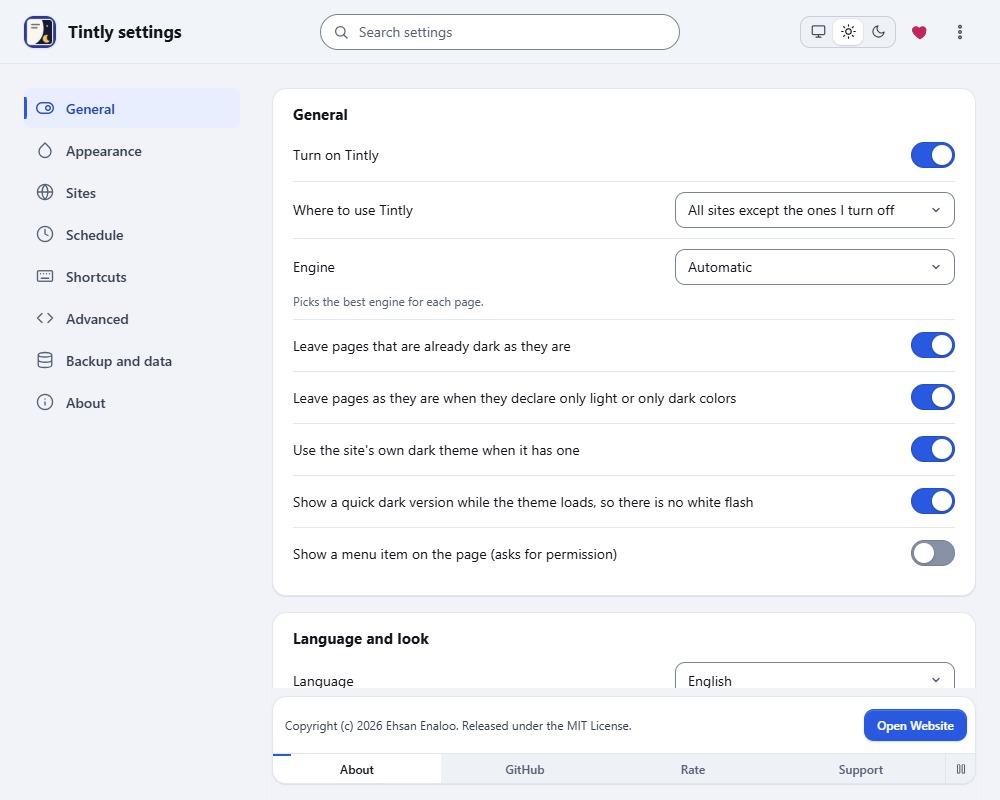
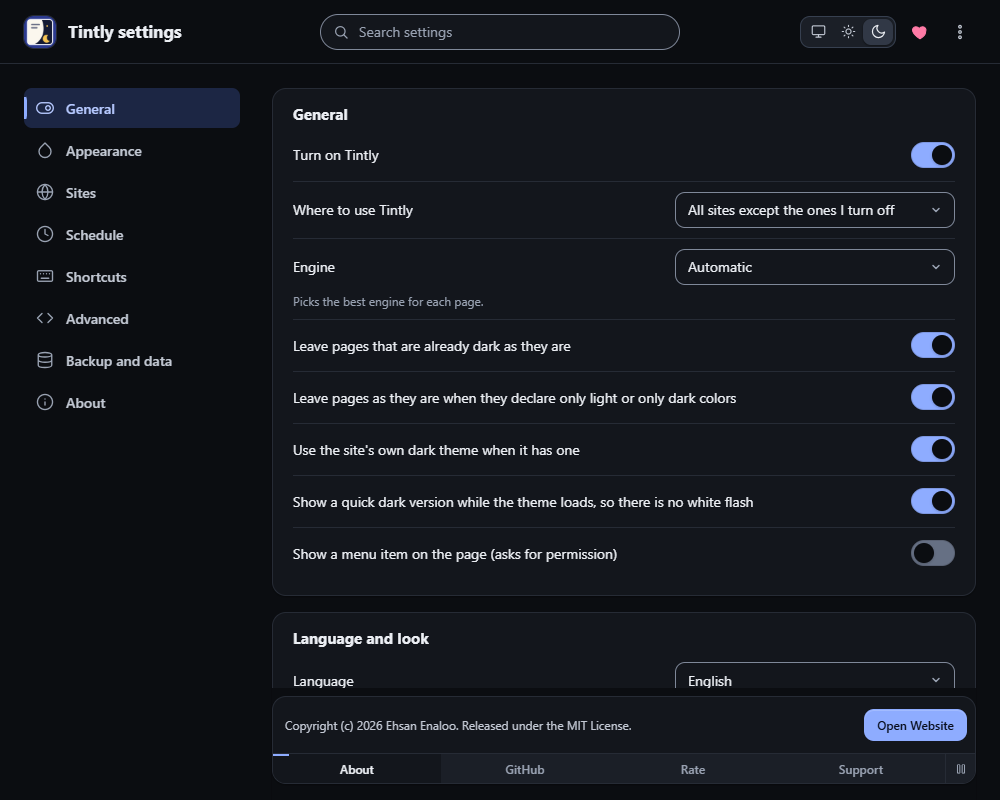
Settings, General: the Engine list is the third row
| Engine | How it works | Choose it when |
|---|---|---|
| Automatic | Uses Dynamic, and Filter+ on a page whose style sheets cannot be read | You have no reason to change it |
| Dynamic | Reads the style sheets of the page and writes new colors | You want the best look |
| Filter | Inverts the whole page with one filter and puts pictures back | A page is very large or slow to color |
| Filter+ | Like Filter, with colors taken from your theme | You want a quick result that follows your colors |
| Static (needs a stored theme) | Colors only the parts a stored fix names | A site has a fix that lists them |
Dynamic
Dynamic gives the most exact colors. It copies the colors of each style sheet and changes only the colors. It also colors parts of the page that are added later, such as menus and web components.
A page with tens of thousands of style rules takes longer to color. Until it is done, you see a quick dark version of the page, so there is no white flash. You can turn this off in Settings, General, with Show a quick dark version while the theme loads, so there is no white flash.
With Automatic, a page whose style sheets Tintly cannot read gets Filter+ instead. The toolbar window then says A simpler engine is used here because the page was hard to theme.
Filter and Filter+
These two start at once, because they do not read the style sheets. The cost is a less exact look. A page that is fixed on screen, or that uses blend modes, can look different from the original.
A filter cannot tell a dark page from a light one. In the Dark mode both invert the page. In the Light mode they do not invert anything: a light page stays light, and only the sliders (brightness, contrast, sepia, grayscale and night shift) apply. To make a dark page light, use Dynamic.
Static
Static needs a fix for the site. Without one, Tintly uses Dynamic. In the Original mode it also uses Dynamic. See Fix a site.
Pages that are already dark
Tintly looks at the colors of a page when it has loaded. If the page is already dark, Tintly leaves it as it is. If the page turns light later, for example with its own theme button or when your system changes, Tintly colors it then. You can turn this off in Settings, General, with Leave pages that are already dark as they are. The page is also left alone when its site is on the list of dark sites. To force a site, set it to On in Control a single site.
A page can also say that it supports one scheme only (color-scheme: only light or only dark). Tintly leaves such a page as it is: an only light page in the dark mode, an only dark page in every mode. The Light, Paper and E-ink modes still color an only light page. You can turn this off in Settings, General, with Leave pages as they are when they declare only light or only dark colors. A site set to On is colored in any case.
Pages with their own dark theme
Many sites have a dark theme of their own, for example for people whose system is dark. When a page has one, Tintly switches it on instead of coloring every color itself. This works with the Dynamic engine. Tintly checks the result: the page must be dark and its text must be easy to read. If it is not, Tintly turns the site's theme off again and uses its own colors, and you see no light flash in between. Parts of the page that the site's theme leaves light, such as a section with a white background drawn in the style sheet, are made dark in the same way as every other page, while the colors that the site chose stay as they are. The switch Use the site's own dark theme when it has one is in Settings, General. It does nothing in the light mode. When Tintly uses a site's own theme, the toolbar window says so. Press Use Tintly's theme instead to turn the site's theme off for that site only, and Use the site's theme to turn it on again. See Use the dark theme of a site.
Pictures
On a dark page Tintly looks at each picture. A dark logo on a clear background and a chart on white are inverted. A very bright photo is dimmed a little. Other photos stay as they are.
Pictures that a page sets as a CSS background get the same check for the part of the page you see, when the element is only the picture: no text, no color of its own. Text that sits on a photo background keeps the color the page gave it.
Was this page helpful?