All guides
No guide matches your search.
Colors, fonts and palettes
Choose a palette for the Dark and Light modes, set your own colors, change the font and the weight of the text, and see how Tintly keeps text easy to read.
On this page
Everything in this guide is in Settings, Appearance. Open it from the toolbar window with Settings, then choose Appearance in the list on the side.
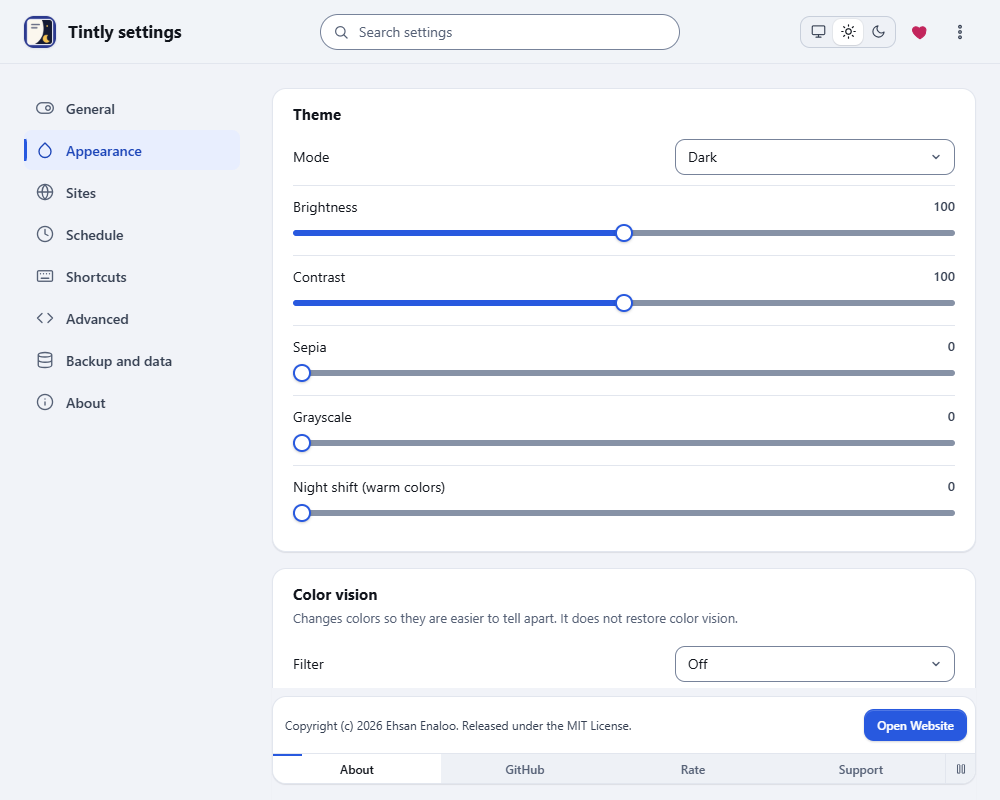
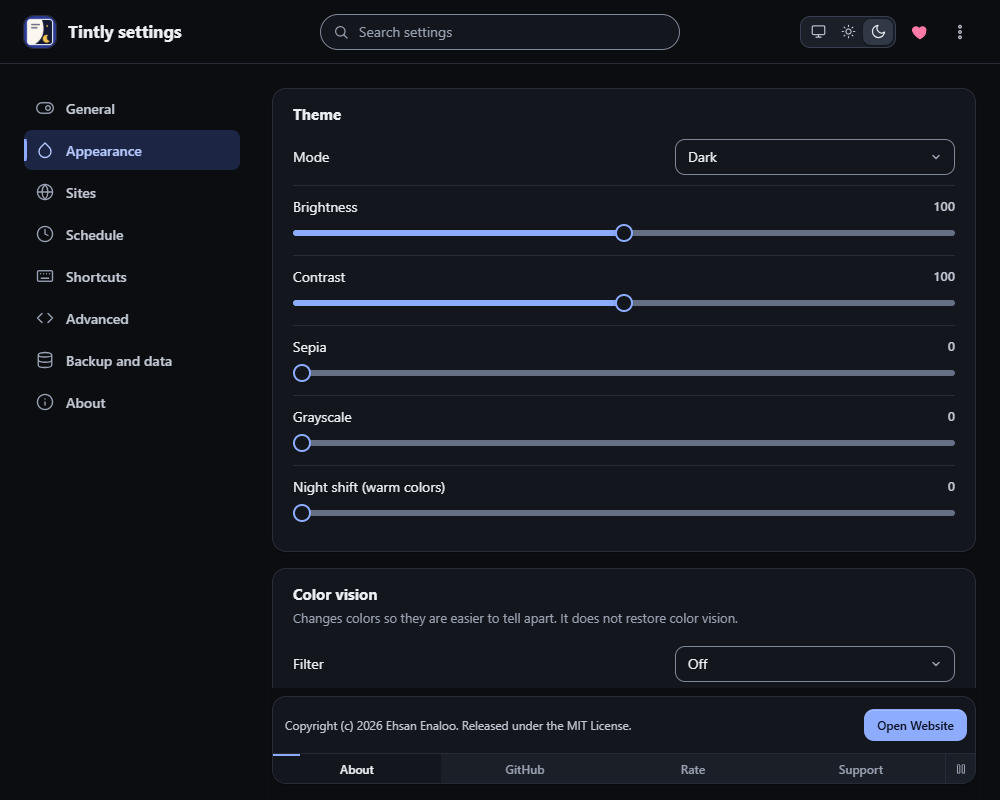
Settings, Appearance
Choose a color palette
The Colors section starts with two rows of palettes, one for the Dark mode and one for the Light mode. Each palette shows its background and text colors. Click one to use it.
- Dark palettes: Default, Graphite, AMOLED black (a true black background that saves power on an OLED screen), Midnight blue, Solarized Dark, Nord and Gruvbox.
- Light palettes: Default, Warm paper, Cool gray and High contrast.
A palette sets the four color fields below it: Dark background, Dark text, Light background and Light text. If you change one of those colors yourself, the row shows Custom. Click a palette again to go back. A site rule or a preset can hold a palette too. The palettes are not in the toolbar window, because there is no room for them.
The same section has Dark form controls and scrollbars and Fade when the theme changes. Both are on at first.
Set your own colors
Click a color field and pick any color. The page follows at once. This works for the background and the text of the Dark mode and the Light mode. Pick colors with enough contrast between text and background. Tintly checks the text it can see and lifts text that is still hard to read, as described at the end of this guide.
Choose a font, text weight, scrollbar and selection colors
- Scrollbar color and Selection color are in the Colors section. Both start on Automatic, which changes nothing. Clear Automatic and pick a color to use it on every page. The selection color is the color behind selected text, and Tintly shows black or white text on it, whichever is easier to read. The scrollbar color works in Chrome and Edge 121 or newer and in Firefox.
- Change the font, Font name and Text stroke are in the Font section. When Change the font is on, the text of every page uses that font. Icons, code and elements that are hidden from screen readers keep their own font. Text stroke makes letters heavier, in tenths of a pixel: 5 is half a pixel.
These settings work in the Dark and Light modes. E-ink mode has its own font and heavier text. With the Filter and Filter+ engines the font and the text stroke work, and the two colors do not.
Hard to read text
After Tintly colors a page, it checks the text you can see. If some text is still hard to read, for example dark text on a dark box that another extension added, Tintly changes the color of that text until it is easy to read. Text that a page makes faint with transparency is made less faint in the same way. Text that is fading in or out by itself is left alone. It does not change text on pictures, text you type or pages that Tintly leaves as they are.
Related guides
- Save a look as a preset to keep a set of colors and apply it later.
- Read like on paper with E-ink mode for the paper color and the ink color of Paper and E-ink.
- Tell colors apart with color vision correction for the color vision card that is in the same part of the settings.
Was this page helpful?