All guides
No guide matches your search.
Get started
See a page change in the first minute. Learn the toolbar window, switch the mode, turn Tintly off for one site and open the settings.
On this page
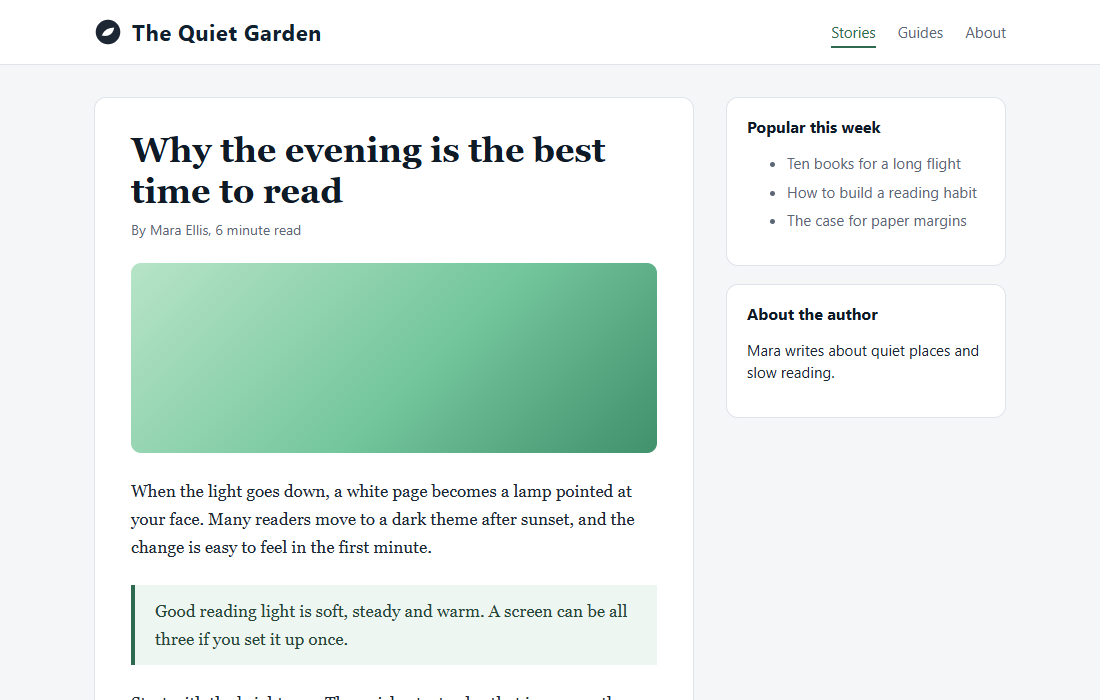
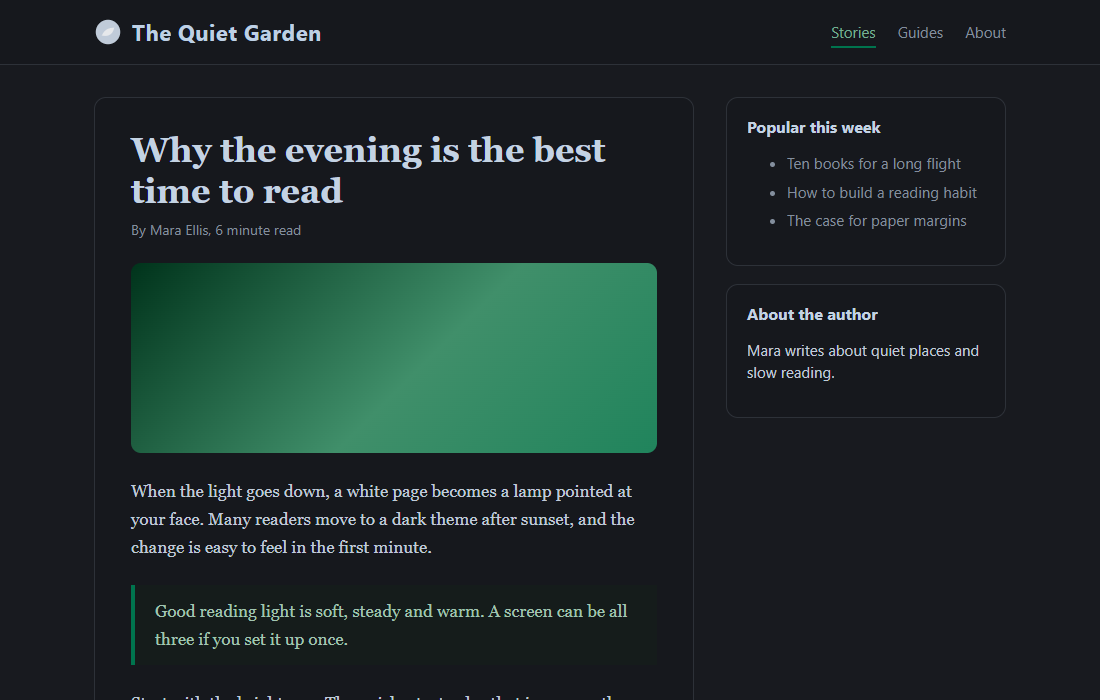
Tintly changes the colors of the pages you open. It can make them dark, light, paper-like or E-ink gray. It can also move colors apart when red and green look the same to you. It works on your device only, and it needs no account.
Your first minute
- Open any web page. Tintly starts working at once and turns a light page dark.
- Click the Tintly icon in the toolbar. The toolbar window opens. If you do not see the icon, open the extensions menu of your browser and pin Tintly.
- In the row of mode buttons, click Paper. The page turns into a calm page of paper and ink. Click Dark to go back. The modes are described in Choose a mode.
- Move the Brightness slider. The page follows while you move it.
- Click the switch next to the address of the site. Tintly is now off for that site only. Click it again to turn Tintly on.
That is all you need to start. The rest of this guide explains each part.
The toolbar window
The toolbar window
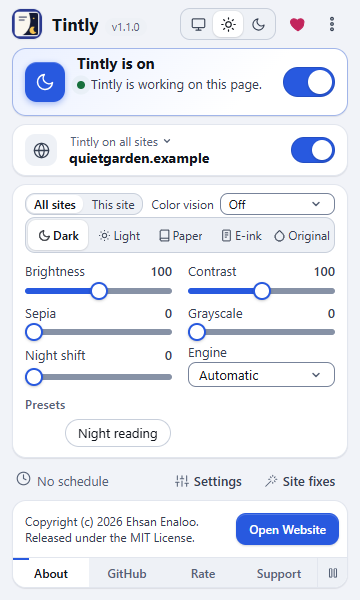
From top to bottom:
- Tintly is on. The big switch turns Tintly on or off for every site. While Tintly is off, the controls below are dimmed and do not react. The line under the title says what Tintly does on this page. On a page that the browser keeps closed, such as the new tab page, Tintly cannot change anything and the window says so.
- The site row. The address of the site you are on, with its own switch. The list above the address chooses where Tintly works: Tintly on all sites or Tintly only on sites I turn on. See Control a single site.
- All sites and This site. They choose where your changes in the window are saved: for every site, or only for this one.
- Color vision. A list of color vision filters. See Tell colors apart with color vision correction.
- The mode buttons. Dark, Light, Paper, E-ink and Original. One click is enough. See Choose a mode.
- The sliders. Brightness, Contrast, Sepia, Grayscale and Night shift. In Paper and E-ink two sliders replace these five. In Original there are none.
- Engine. The way the page is colored. Automatic is right for most people. See Pick an engine.
- Presets. Your saved looks. See Save a look as a preset.
- The bottom row. Settings opens the settings page. Site fixes opens the fix editor for this site. No schedule or the next change of your schedule is also shown here. See Use a schedule.
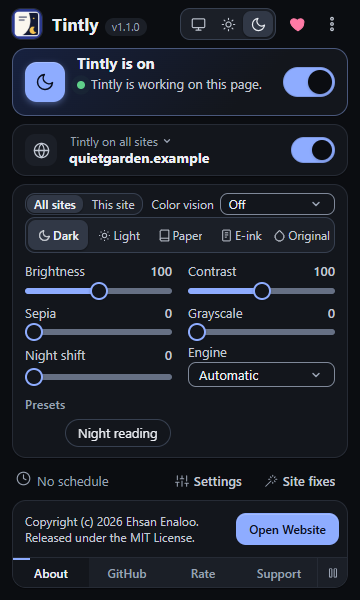
- The three small icons at the top. They choose the look of the Tintly windows only: the same as your system, light or dark. They do not change the pages you visit.
- The heart at the top. Support Tintly opens the support page on enaloo.com.
Use the keyboard
| Shortcut | What it does |
|---|---|
| Alt+Shift+D | Turns Tintly on or off |
| Alt+Shift+S | Turns Tintly on or off for the current site |
More actions have no key until you set one: Switch the theme engine, and one action for each mode (Dark, Light, Paper, E-ink and Original). Open Settings, go to Shortcuts, and choose Change shortcuts. See Keyboard and accessibility.
Open the settings
Choose Settings at the bottom of the toolbar window, or open the menu with the three dots and choose Settings. The same menu has Help and guides, About Tintly and Support Tintly. The settings open in a tab.
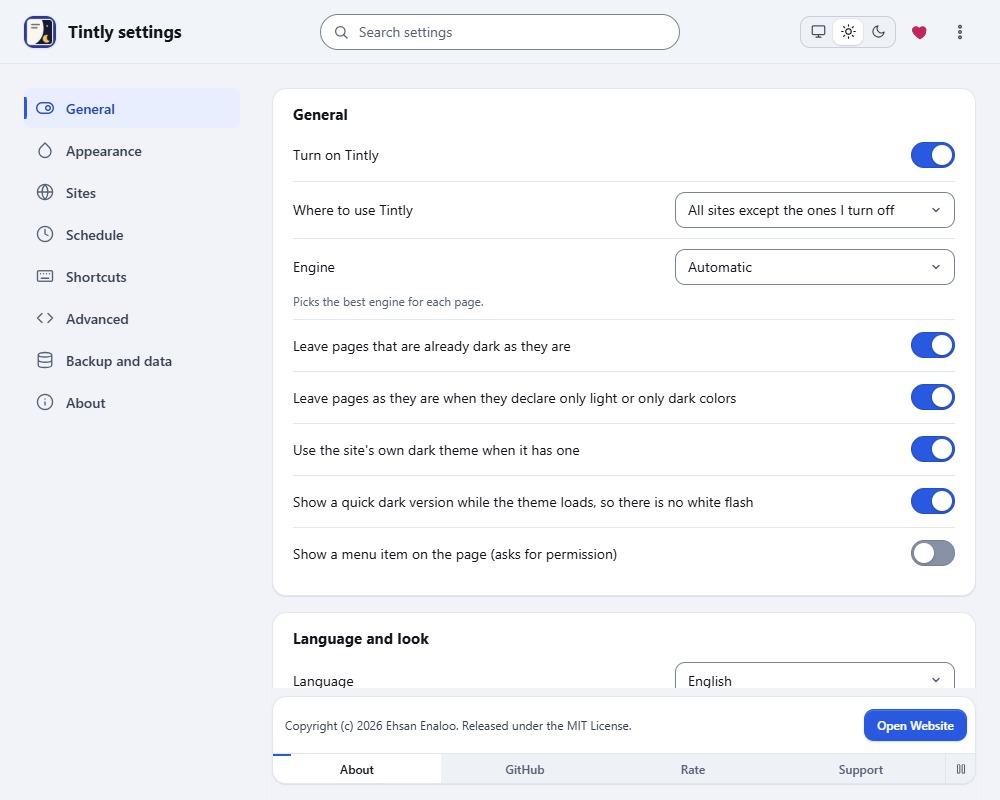
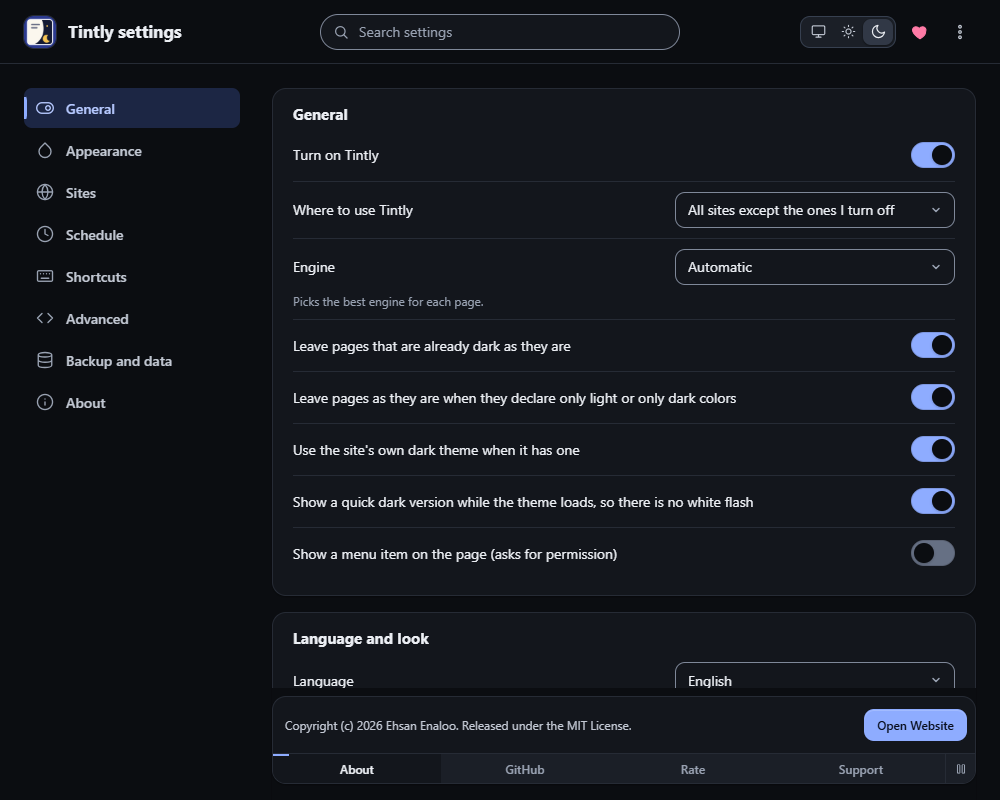
The settings page, General
The list on the side has eight parts:
| Part | What you do there |
|---|---|
| General | Turn Tintly on, choose where it works, pick the engine, the language and the look of the Tintly windows |
| Appearance | Colors, palettes, fonts, E-ink and Paper details, color vision, presets. See Colors, fonts and palettes |
| Sites | One rule for each site. See Control a single site |
| Schedule | Turn Tintly on and off by the hours, the sun or your system. See Use a schedule |
| Shortcuts | See the keys for Tintly, with help to change them. See Keyboard and accessibility |
| Advanced | Your own CSS for all sites, and the fix editor |
| Backup and data | Export, import, sync and reset. See Back up, move and reset |
| About | The version, the links and a way to support Tintly |
Type in the search box at the top to look through all of them.
If a page looks wrong
Try a different mode or engine in the toolbar window first. If that does not help, turn Tintly off for that site. Fix a page that looks wrong lists what to try, in the order that usually works fastest.
What to read next
- Choose a mode to pick between Dark, Light, Paper, E-ink and Original.
- Tell colors apart with color vision correction if red and green look alike to you.
- Read like on paper with E-ink mode for long reading.
- Control a single site and Use a schedule to make Tintly work by itself.
- Questions and answers for the most common questions.
Was this page helpful?