All guides
No guide matches your search.
Choose a mode
Dark, Light, Paper, E-ink or Original. See what each mode looks like, which one fits your eyes and your screen, and how to switch between them.
On this page
A mode is the way Tintly shows a page. You choose it in the toolbar window with one click. The page changes at once, and Tintly remembers your choice.
| Mode | Best for | What you get |
|---|---|---|
| Dark | Evenings, dim rooms, OLED screens | A dark theme with the palette you choose. Text stays easy to read |
| Light | Bright rooms, and pages that are dark and that you want to read on a light background | A clean light theme with the palette you choose |
| Paper | Long reading on any screen | A warm paper color, soft ink, a little less white and less blue light |
| E-ink | The calmest page, and black and white screens | White paper, black ink and grays, with no animation |
| Original | Keeping the page as its author made it | The page's own colors. Only the filters you choose are applied |
Dark
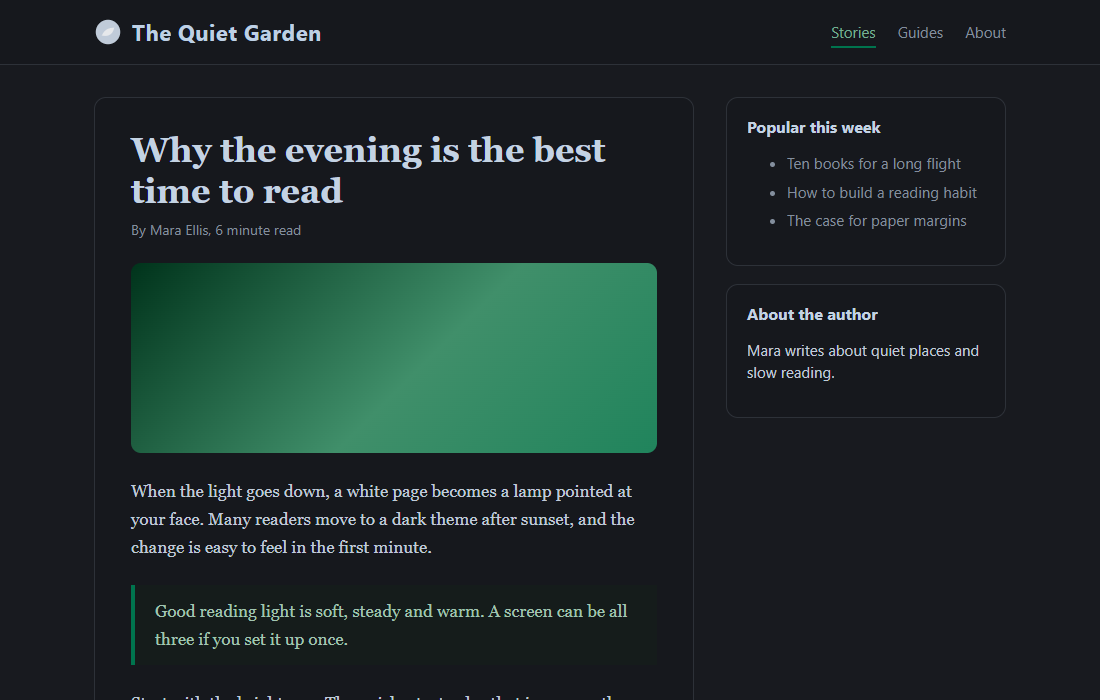
Dark turns a light page dark and leaves a page that is already dark as it is. Pictures, logos and charts are checked: dark logos on white are inverted, and very bright photos are dimmed a little. Text keeps a contrast of at least 4.5 to 1, so it stays easy to read. A big bright picture does not light up the page: a plain drawing turns dark and a photo is dimmed.
Dark has seven palettes, from Graphite to AMOLED black, and sliders for Brightness, Contrast, Sepia, Grayscale and Night shift. See Colors, fonts and palettes.
Light
Light gives a page a clean light look. It is useful when a site is dark and you want to read it on a light background, for example in a bright room. It has its own four palettes: Default, Warm paper, Cool gray and High contrast. The same sliders as in Dark are available.
Paper
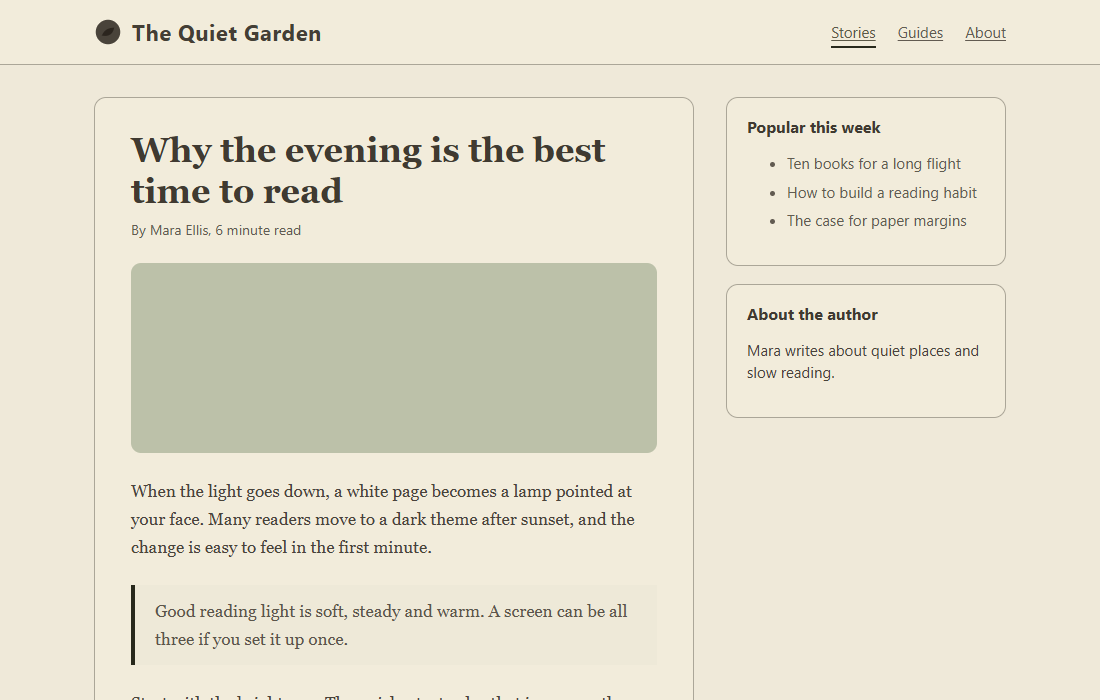
Paper is made for long reading. The page gets a warm paper color and soft dark ink. Pictures keep a little color and are a little darker. Two sliders take the place of the five: Brightest white and Less blue light. Use them late in the evening.
E-ink
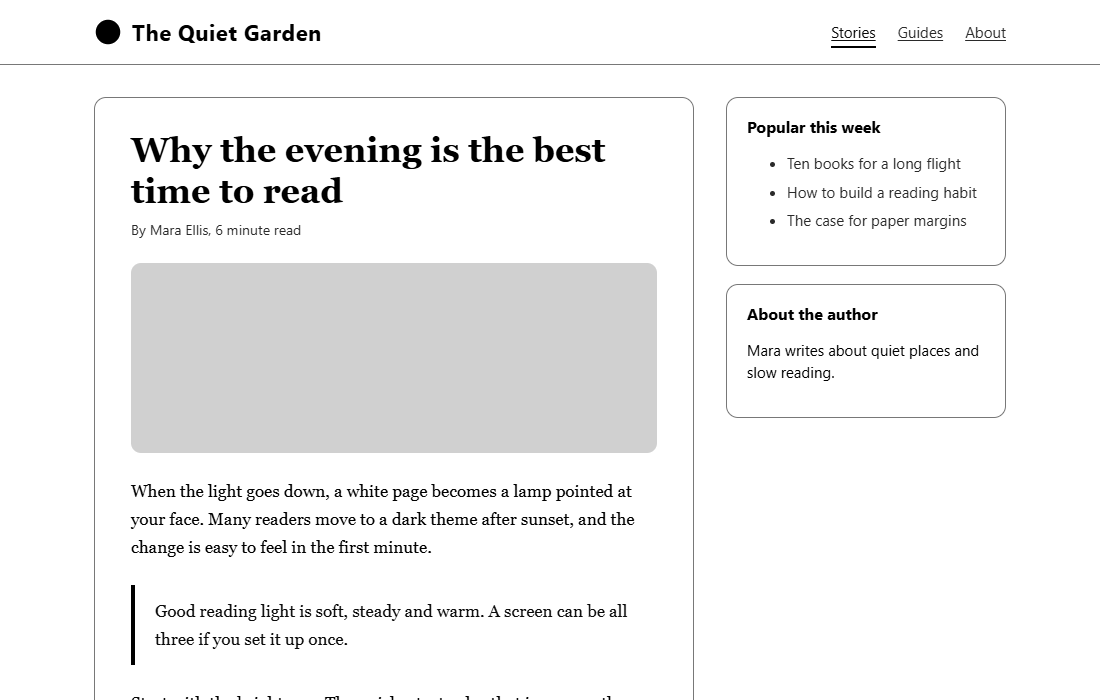
E-ink is the calmest mode. The page is white paper with black ink, in grays only. Pictures turn gray. Animations, transitions, smooth scrolling and shadows stop. It suits screens with no color and people who find colors and movement tiring.
Paper and E-ink have many options of their own: the paper color, the ink color, gray levels, thicker lines and more. See Read like on paper with E-ink mode.
Original
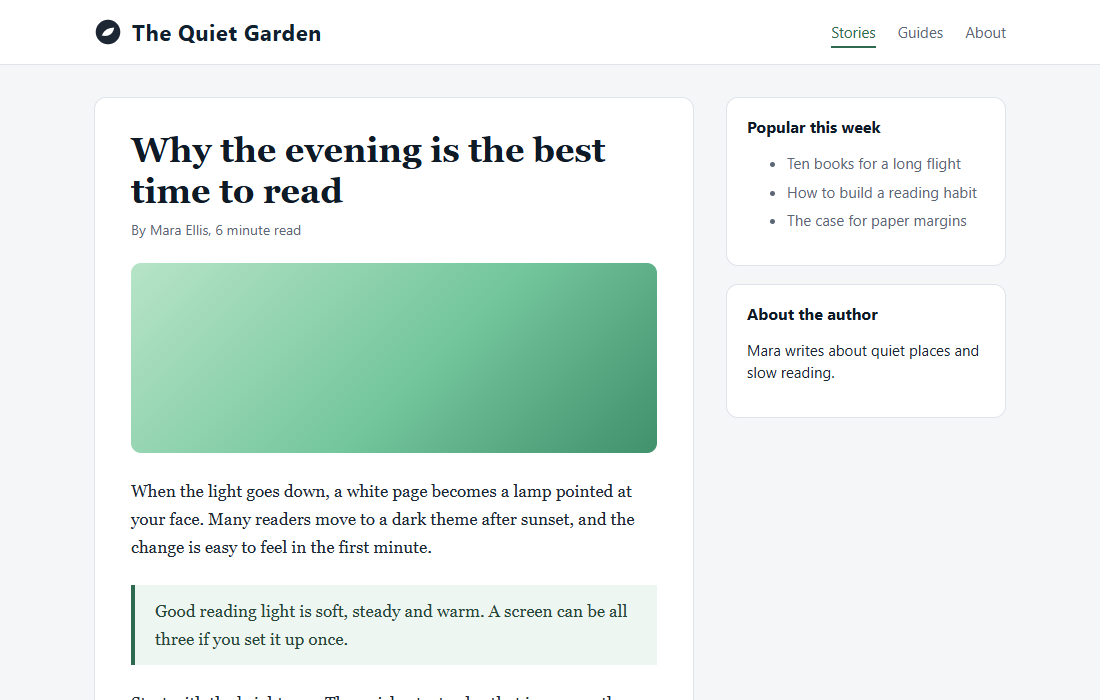
Original is what Tintly starts with. In Original, Tintly does not change the colors of the page. It applies only what you choose on top of the page: a color vision filter, a gray or inverted page, or underlined links. If you choose nothing, Original changes nothing. Use it when you like the colors of a page and want only a filter. See Tell colors apart with color vision correction.
Switch the mode
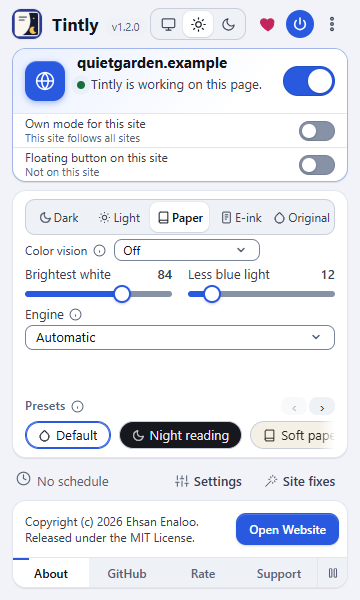
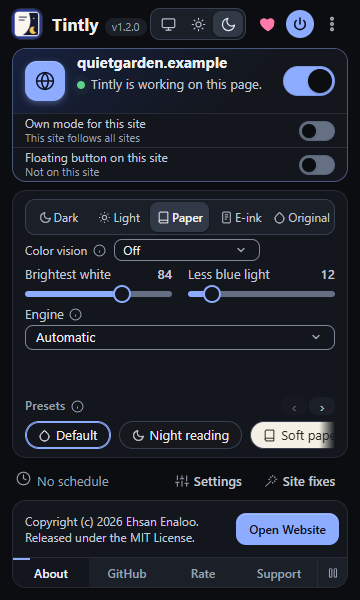
The toolbar window in the Paper mode, with its two sliders
- Click the Tintly icon.
- Click a mode button.
A mode applies to all sites. To give one site its own mode, turn on Own mode for this site in the window. A site can also change mode by itself on a schedule. See Control a single site and Use a schedule.
Which mode should I choose?
- Your eyes hurt at night. Dark, with the Night shift slider for warmer colors.
- You read long articles. Paper. For the calmest page, E-ink.
- You use a black and white screen. E-ink.
- A site is already dark. Dark leaves a page that is already dark as it is.
- You like the colors of a site. Give that site Original as its own mode.
- Red and green look alike to you. Use Original with a color vision filter, or keep your mode and add the filter.
- A page looks wrong in one mode. Try another mode or another engine, or turn Tintly off for that site.
Change the mode from the page
Tintly can show a small button on the page, so you can change the mode without opening the toolbar window. It is off at first.
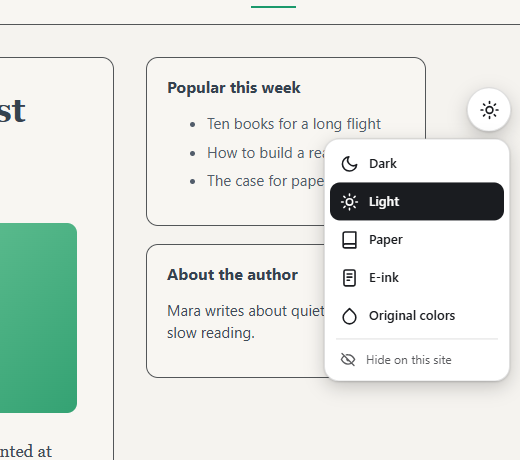
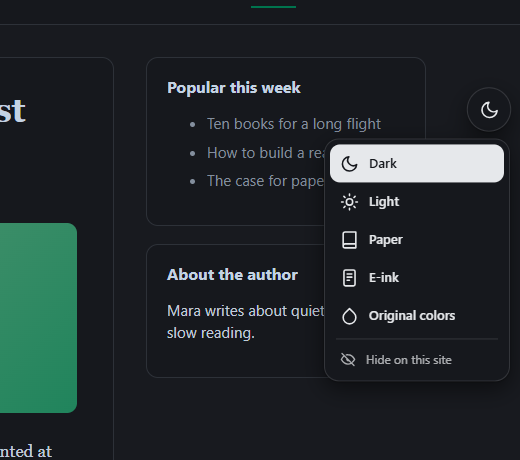
The floating button and its list of modes
- Click the Tintly icon and turn on Floating button on this site. To have it on every site, turn on Floating button on all sites in Settings, General.
- Click the button on the page to see the modes, and click a mode.
- To move the button, drag it. Tintly keeps its place for each site, on this device only.
- To hide it on one site, click it and choose Hide on this site. Turn the switch on in the toolbar window to show it there again.
- With the keyboard, the arrow keys move the button while it has the focus. Enter opens it and Esc closes it.
The button shows only on sites where Tintly is on. It follows the colors of the mode you use and the language you chose in Tintly. When a site rule or a schedule sets the mode of the page, the panel says so. A click on a mode then does not change that page.
Was this page helpful?