All guides
No guide matches your search.
Tell colors apart with color vision correction
Tintly can move colors that look alike to you, such as red and green, apart. It can also show pages in gray or with inverted colors.
On this page
Some people see red and green, or blue and green, as almost the same color. A chart, a map, a status light or a red error next to a green "done" can then be hard to read. Color vision moves those colors apart, toward colors you see well. Grays, black and white stay as they are, and so does how light or dark each color is.
See the difference
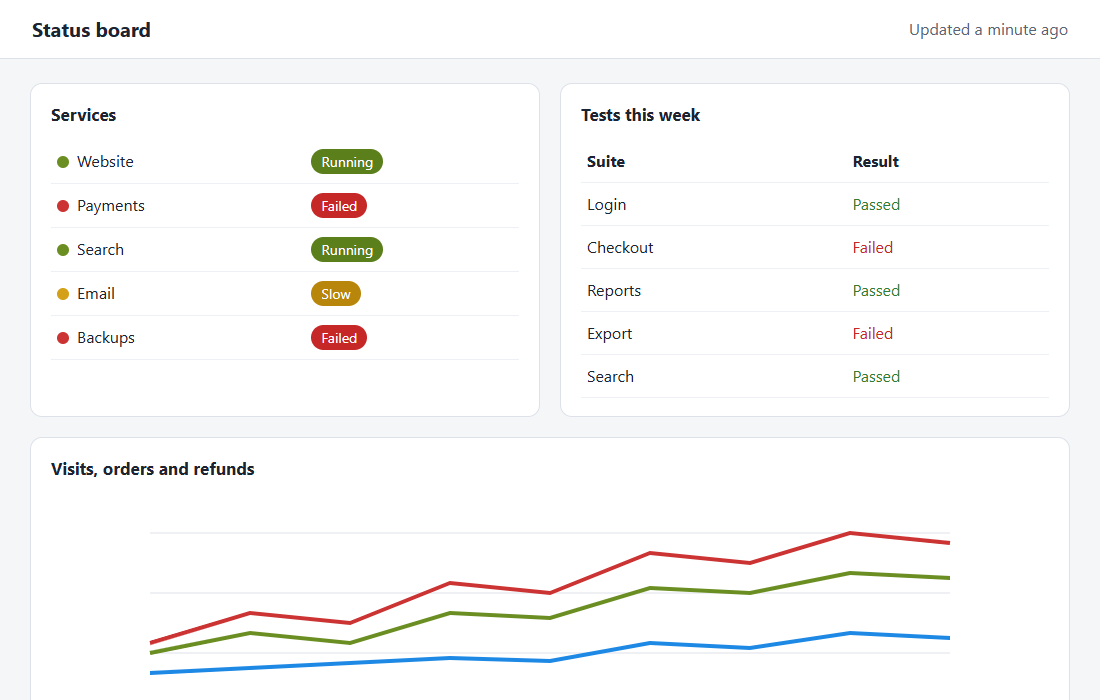
This is a status board as the page draws it. The red "Failed" and the green "Running" look alike to many people with red or green color weakness. The red, green and blue lines of the chart are hard to follow.
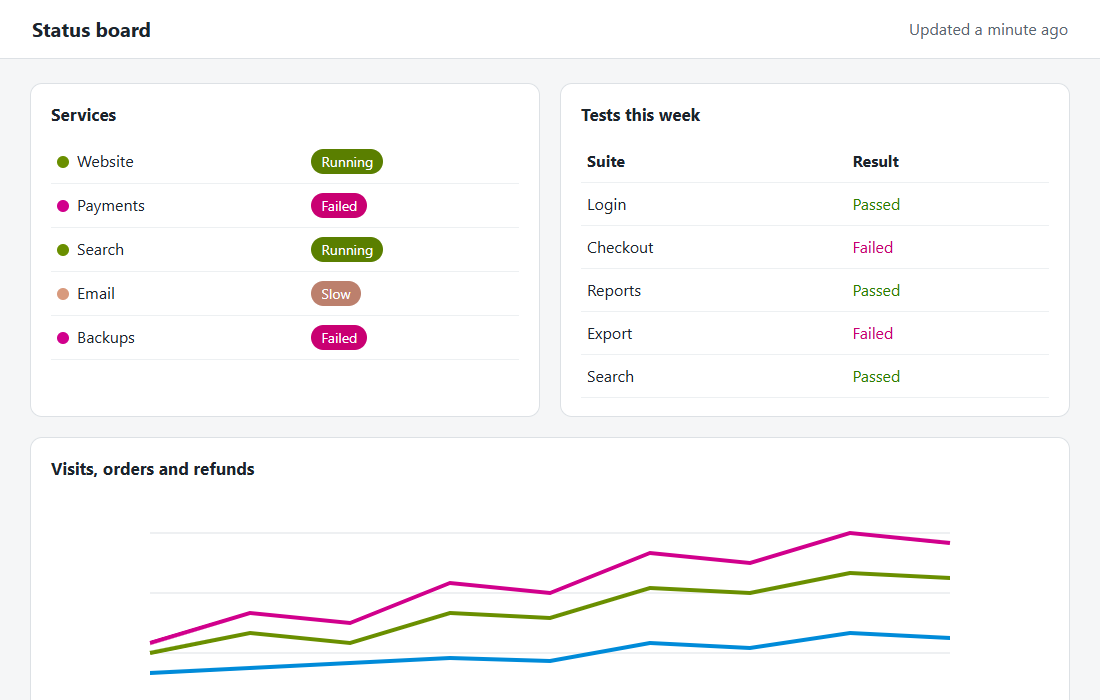
This is the same page with the Green weak (deutan) filter. The reds turn to magenta, the greens stay green, and the blue stays blue. "Failed" and "Running" are now easy to tell apart, and so are the lines of the chart.
Turn it on in the toolbar window
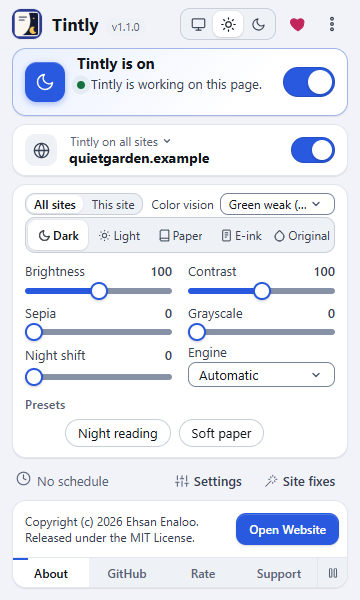
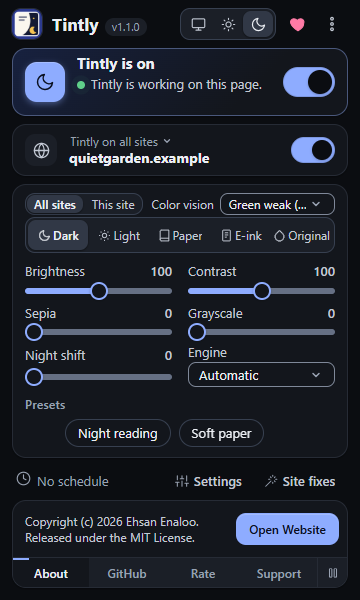
The toolbar window, Color vision list
- Click the Tintly icon.
- Open the Color vision list above the mode buttons.
- Choose the type that fits you. The page changes at once.
The filter works in every mode. Use it with Dark, Light or Paper, or use Original to keep the page's own colors and move only the colors that cause trouble.
Choose your type
| Filter | For people who | What changes |
|---|---|---|
| Red weak (protan) | See red as weaker or darker | Colors that look alike to this type move apart, such as red and green. Reds also get a little lighter, so they look as bright as they should |
| Green weak (deutan) | See green as weaker | Colors that look alike to this type move apart, such as red and green |
| Blue weak (tritan) | See blue as weaker | Colors that look alike to this type move apart, such as blue and green |
If you are not sure which type you have, an eye care professional can test your color vision. You can also try each filter on a page with a chart or a status light. Keep the one where the colors look the clearest to you.
Fine tune it in the settings
Open Settings, Appearance and find the Color vision card.
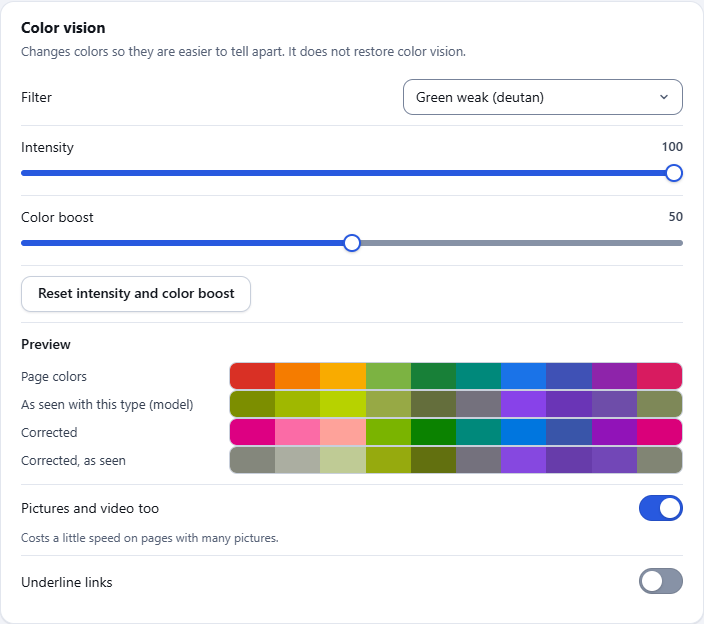
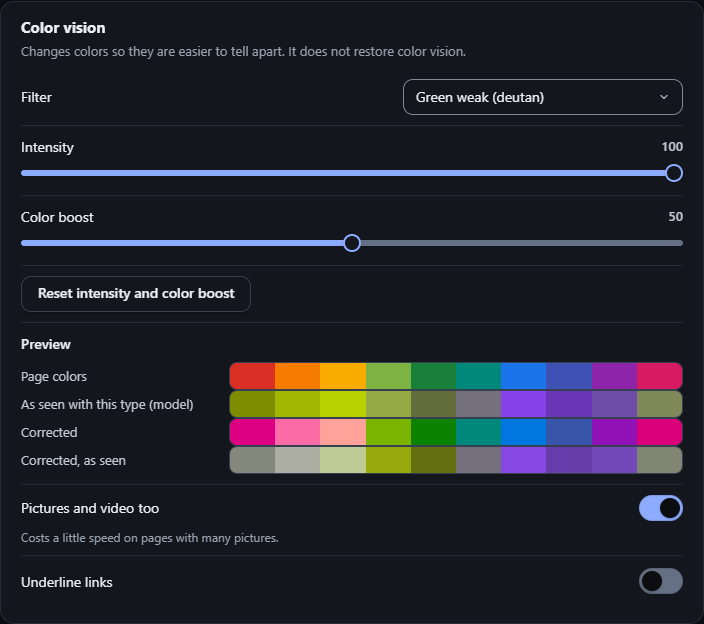
The Color vision card, with the preview
- Filter is the same list as in the toolbar window.
- Intensity sets the strength. 100 is for people who do not see that color at all. A lower value is for a milder form.
- Color boost sets how far the colors move. 50 is the middle. A higher value moves soft colors more. Above 50, strong colors such as a bright red can also get a little lighter or darker so they have room to change. Dark text colors do not get lighter and light ones do not get darker, so text stays easy to read.
- Reset intensity and color boost puts both back to 100 and 50.
- Preview shows a row of common colors as the page has them and after the filter. For the three color types it also shows them as a person with this type may see them, before and after. Those rows come from a published model of color vision.
- Pictures and video too applies the filter to pictures, video and icons.
- Underline links puts a line under every link.
Pictures and video
Pictures, video and icons follow the filter too. This includes icons and pictures that a site draws as a background. A picture behind text, such as a banner with a title on it, keeps its colors. The switch Pictures and video too is on at first. Turn it off to keep pictures as they are. On a page with many pictures the switch costs a little speed. The switch only matters with the Dynamic and Static engines. With the Filter and Filter+ engines, pictures always follow, because those engines color the whole page at once.
Underline links
Underline links puts a line under every link, so you can find a link without its color. It works in every mode, with or without a filter. In E-ink and Paper it turns the underline of that style on or off.
Gray and inverted pages
The same Filter list has three more choices. They work in the Original mode only, because the other modes already set the look of the whole page. In another mode they are turned off in the list.
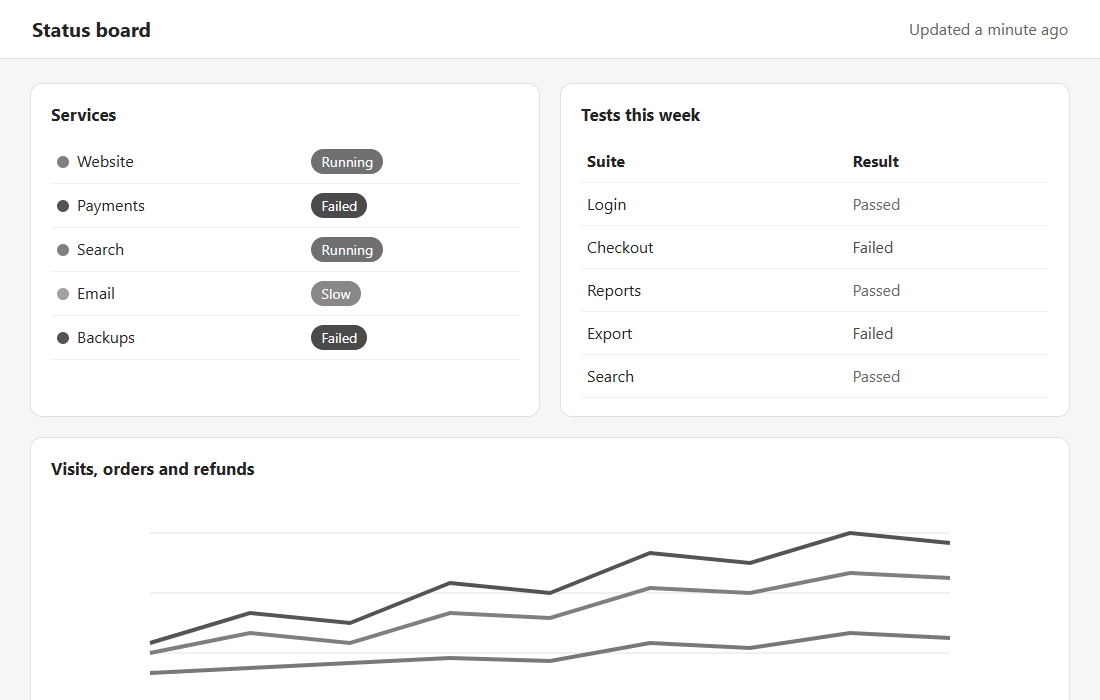
- Grayscale shows the page in gray.
- Grayscale inverted shows it in gray with light and dark swapped.
- Inverted swaps every color for its opposite.
Intensity sets how much of the filter you get. At 50, a page in Grayscale keeps half of its color. Color boost has no effect on these three.
Keep the page's own colors
If you like the colors of a page and only want the filter, choose Original in the toolbar window (Original colors in the settings page). Tintly then keeps the page as it is and changes only what the filter changes. With Filter set to Off and links not underlined, Original changes nothing.
Original is a mode like the others, so a site rule or the schedule can use it too.
E-ink
E-ink with no color shows the page in gray, so the three color types have nothing to change. They are then turned off, and the card says why. To use them in E-ink, turn up the Color setting of E-ink in Settings, Appearance. Paper keeps them.
One site only
You can give one site its own filter. In the toolbar window, choose This site and then the filter. You can also set Color vision in the rule of the site in Settings, Sites. See Control a single site.
Tips
- Try the filter on a page you know well, such as a chart or a status board, and compare with the filter off. Choose Off in the list to see the page as it is for a moment.
- If the colors move too far, lower Intensity. If they do not move enough, raise Color boost.
- The filter changes how colors are drawn on your screen. It does not change the page for other people.
Was this page helpful?