All guides
No guide matches your search.
Keyboard and accessibility
How to use Tintly without a mouse, how it follows your system settings for motion and forced colors, and how to change the shortcuts.
On this page
Shortcuts
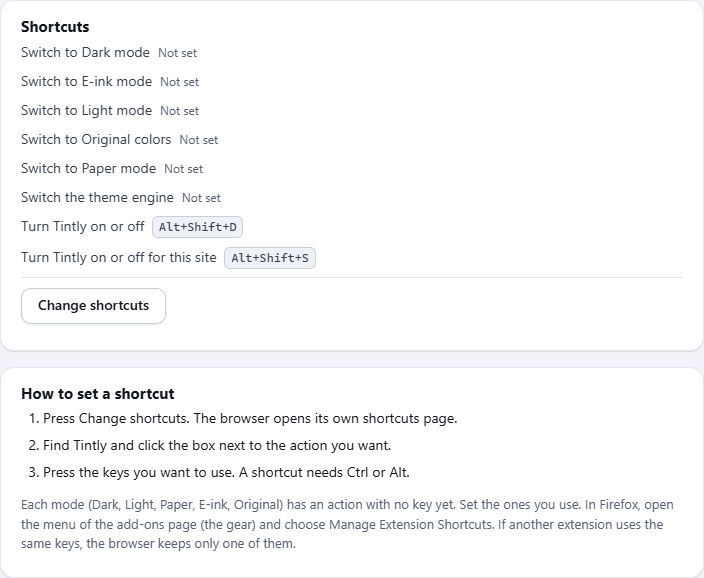
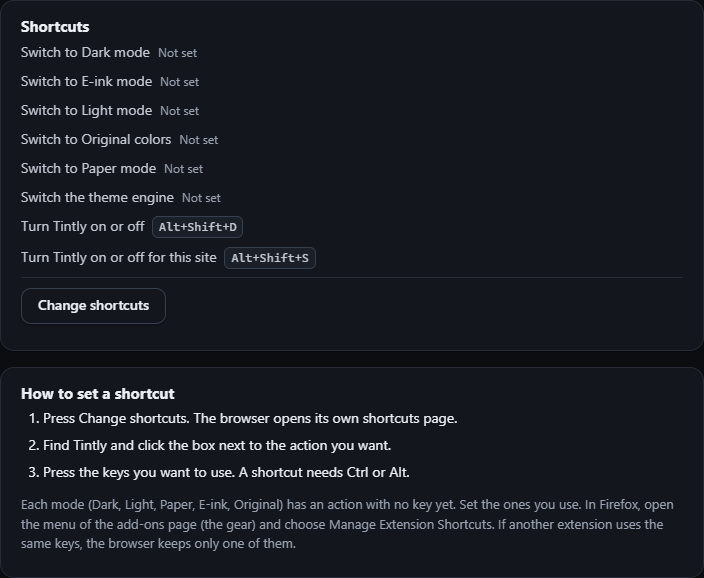
Settings, Shortcuts: the shortcuts and the button Change shortcuts
Open Settings and go to Shortcuts. The list shows every action of Tintly and its key. An action without a key says Not set.
| Action | Key at first |
|---|---|
| Turn Tintly on or off | Alt+Shift+D |
| Turn Tintly on or off for this site | Alt+Shift+S |
| Switch the theme engine | Not set |
| Switch to Dark mode | Not set |
| Switch to Light mode | Not set |
| Switch to Paper mode | Not set |
| Switch to E-ink mode | Not set |
| Switch to Original colors | Not set |
Switch the theme engine moves to the next engine. Each mode action sets the mode for all sites, like a mode button in the toolbar window with All sites chosen. Set a key only for the actions you use.
Set or change a key
- In Settings, Shortcuts, choose Change shortcuts. The browser opens its own page of shortcuts.
- Find Tintly and click the box next to the action you want.
- Press the keys. A shortcut needs Ctrl or Alt.
In Firefox, open the menu (the gear) of the add-ons page and choose Manage Extension Shortcuts. If another extension uses the same keys, the browser keeps only one of them. Some browsers, such as some phone browsers, have no shortcuts. Tintly works there all the same, without keys.
Keyboard
The toolbar window, the settings page and the fix editor work with the keyboard. Use Tab and Shift+Tab to move, and Enter or Space to press a button. The focus is always visible. The settings page has a search box at the top that looks through all of the settings.
Buttons that delete something ask for a second press. After you delete a site rule, a preset or a fix, a message appears with Undo.
Motion and forced colors
The Tintly windows follow two settings of your system: reduced motion, and forced colors (high contrast mode). They also fit a short window and a narrow page.
When your system uses forced colors, Tintly leaves the pages you visit as they are, so the colors of your system stay in charge.
Reading colors
Text keeps a contrast of at least 4.5 to 1 after Tintly colors a page, and outlines and the borders of form controls keep 3 to 1. In E-ink mode text keeps at least 7 to 1. The High contrast light palette gives more. For eyes that tire easily, see Read like on paper with E-ink mode.
Was this page helpful?