All guides
No guide matches your search.
Change settings on Customize, Optimize and Privacy
Find a setting, pick a new value, and apply it after one review. This guide covers tabs, search, filters, risk levels, sources and recommended values.
On this page
Three pages under Tune work the same way:
- Customize has the settings of your Windows account, such as File Explorer, the taskbar, Start and the theme.
- Optimize has settings that Microsoft documents for Windows, such as telemetry, activity history and location. They apply to all users of this PC, so they need administrator rights.
- Privacy shows what apps may use on this PC for your account, such as the camera, the microphone and the location. Windows Settings shows the same switches.
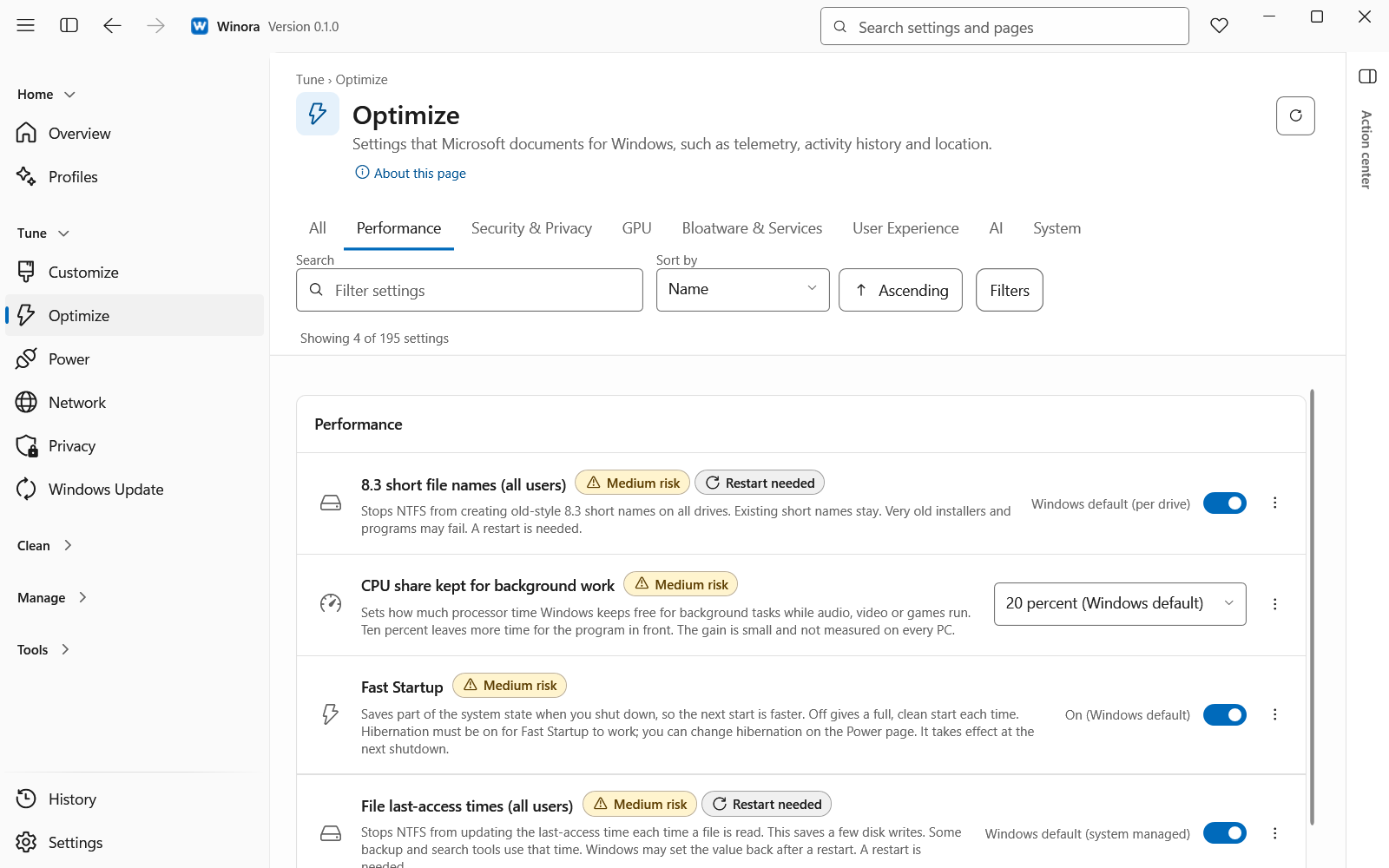
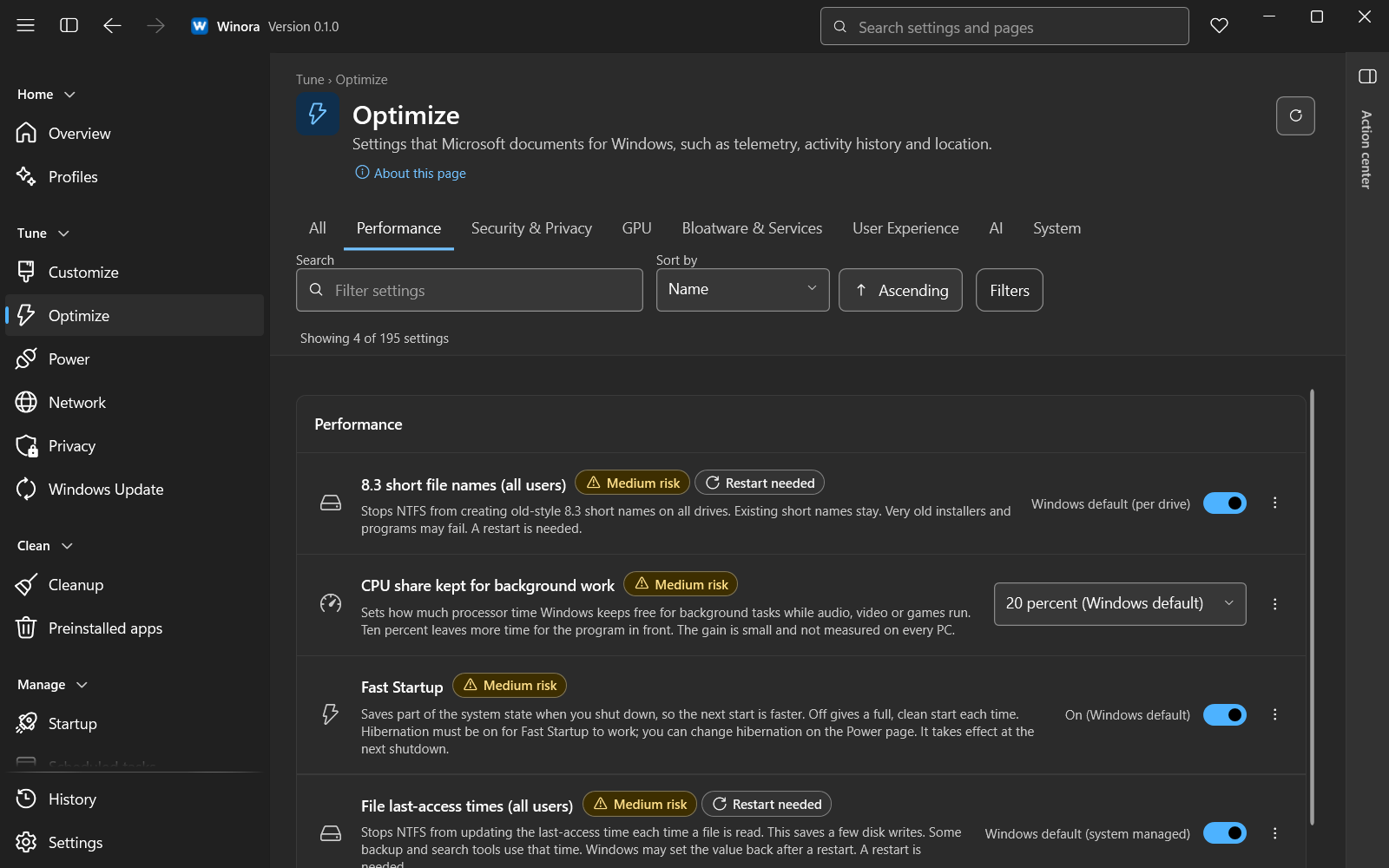
Each row shows the value now, the risk level and the source.
Find a setting
- Tabs. Each page splits its settings into tabs. The first tab, All, shows every setting. Customize has tabs such as File Explorer, Taskbar and Start menu. Optimize has tabs such as Performance, Security & Privacy and GPU. Privacy groups its switches into Devices and sensors, Personal data and Files and system.
- Search. Type in Filter settings to search by name, description or value. Press Ctrl+F to jump to the box and Esc to clear it.
- Sort. Under Sort by choose Name or Risk. This changes the order inside each group.
- Filters. Click Filters to show only some settings. Under Risk and Source each button turns a filter on or off. Under Show you can pick Pending changes, Changed by Winora, Differs from Windows default, Windows-managed or Not available. The button shows how many filters are on.
If nothing matches, click Clear search and filters.
Read a setting
Each row shows the setting name, its value now and a few marks.
- Risk level. Low risk, Medium risk or High risk. A medium risk change can change how some programs or Windows features behave. A high risk change can lower your protection or stop features from working.
- Source. Where the setting comes from: Microsoft (Microsoft documentation), Vendor or expert (vendor or expert material) or Community (community material).
- State. A row can show Pending, Changed by Winora, Changed later or Differs from Windows default. Set by your organization means a policy controls the setting, so Winora does not change it.
Open the menu at the end of a row for Details, reset, undo and Copy setting name. The details show the current value, the Windows default, what can go wrong, why Winora offers the setting and its source reference.
Pick a new value
Change the switch or the list of a row. The new value is a pending change. Nothing changes in Windows yet.
High risk settings sit in the group Advanced settings (high risk) at the end of the page. Their rows have a Review change button. It opens the details, where you read what can go wrong and then change the value.
You can pick values on several pages. All pending changes wait in the Action center until you apply or discard them.
Select all recommended
A page can show a line such as 5 recommended changes on this page. Click Select recommended (or Select all 5) to pick the recommended value of every such setting. This also covers settings on other tabs or hidden by the search or filters. Nothing is applied until you review the changes.
Review and apply
Click Review and apply in the bar of pending changes, or press Ctrl+Enter. On Customize you can also click Review all pending in the page header.
The review shows, for each setting:
- What will change, with the value Now and After.
- Risk.
- Can it be undone? For most settings the answer is that Winora saves the old value and can put it back.
- Restart, if a restart or a new sign-in is needed.
When the list has high risk changes, tick I have read this and want to continue, then click Apply high risk changes.
Changes for all users can start with a question about a restore point. Click Create and continue, Continue without or Cancel. Winora asks this once each time you open the app.
Changes apply one after another and stop at the first failure. Changes already applied stay applied and can be undone from History.
When a change takes effect
Most changes work at once. Some need more:
- Explorer restart needed. File Explorer must restart. Tick Restart Explorer so this takes effect now in the review, or click Apply now (restart Explorer) later. Open File Explorer windows close and the taskbar flickers for a moment.
- Sign-out needed. The change works the next time you sign in. Sign out now signs you out, only if you ask.
- On Optimize, some changes need a restart of the PC.
- On Privacy, restart the apps that are open so that they see the change.
Privacy quick switches
The Privacy page has two buttons at the top:
- Turn off camera and microphone (or Turn on camera and microphone) changes both switches for all apps of your account, including desktop programs.
- Privacy lockdown blocks the camera, the microphone and the location in one step. You can undo it as one group.
Both open the same review first.
Change history on each page
When Winora has changed settings on a page, a line such as 4 settings changed by Winora appears with an Undo all button. It opens one review that shows every value going back.
At the end of each page, Change history lists the changes made there. Click Show all in History to see them with the other pages.
Was this page helpful?