All guides
No guide matches your search.
Profiles
A profile changes a named list of settings together. Review the plan, apply it with one confirmation, undo it in one step, or save your own.
On this page
A profile is a named list of settings that Winora changes together. You see every change first, confirm once, and can undo the whole profile later. Open Profiles under Home.
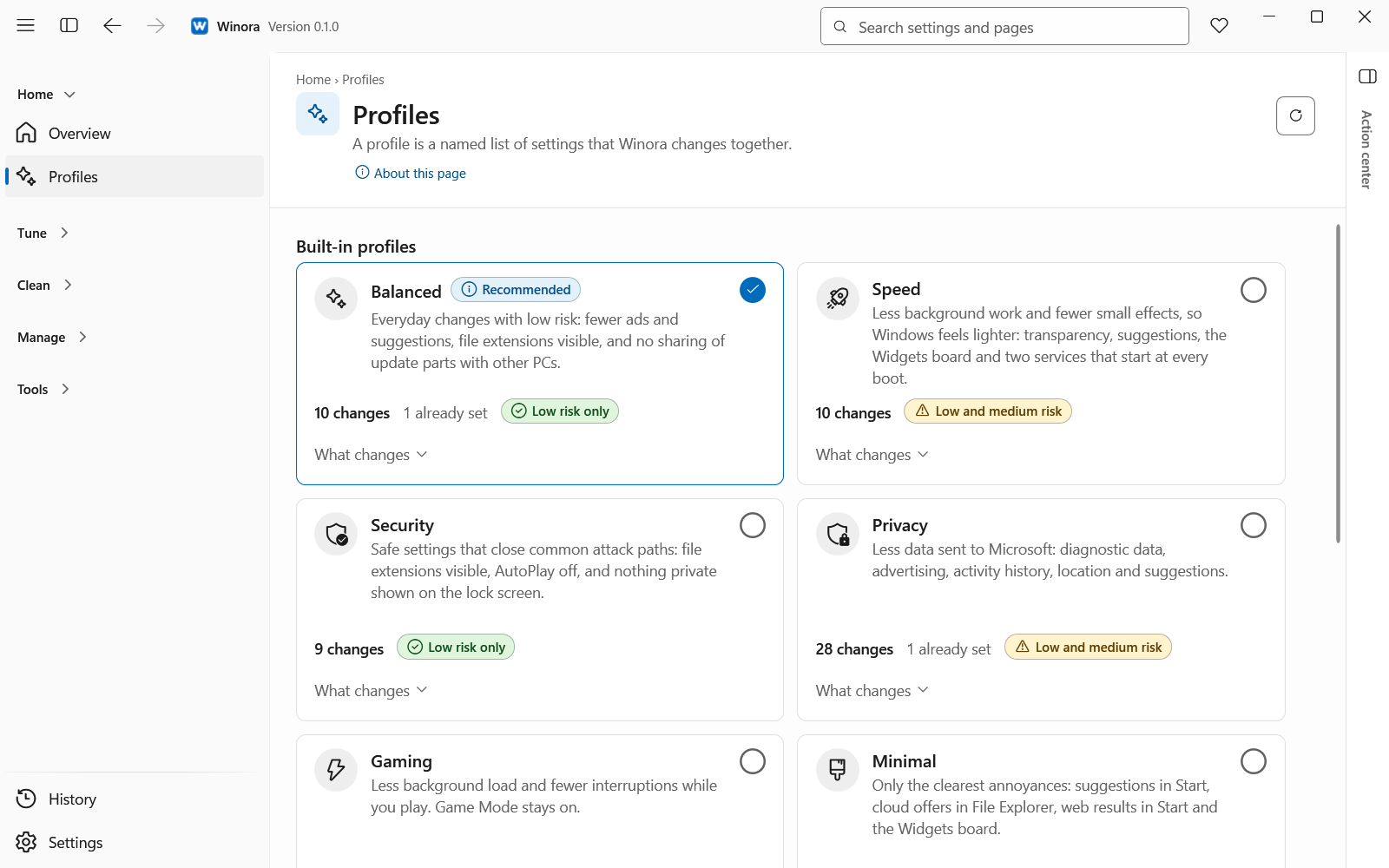
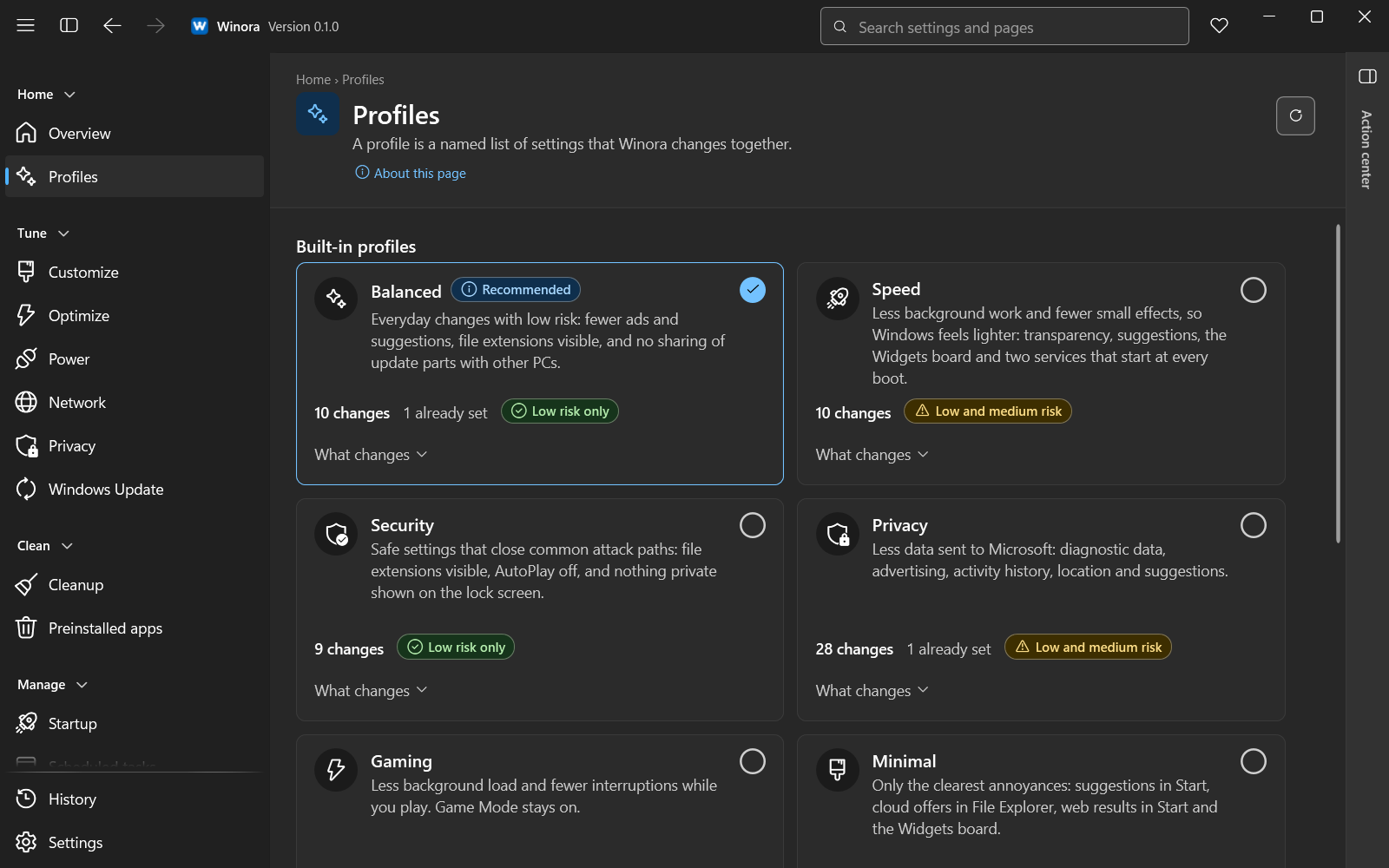
Each card shows how many settings would change on this PC.
The built-in profiles
| Profile | What it changes |
|---|---|
| Balanced | Everyday changes with low risk: fewer ads and suggestions, file extensions visible, and no sharing of update parts with other PCs. |
| Speed | Less background work and fewer small effects, such as transparency, suggestions and the Widgets board. |
| Security | Safe settings that close common attack paths: file extensions visible, AutoPlay off, and nothing private on the lock screen. |
| Privacy | Less data sent to Microsoft: diagnostic data, advertising, activity history, location and suggestions. |
| Gaming | Less background load and fewer interruptions while you play. Game Mode stays on. |
| Minimal | Only the clearest annoyances: suggestions in Start, cloud offers in File Explorer, web results in Start and the Widgets board. |
Each card shows how many changes it would make on this PC, how many settings are already set, and the risk, for example Low and medium risk. Click What changes to see the settings. Click Compare profiles to see which setting each profile sets and to what.
Apply a profile
- Click Review on a card, for example Review 8 changes. The plan opens.
- Read the plan. Each row says Will change, Already set or Skipped with the reason. A row also says whether it applies to This account or All users.
- Click Apply with the number of changes, for example Apply 8 changes. Read the confirmation and confirm.
- Winora applies each change in turn. Click Cancel to stop after the change that is running. What was applied stays and can be undone.
- The result shows how many changes were made. The Report lists each one.
Settings for all users need administrator rights. Without them, a profile changes only your own settings and skips the rest. Some changes show only after you restart File Explorer or sign out.
To leave the plan without changing anything, click Close plan.
Undo a profile
Click Undo profile. Winora puts back the settings this profile changed. A setting that something else has changed since is left as it is. You can also undo a profile on the History page.
Your own profiles
Under Your profiles you can keep your own lists of settings.
- Type a name in Name for a new profile.
- Click one of the two save buttons:
- Save my pending choices saves the settings you picked on Customize and Optimize but have not applied yet.
- Save changes Winora made saves the settings Winora changed that still have the value Winora set.
High risk settings and settings Winora does not know are left out.
To use a profile on another PC, click Export and save the file. On the other PC click Import a profile and choose the file. Profile files end in .winora-profile.json. Winora checks every entry and refuses what it does not know.
Delete removes a saved profile only. Settings that were changed stay as they are.
Was this page helpful?