All guides
No guide matches your search.
Free up space and clean up
Remove caches and temporary files, see what fills your drive, and restore or delete the leftover folders of removed programs on the Cleanup page.
On this page
Open Cleanup under Clean. The page has three tabs: Free space, Disk usage and Quarantine.
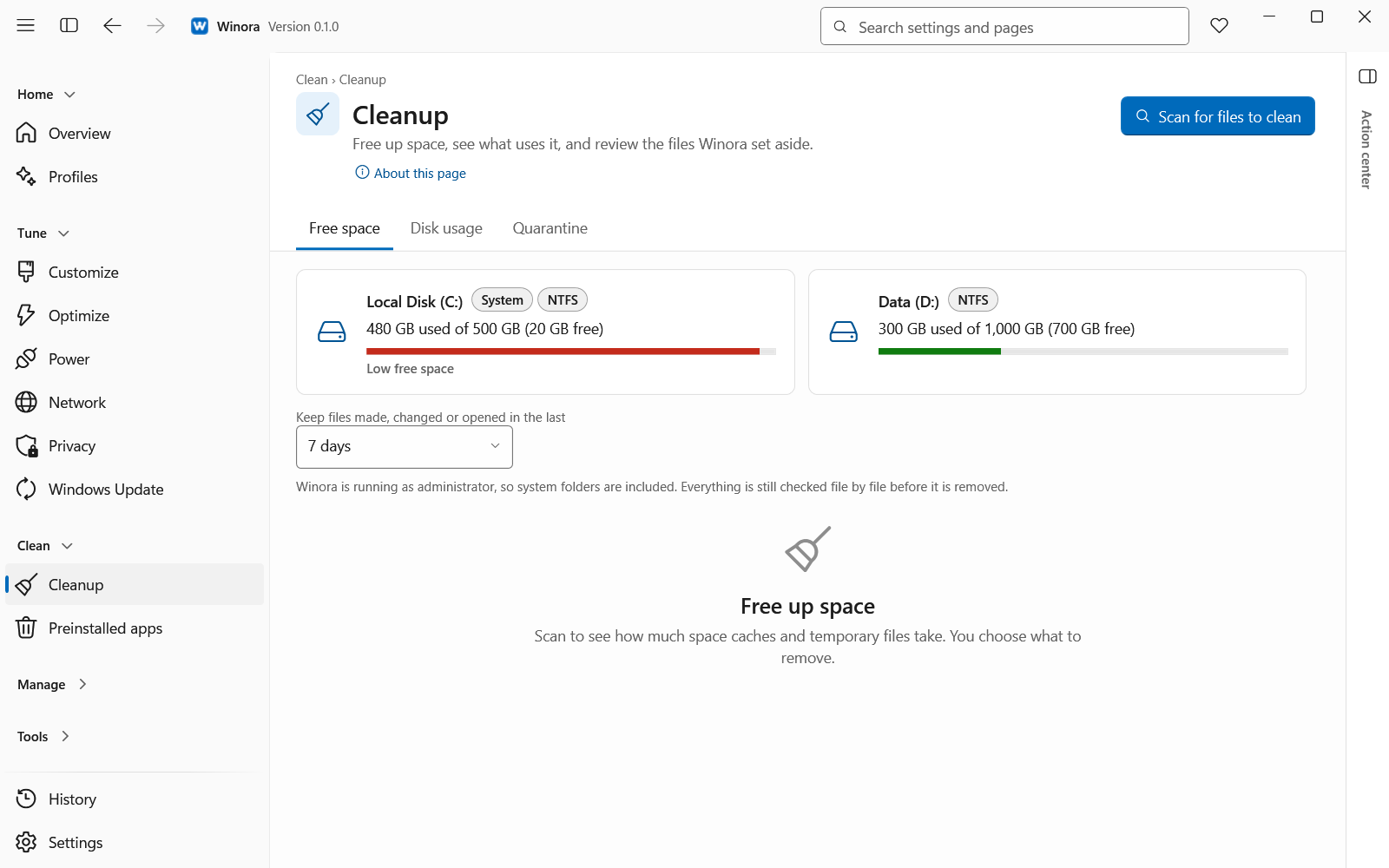
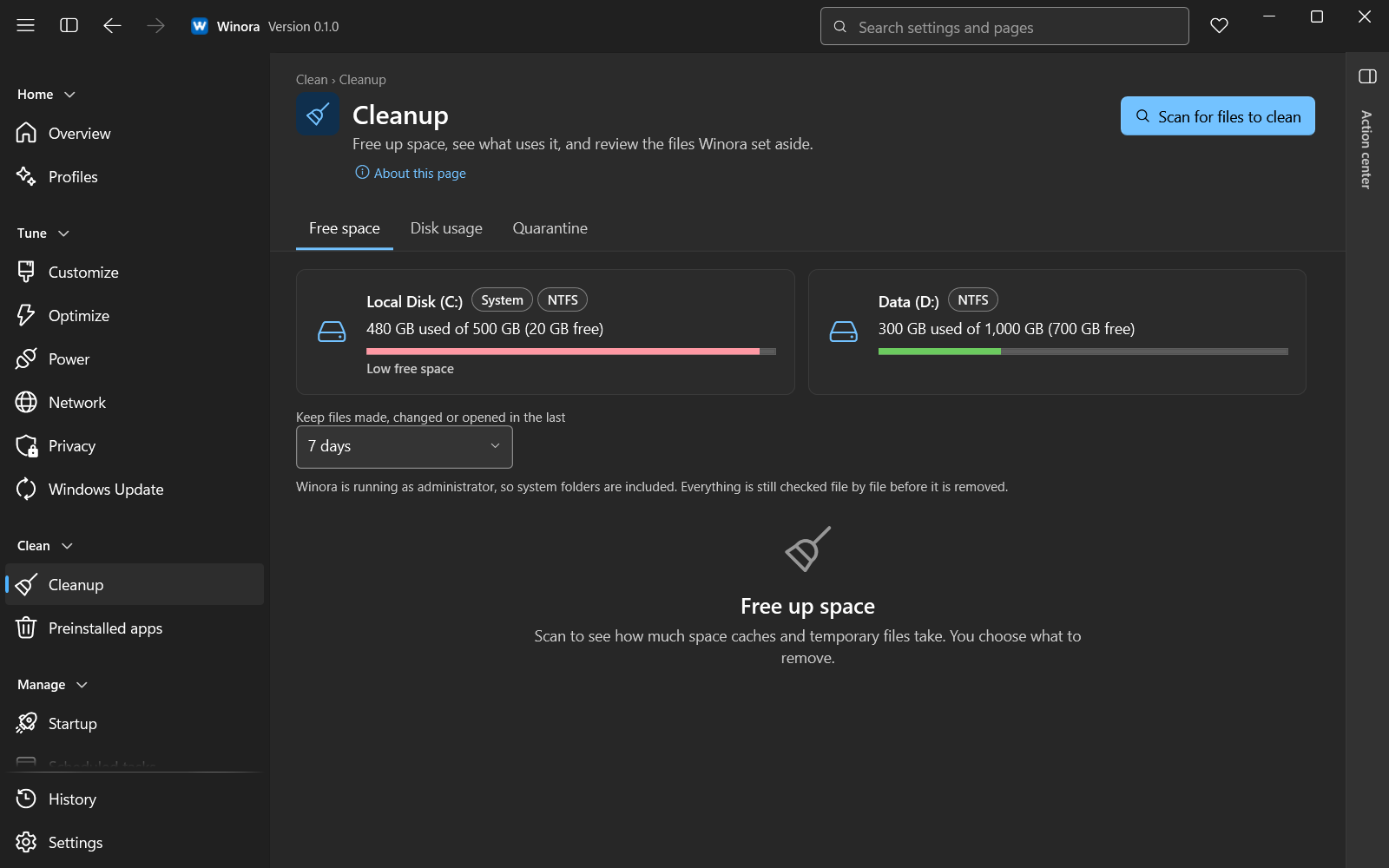
The Free space tab after a scan.
Free space
Winora looks in the places where Windows and your apps keep caches and temporary files, and shows how much space they use. You choose what to remove.
- Click Scan for files to clean. Scanning removes nothing.
- Look at the groups of files. Each group shows its size and the number of files.
- Tick the groups you want to remove. Select all low risk ticks every low risk group. The Recycle Bin is never ticked this way. Clear selection unticks every group.
- Click Clean selected. A confirmation lists the groups and their sizes.
- Click Remove files.
To clean only one group, click Clean on its row.
The groups include Temporary files, Thumbnail and icon cache, Temporary internet files, DirectX shader cache, Windows error reports, Crash dump files, Browser caches and Recycle Bin. When Winora runs as administrator, it also includes system folders such as Windows temporary files and Windows Update download cache.
Browser caches cover Edge, Chrome, Brave and Firefox. Cookies, history and passwords are not touched. Close the browsers first.
Removed files are gone for good
Files removed here do not go to the Recycle Bin and cannot be restored. Emptying the Recycle Bin also removes its items for good.
Keep recent files
The list Keep files made, changed or opened in the last sets how old a file must be before Winora offers it. Choose 7 days, 1 day or Keep none (any age). It applies to the temp folders, the web cache, error reports, memory dumps and update files. Changing it scans again.
With Keep none (any age), files that a program made a moment ago are offered too. Close your programs before you clean.
Files that a program has locked are skipped. After a cleanup, the Result shows what was removed and what was kept, with the reason.
Disk usage
This tab shows what uses the space on a drive or in a folder. Winora only reads file sizes here. It does not change or delete anything.
- Click a drive under Disks, or click Choose folder to pick any folder.
- Wait for the scan. The map and the list show the same items. Folders are frames that hold their content.
- Select a folder and press Enter to open it. Click Up or press Backspace to go up.
Sort the list by Name, Size or Files. Right-click an item, or press the Menu key, for more actions: Zoom in, Zoom out, Open path in File Explorer, Open containing folder, Copy path, Copy size and details and Scan this folder.
Turn on Show patterns on the map to add a line pattern to each file type, so the map does not depend on color alone.
Quarantine
When you remove a program on the Apps page, Winora can look for the folders it left behind. The folders you choose wait here. See Apps and preinstalled apps.
- Restore puts an item back where it was.
- Delete removes one item for good after you confirm.
- Empty quarantine deletes every item for good after you confirm.
Items in Quarantine are deleted for good after 30 days. Free space does not put files here. It removes them for good.
Deleting from Quarantine cannot be undone
A deleted item is removed from this PC. Nothing goes to the Recycle Bin, and you cannot restore it afterwards.
Was this page helpful?