All guides
No guide matches your search.
The Action center
The Action center collects your pending changes, the tasks that run now and recent events in one panel at the side of the Winora window.
On this page
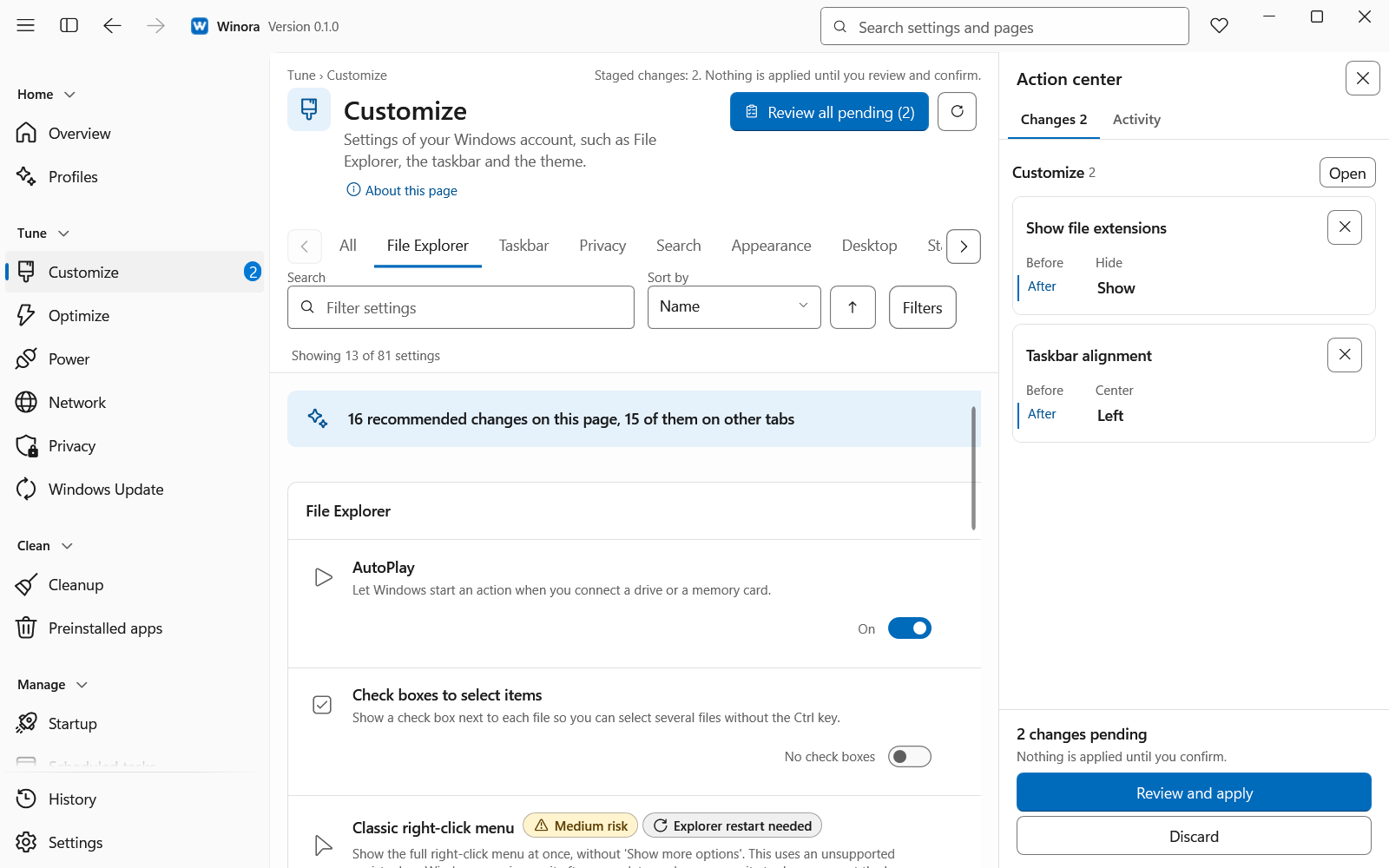
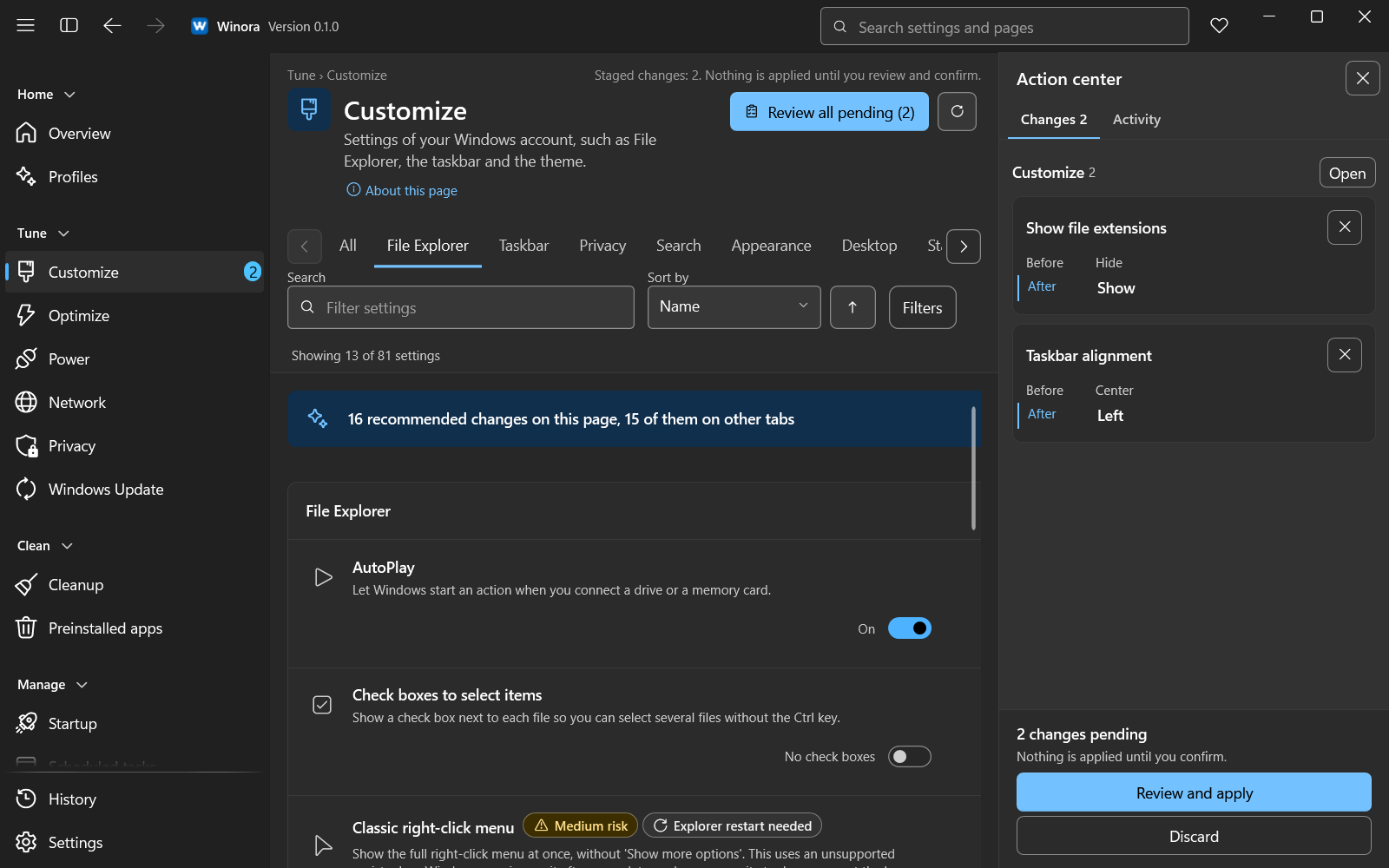
The Changes tab lists every pending change, grouped by page.
Open and close the Action center
When the Action center is closed, a narrow rail sits at the side of the window. The rail shows the state at a glance:
- a number for the pending changes,
- a spinner while a task runs,
- a check or a warning when a task ends,
- a dot for new events.
Click the rail, or press Ctrl+Shift+A, to open the panel. Click Hide action center or press the same keys again to close it.
When the panel is closed and something needs your eye, a short strip can appear at the bottom of the page. Click its text to open the panel on the right tab. While a task runs, the strip has a Stop button.
The Changes tab
This tab lists every pending change from every page, grouped by page. Each change shows its value Before and After. Nothing is applied until you confirm.
- Open goes to the page of a group of changes.
- The remove button on a change takes it out of the list without applying it.
- Discard all changes removes every pending change on every page.
- Review and apply opens the review of the pending changes. The shortcut is Ctrl+Enter.
When changes from more than one page wait, the review starts with one page. The other pages stay pending, and the tab shows which page comes next.
If the list is empty, it says No pending changes. Change a setting on a page to see it here.
The Activity tab
Running
This part shows the tasks that run now, such as a scan, a cleanup or a profile. A task is marked Changes the system or Read only. Changes to the system run one at a time. Reads can run side by side.
- Stop asks the task to stop at the next safe point. Some steps cannot be stopped. The panel then says This step cannot be stopped.
- Go to page opens the page of the task.
When nothing runs, it says Nothing is running.
Recent
This part lists finished runs, failures and notices. New items are marked New.
- Mark all as read marks every item as read.
- Clear all removes every item from the list. The remove button on an item removes only that one.
- Show all in History opens the History page.
Items stay for 30 days on this PC. Only the text, severity, time and page are saved. After a restart, an item can only open its page.
Notifications when a task ends
Winora can show a notification when a change has been applied or undone. Turn this on or off with Show completion notification in Settings. A failure is always shown.
Was this page helpful?