All guides
No guide matches your search.
Quick start
In a few minutes you start Winora, pass the first-start guide, change one Windows setting with a review, and undo it again from History.
On this page
What you will do: start Winora, go through the first-start guide, change one setting, review it, and undo it.
Before you start: install Winora as shown in Installation. You need Windows 11 (x64).
1. Start Winora
Start Winora and choose Yes at the administrator prompt. The window opens with the list of pages on the left.
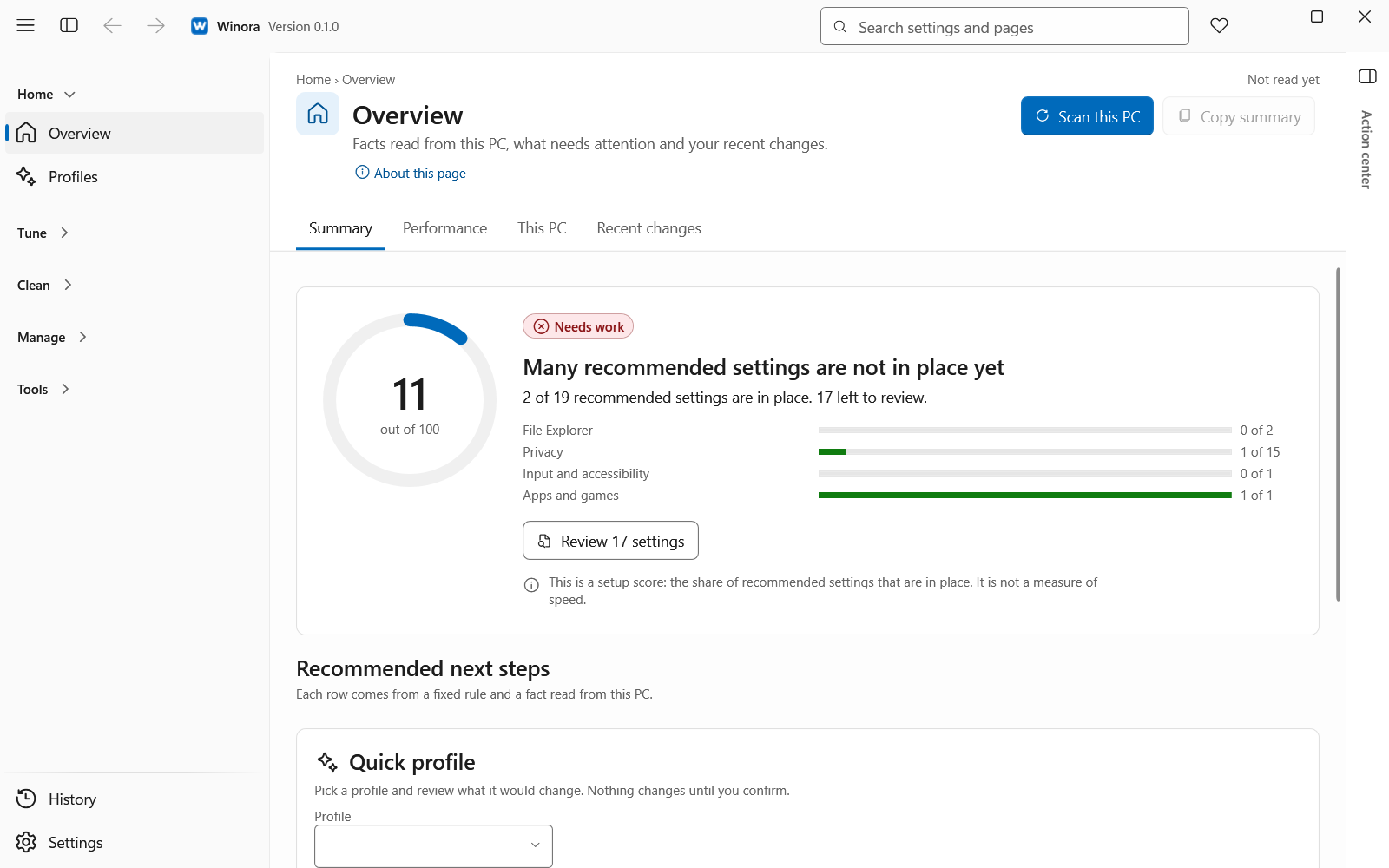
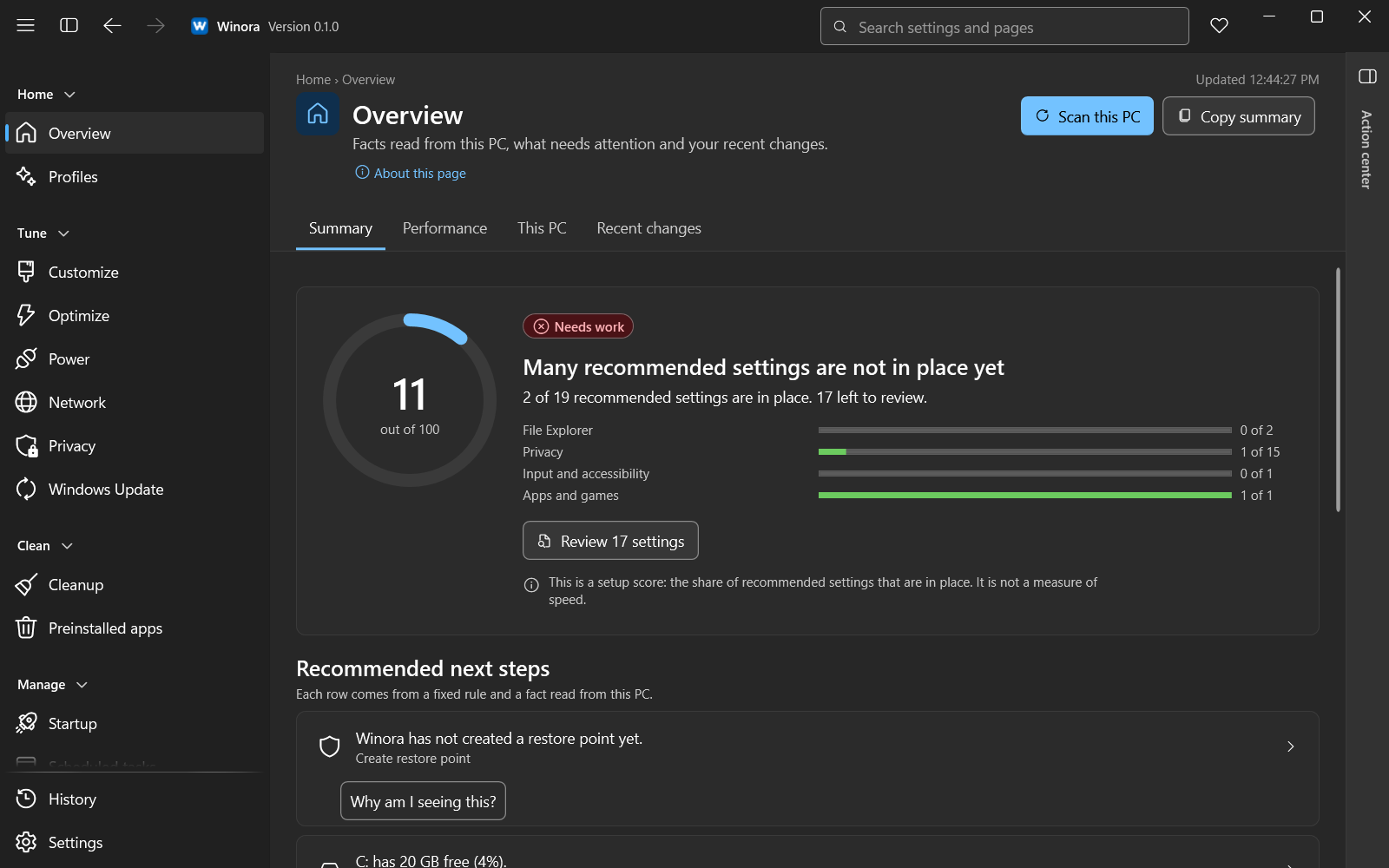
The Overview page shows how many recommended settings are in place.
2. Go through the first-start guide
On the first start a guide opens. It has five short steps.
- Read the welcome screen, choose your language and theme, and click Continue.
- Click Create restore point, or Skip for now.
- Choose a profile, or Don't apply a profile. Balanced is marked Recommended.
- Read the plan. Untick any row you want to keep as it is, then apply.
- Click Go to Overview.
You can click Skip setup at any time. Nothing changes then. The steps are explained in The first-start guide.
3. Change one setting
Open Customize under Tune. Find a setting, for example in the File Explorer tab, and pick a new value.
Nothing changes in Windows yet. The setting is now a pending change. The page header shows how many changes wait, and the Action center lists them.
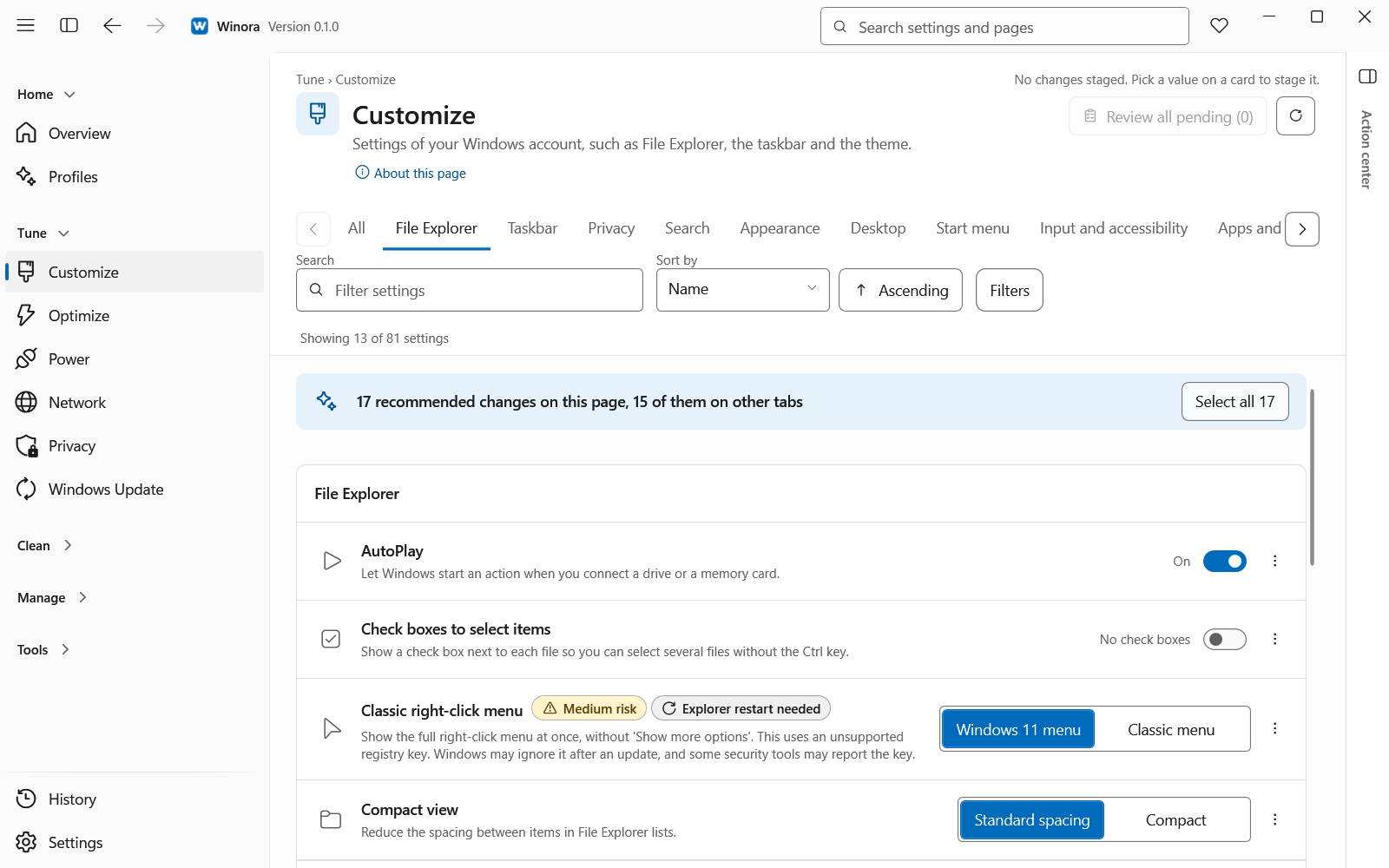
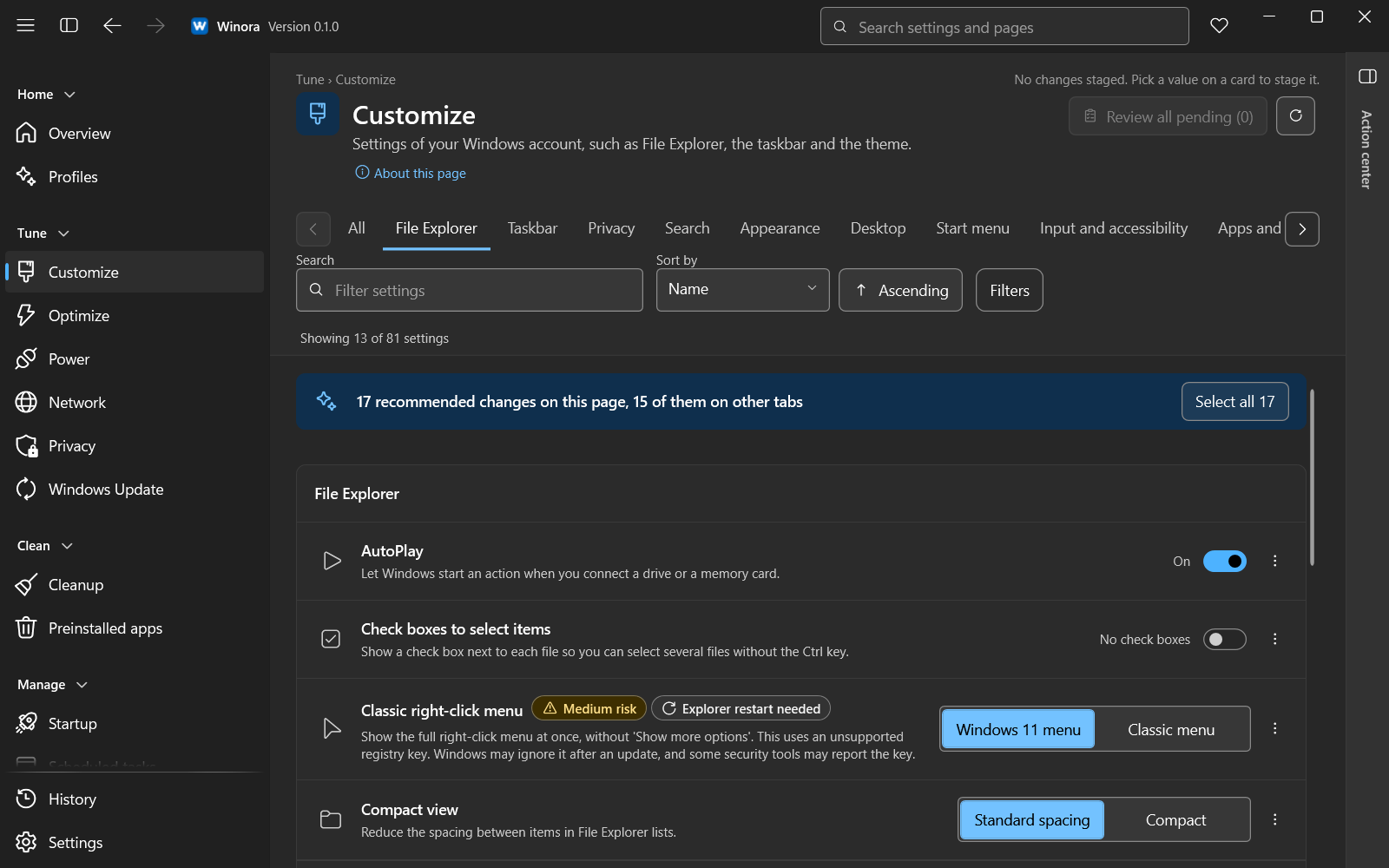
Each setting shows its value now, its risk level and its source.
4. Review and apply
Click Review and apply, or press Ctrl+Enter. The review shows each setting with its value Now and its value After. It also says whether the change can be undone and whether a restart is needed.
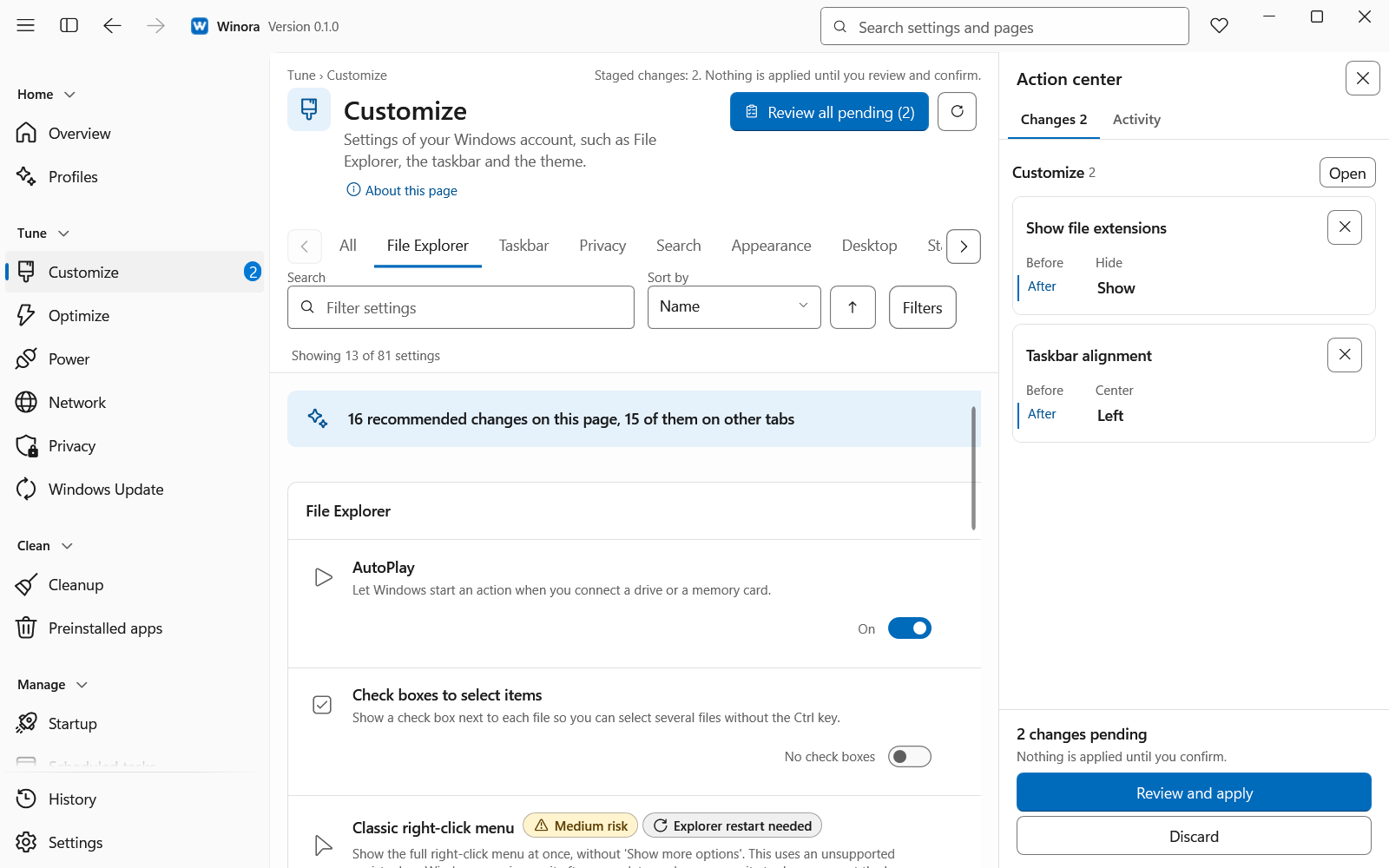
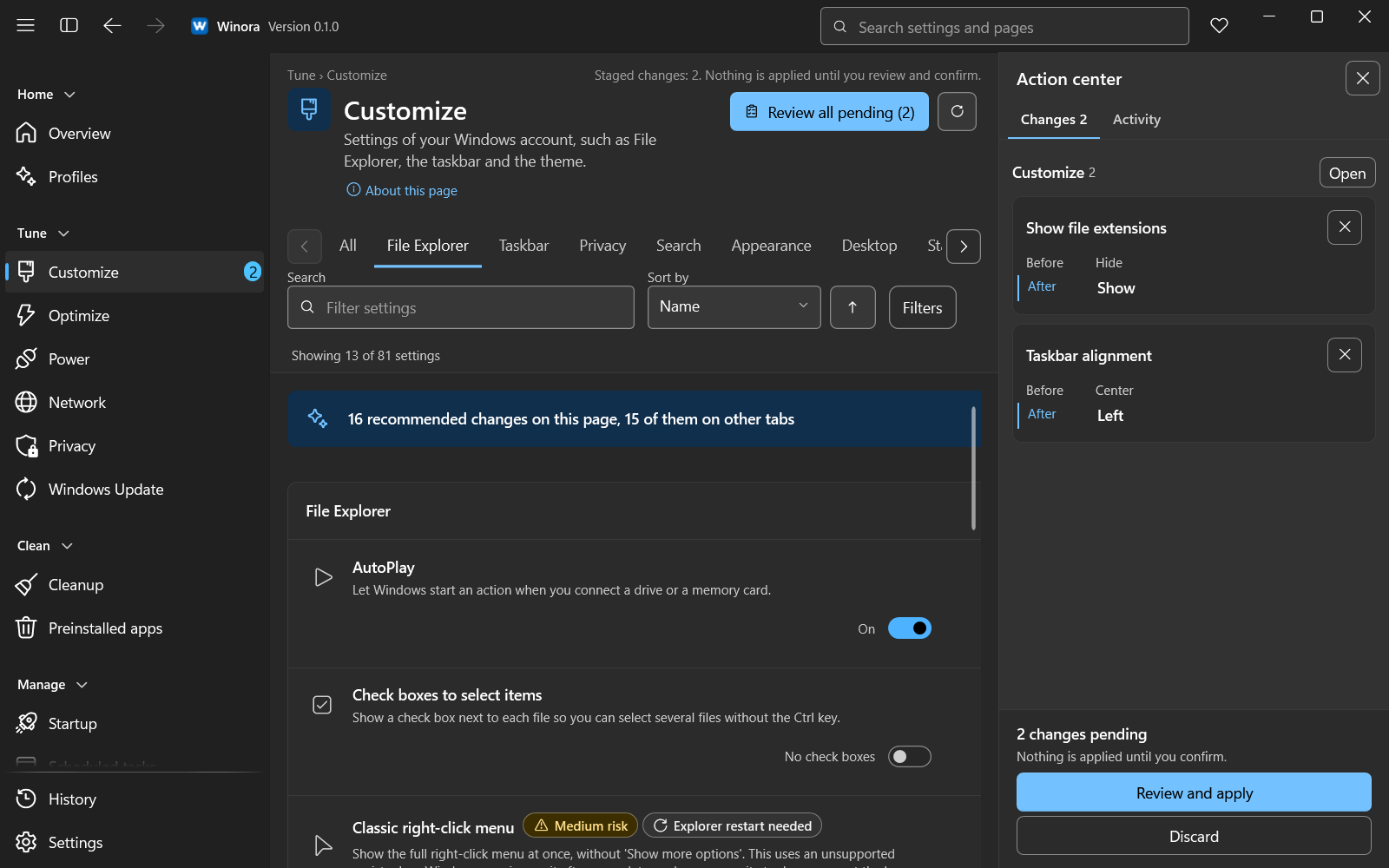
The Action center lists every pending change before you apply it.
Read it, then click the apply button at the bottom of the review. Winora writes the change, reads the value back, and records it in History.
You should see
a notification that the setting now has the new value. Some settings take effect only after File Explorer restarts or after you sign in again. The notification tells you when.
5. Undo the change
Open History at the bottom of the page list. Your change is at the top. Click Undo this change, read the review, and confirm. Winora puts the old value back.
Undo works only while nothing else has changed the value since. See History and undo.
What to try next
- Look at the Overview page and its setup score.
- Apply a profile to change several settings at once.
- Free up space on your drive.
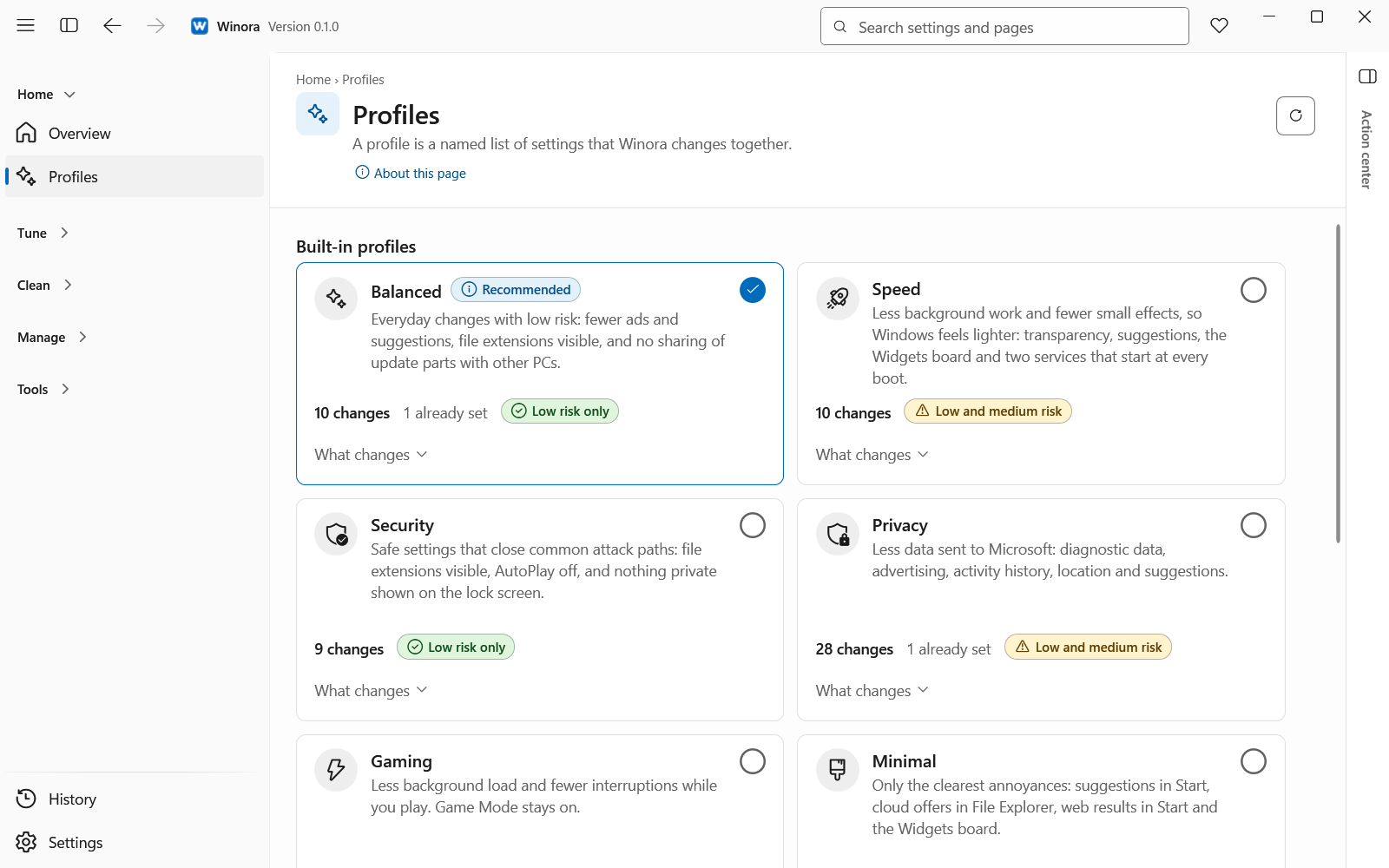
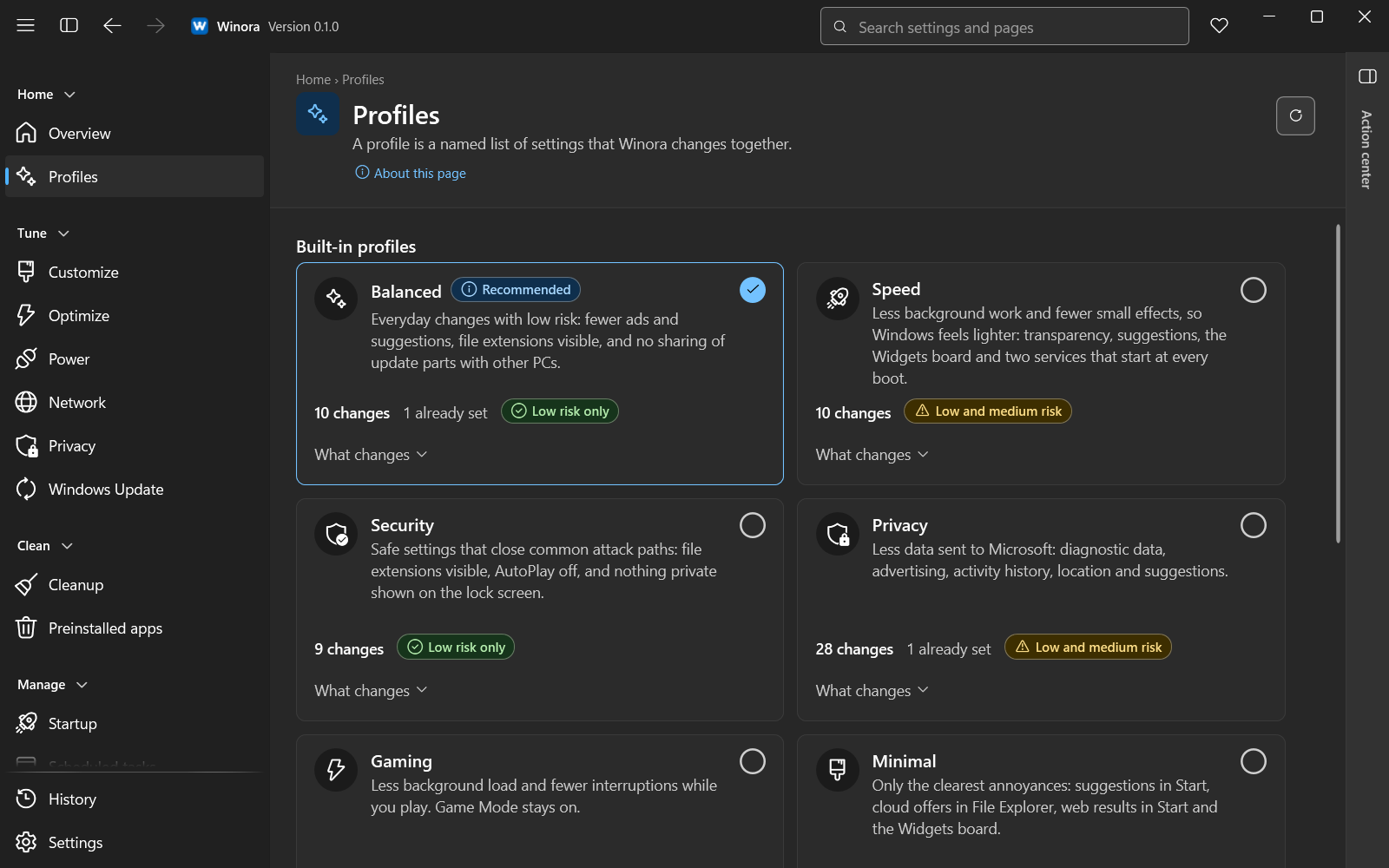
Each profile card shows how many settings would change on this PC.
Was this page helpful?