All guides
No guide matches your search.
Startup, scheduled tasks and services
Choose which programs start when you sign in, turn scheduled tasks on or off, and start, stop or change Windows services, each with a review.
On this page
Three pages under Manage control what runs in the background: Startup, Scheduled tasks and Services.
Startup
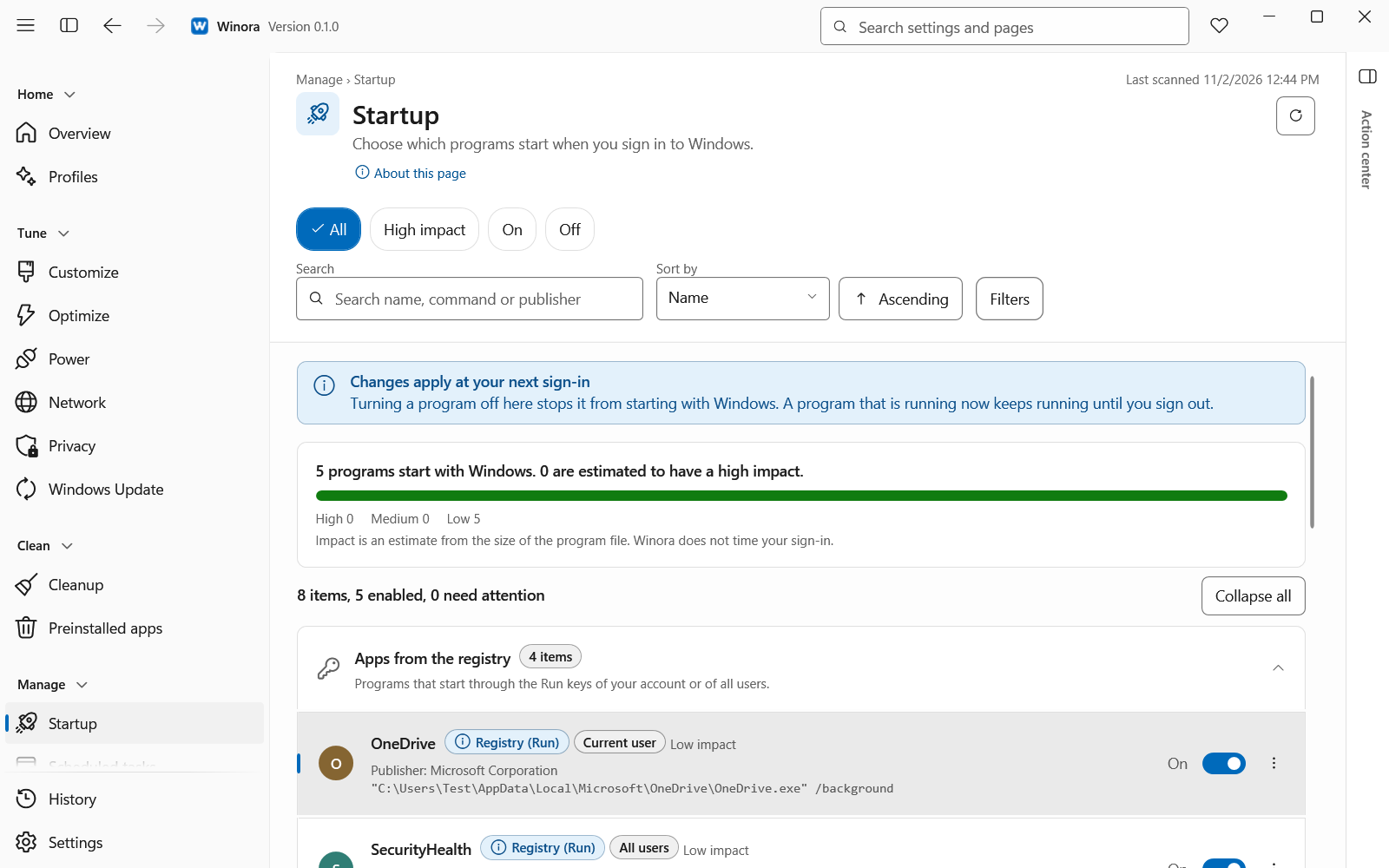
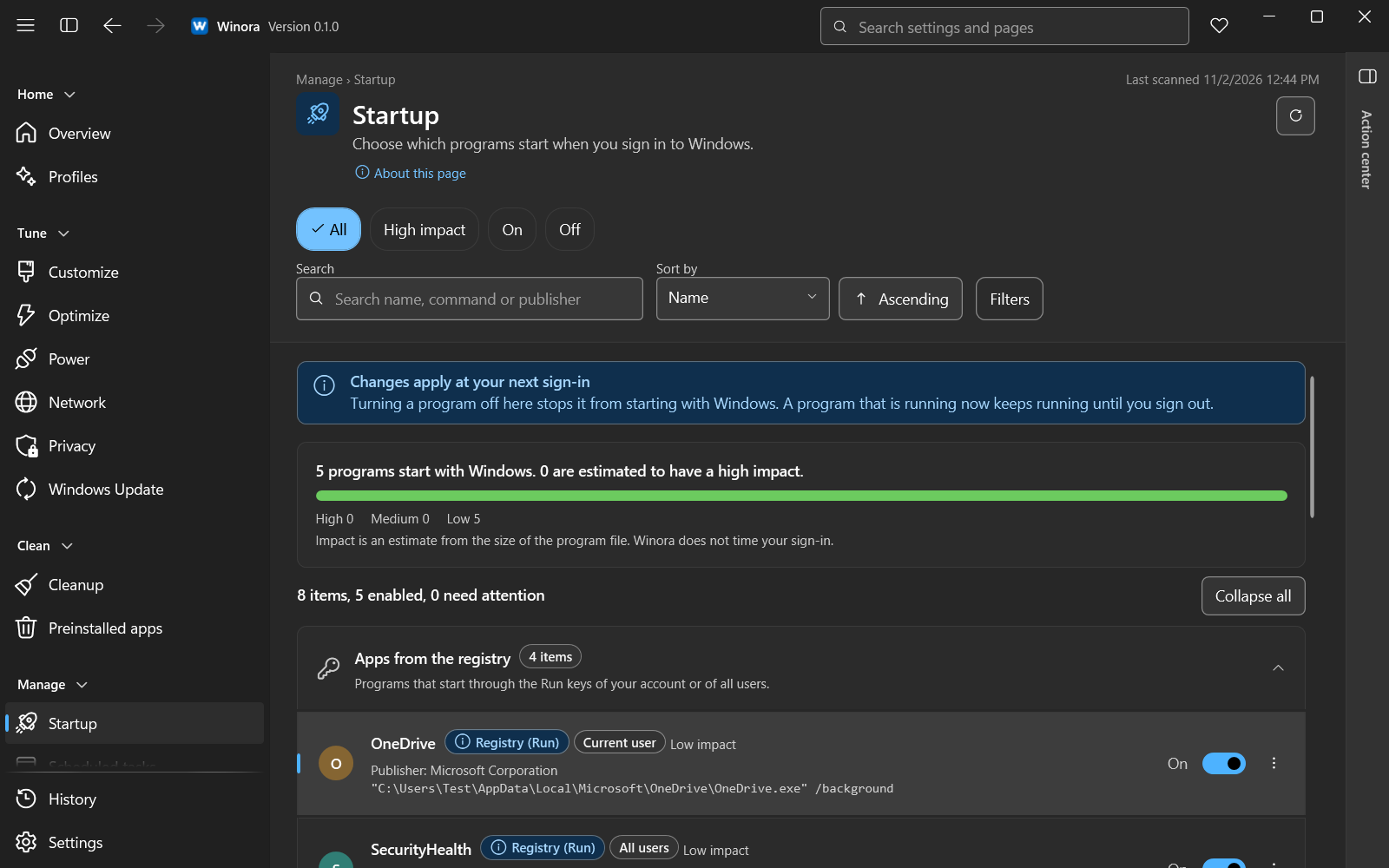
Each entry has a switch and an estimated impact.
The Startup page lists the programs that start when you sign in to Windows. They are grouped by where Windows keeps them:
- Apps from the registry start through the Run keys of your account or of all users.
- Startup folders hold shortcuts and programs in the Startup folder of your account or of all users.
- Scheduled tasks at sign-in are tasks that Windows starts when you sign in or when the PC starts.
Each entry shows an impact of High, Medium or Low. This is an estimate from the size of the program file. The buttons All, High impact, On and Off filter the list.
Turn a startup entry off
- Switch the entries you want off, or on again. The bar shows how many changes are ready to review.
- Click Review changes.
- Confirm with Apply and the number of changes.
Turning an entry off keeps it in the list and in the system. Nothing is deleted. The change applies the next time you sign in. A program that is running now keeps running until you sign out. Click Discard to put every switch back.
Some entries cannot be changed. An entry that belongs to Windows shows Part of Windows. Entries for all users need administrator rights.
Open file location opens File Explorer with the program file selected. For a scheduled task, Manage in Scheduled tasks opens that page with the task selected.
Scheduled tasks
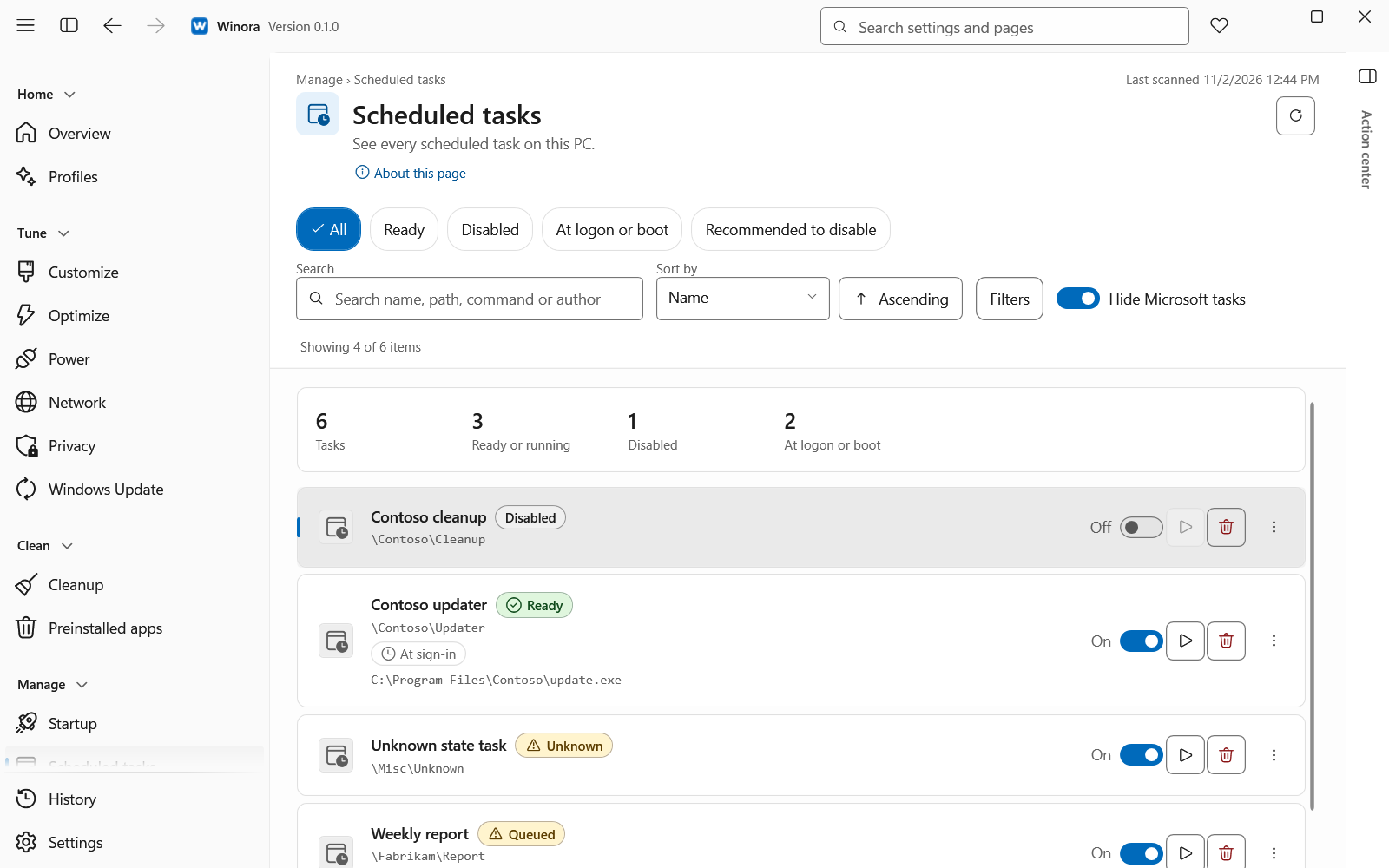
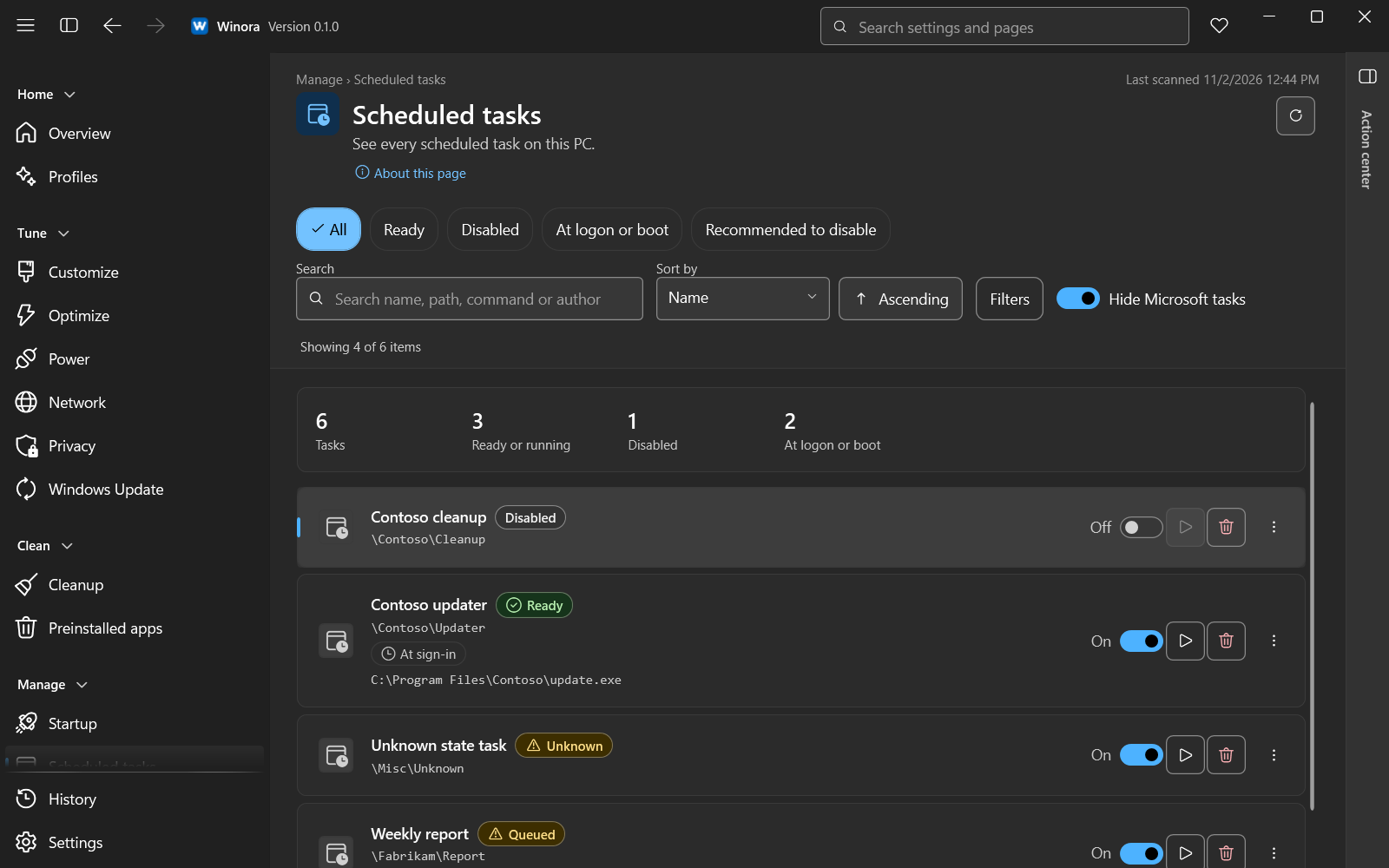
Select a task to see its triggers, actions and last result.
This page lists every scheduled task on this PC. Select a task to see its details, such as its triggers, its actions and its last result. The filters include Hide Microsoft tasks.
The buttons act on the selected task:
- Run now starts the task at once. Its schedule does not change.
- Stop ends the task if it is running. Work that it has not saved can be lost.
- Turn off keeps the task but Windows does not run it.
- Turn on lets Windows run it by its schedule again.
- Delete saves a copy of the task first and then deletes it from Windows. You can restore it from History.
Each action asks you to confirm first. You can undo Turn off, Turn on and Delete later. A task that you run or stop cannot be undone.
Tasks that keep Windows updated, secure or healthy show Protected. Winora never turns them off, stops them or deletes them. Tasks that only collect diagnostics show Recommended to disable.
Services
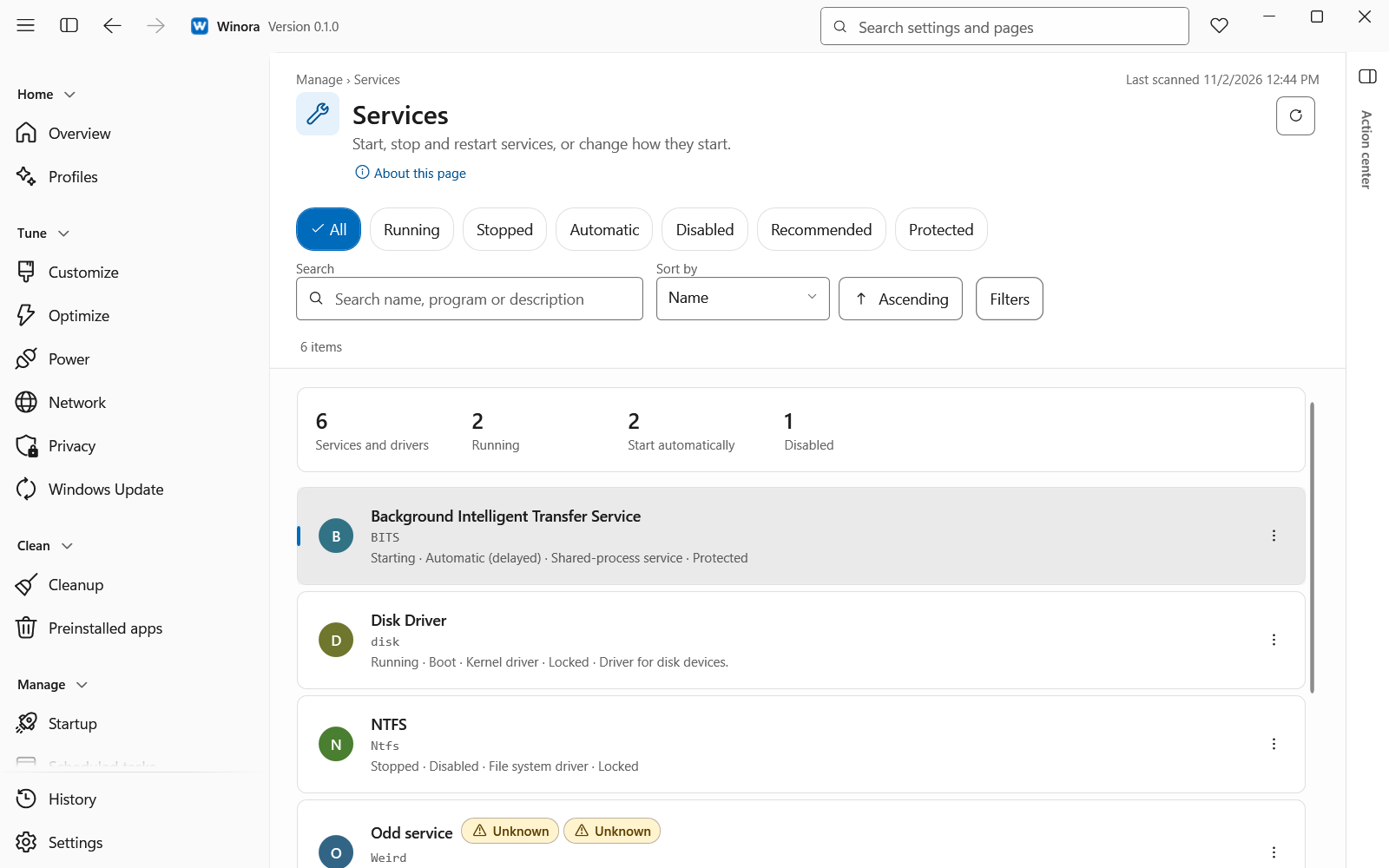
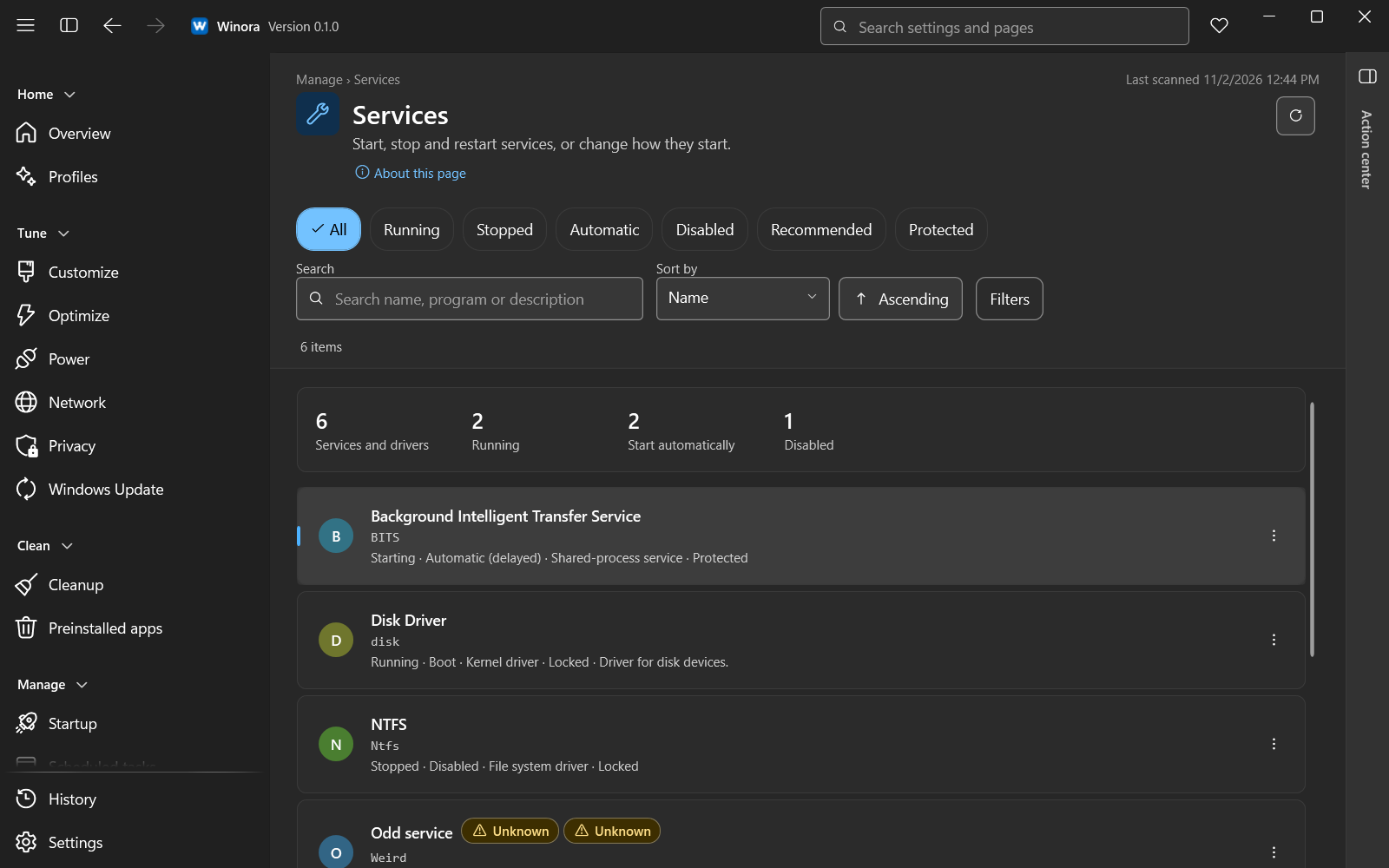
Select a service to start, stop or change it.
This page lists the services and drivers of this PC. Select a service to change it:
- Start, Stop or Restart the service now.
- Pick a new Startup type, such as Automatic, Automatic (delayed), Manual or Disabled, then click Change type.
Each action asks you to confirm first. The confirmation tells you what can happen, for example that programs that use the service can stop working.
A change of startup type can be undone with Undo in Changes Winora made to services, as long as nothing else changed it. Starting, stopping and restarting cannot be undone.
Services that Windows needs show Protected or Locked with the reason. Drivers cannot be changed here. Some services show Recommended with a suggested startup type and its risk.
Without administrator rights you can look at the list, but you cannot change services.
Was this page helpful?