All guides
No guide matches your search.
Power, network and Windows Update
Choose and tune power plans, apply a power preset, turn hibernation on or off, set the DNS servers of your adapters, and pick how Windows Update works.
On this page
The pages Power, Network and Windows Update are under Tune. Each change is shown first, recorded, checked afterwards and can be undone. Without administrator rights these pages show the settings but cannot change them.
Power
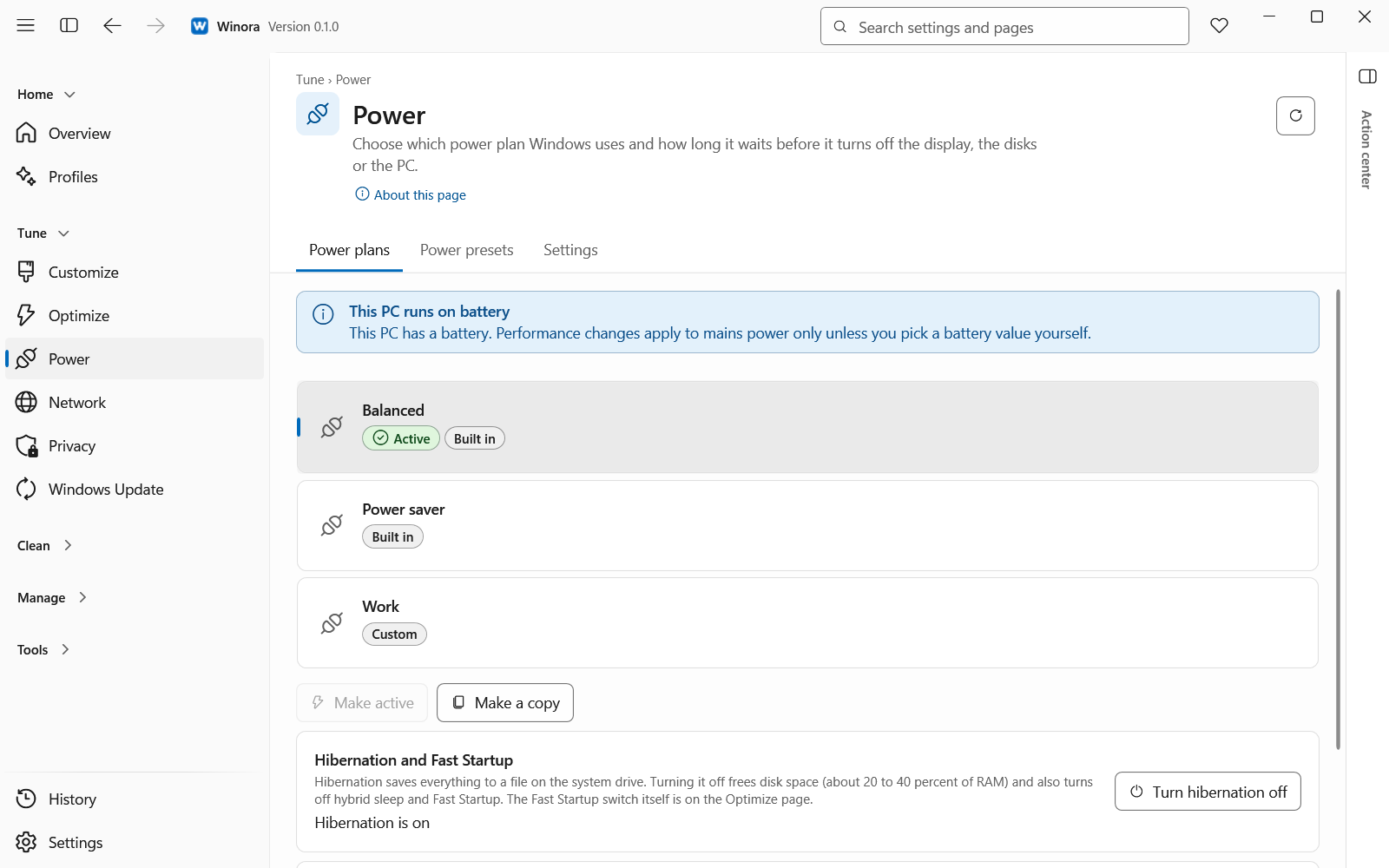
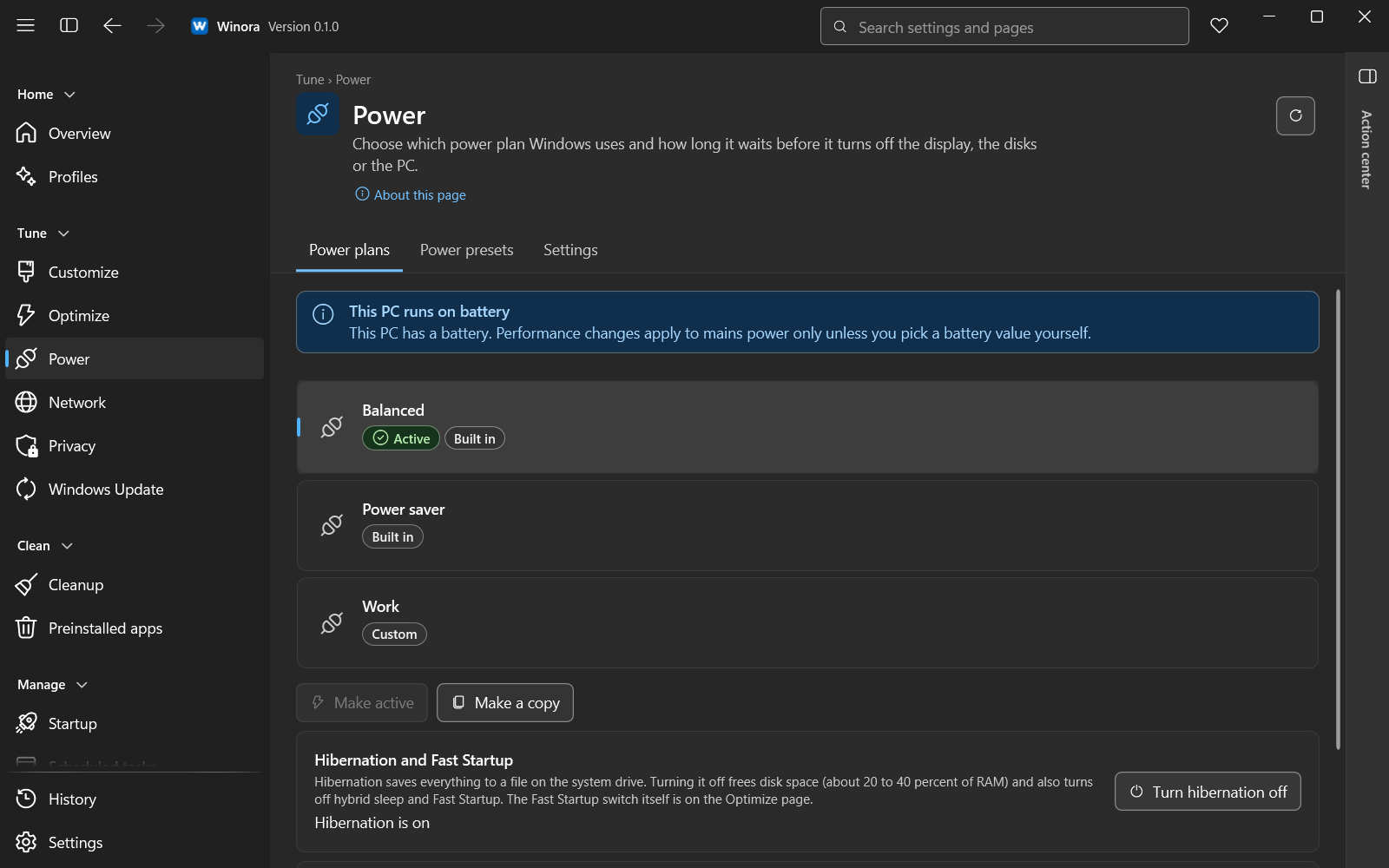
Select a plan to see its settings for plugged in and on battery.
Power plans
The list Power plans shows the plans of this PC. Select a plan to see its settings.
- Make active makes Windows use the selected plan from now on.
- Make a copy creates a new plan with the same settings, so you can change it without touching the original.
- Delete this copy removes a plan that Winora made as a copy. Other plans cannot be deleted here. A deleted plan cannot be brought back.
Change the settings of a plan
Under Settings of the selected plan, each setting has a value for Plugged in and one for On battery. Examples are Turn off the display after, Put the PC to sleep after, When the lid is closed and Maximum processor speed. Settings this PC does not have are not shown.
Change the values you want, then click Apply changes. Winora shows what will change and asks once. Discard goes back to the values the plan has now.
Power presets
A preset sets several settings of the selected plan at once. Click Apply on a preset, read the values that change, and click Apply preset.
- Windows defaults sets the usual Windows values for processor speed, boost, PCI Express and USB power saving.
- Performance changes the values for mains power only. It raises the minimum processor speed, turns off PCI Express and USB power saving, and keeps the disk awake.
- Battery saver changes the values for battery only. Mains values stay as they are.
One undo from History puts every value of a preset back, as long as nothing else has changed it.
Hibernation and Fast Startup
Hibernation saves everything to a file on the system drive. Click Turn hibernation off to free that space. This also turns off hybrid sleep and Fast Startup. Click Turn hibernation on to make Windows create the file again.
Ultimate Performance plan
Click Add and use Ultimate Performance to copy the Ultimate Performance plan that is built into Windows and make the copy active. Some editions and laptops do not have this plan. Undo switches back to your earlier plan and deletes the copy.
Network
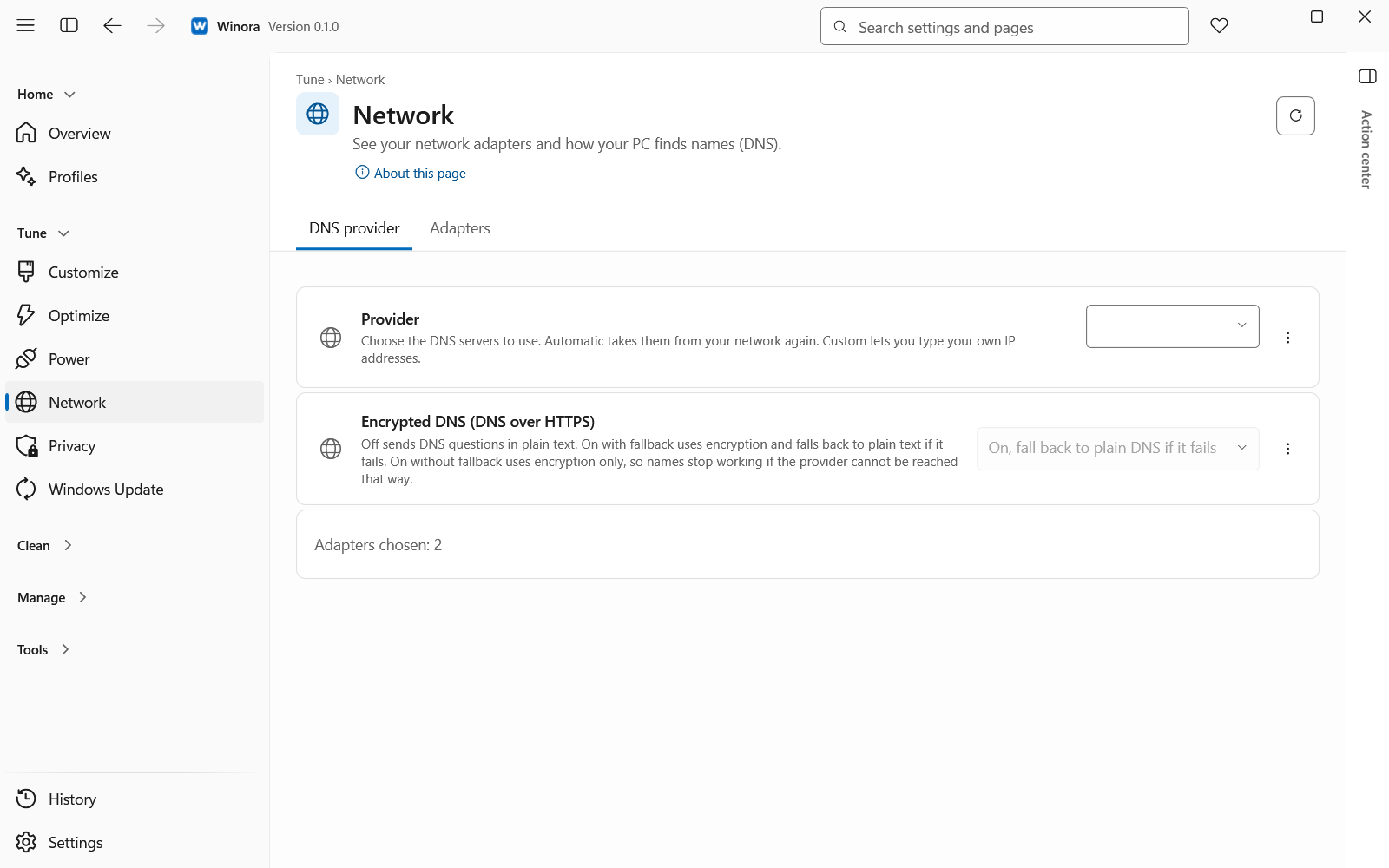
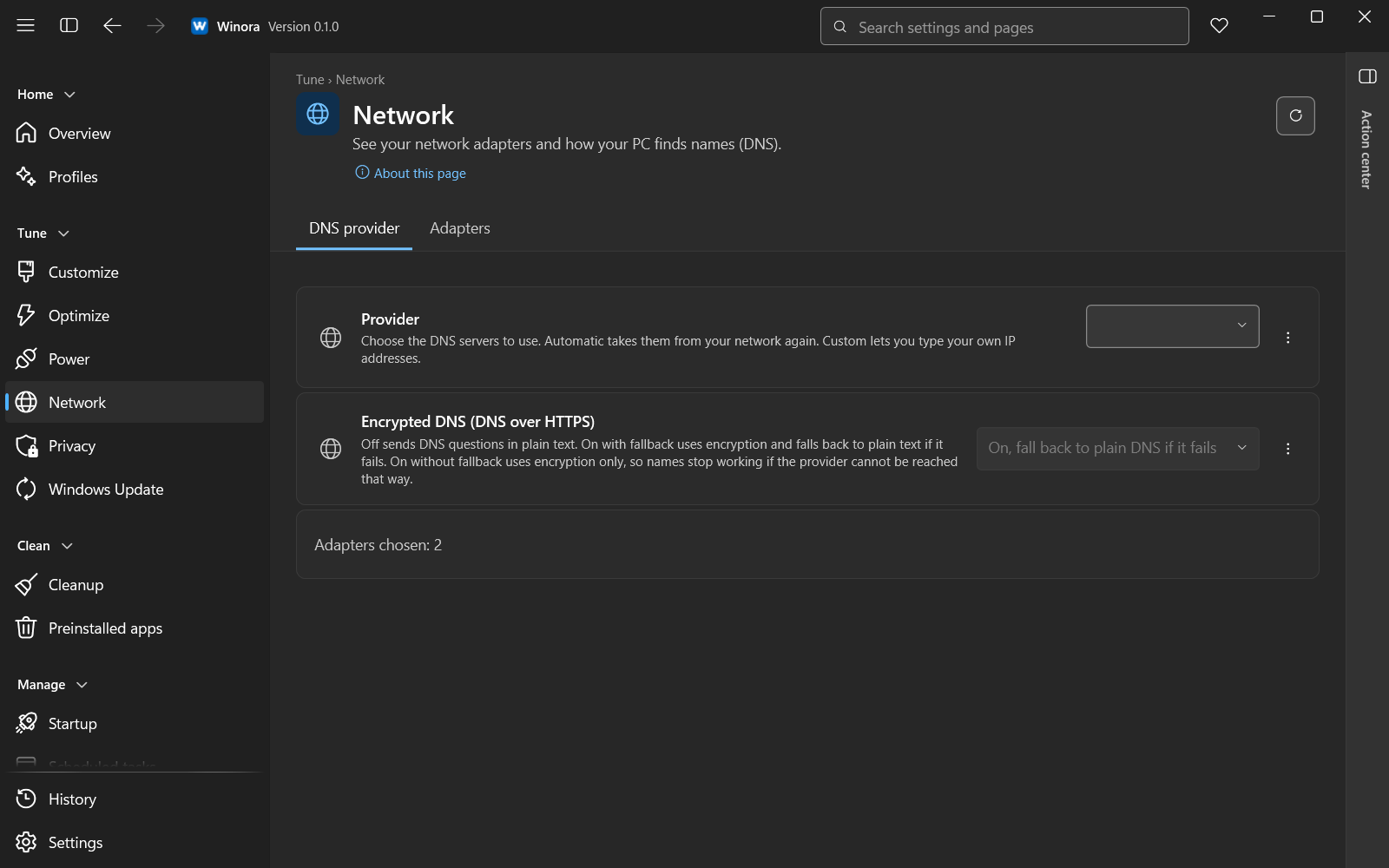
Choose a DNS provider and the adapters to change.
This page shows your network adapters and how your PC finds names (DNS).
- Under DNS provider, pick a provider in Provider. The list has Automatic (from the network), Cloudflare, Google Public DNS, Quad9, OpenDNS, AdGuard DNS and Custom. Some Cloudflare entries block malware or adult content.
- For Custom, type up to four IPv4 and four IPv6 addresses in DNS server addresses.
- Under Encrypted DNS (DNS over HTTPS), choose Off (plain DNS), On, fall back to plain DNS if it fails or On, never fall back. With On, never fall back, names stop working if the provider cannot be reached that way.
- Under Adapters, choose the adapters to change.
- Click Review and apply. The review lists the DNS servers before and after for each adapter. Click Change DNS servers.
After the change, Winora makes one test lookup of a Windows connectivity name and tells you the result. If names stop working, click Undo this change now.
Virtual machine, VPN and tunnel adapters are left out by default. Include anyway adds one after an extra confirmation.
Windows Update
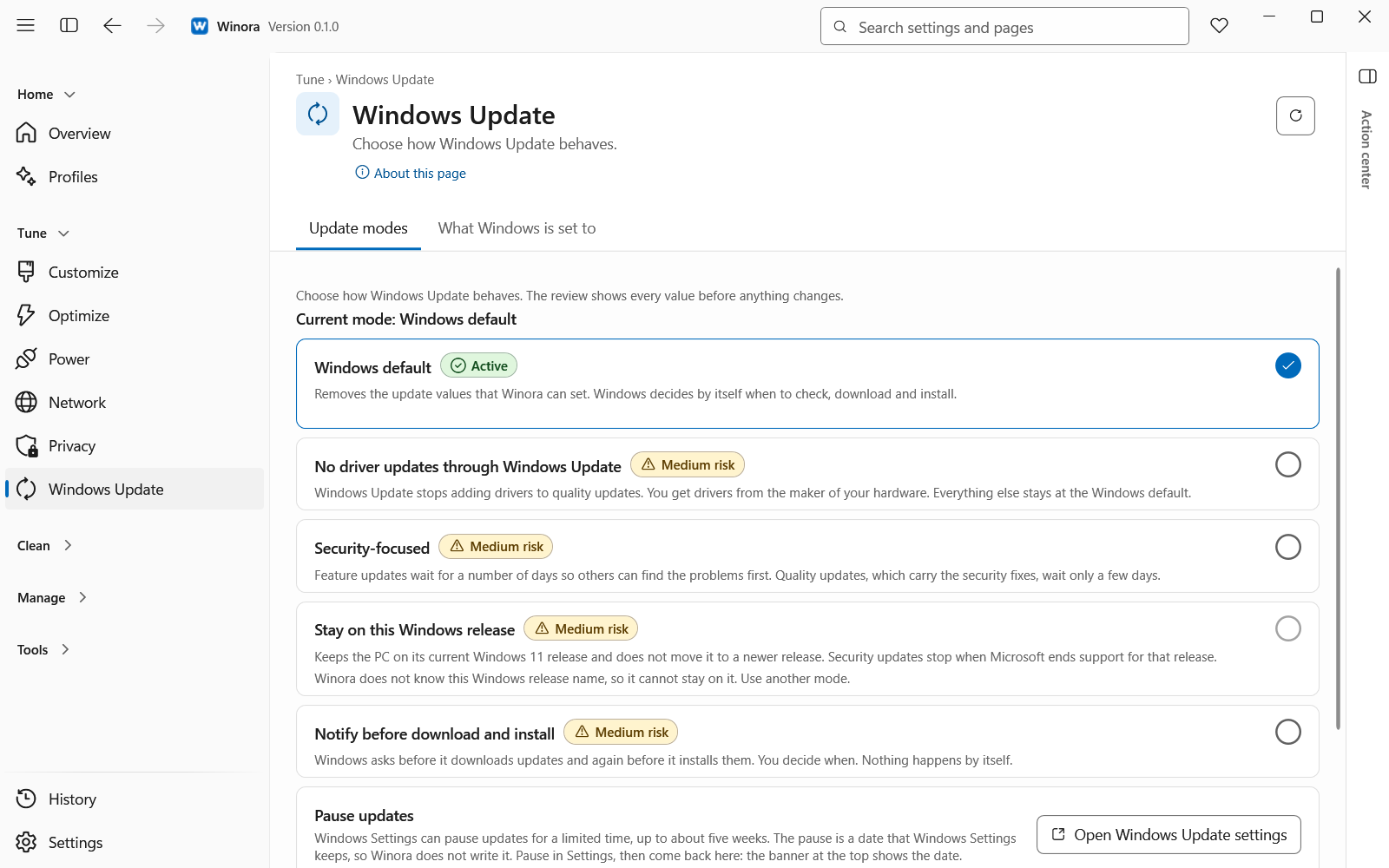
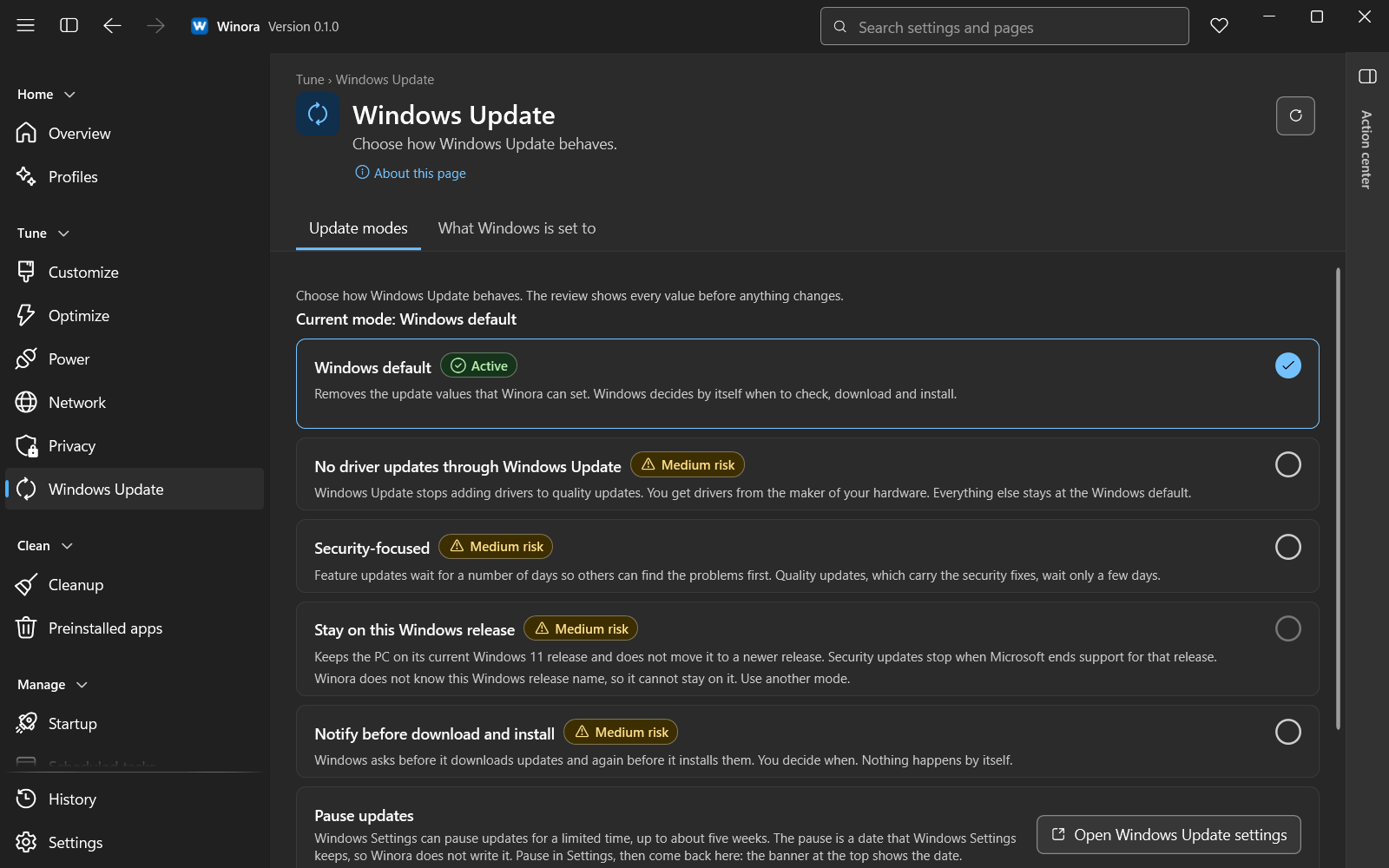
Pick a mode, then review every value it sets.
A mode sets several update policy values together. You see every value first, confirm once, and can undo the whole mode in one step.
| Mode | What it does |
|---|---|
| Windows default | Removes the update values that Winora can set. Windows decides by itself. |
| No driver updates through Windows Update | Windows Update stops adding drivers. You get drivers from the maker of your hardware. |
| Security-focused | Feature updates wait for a number of days. Quality updates, which carry the security fixes, wait only a few days. |
| Stay on this Windows release | Keeps the PC on its current Windows 11 release. |
| Notify before download and install | Windows asks before it downloads updates and again before it installs them. |
For Security-focused you can choose Delay feature updates by and Delay quality updates by. Security-focused, Stay on this Windows release and Notify before download and install also offer Also leave drivers out of Windows Update.
To apply a mode, pick it and click Review and apply. Read the values and click Apply mode.
Under Advanced, the mode Automatic updates off stops Windows from looking for and installing updates by itself. It asks for a second confirmation.
Pause updates
Windows Settings can pause updates for up to about five weeks. Click Open Windows Update settings to pause there. The banner at the top of the page then shows the date.
Settings managed by your organization
Some update values can come from Group Policy, device management or another tool. Winora does not change them. A mode that needs another value for one of them cannot be applied. The list Update policy values on this PC shows where each value comes from.
Was this page helpful?