All guides
No guide matches your search.
Settings reference
Every option on the Settings page of Winora: language, theme, accent color, density, notifications, slow tools, the data folder and Export diagnostics.
On this page
Open Settings at the bottom of the page list, or press Ctrl+,. Changes on this page apply at once.
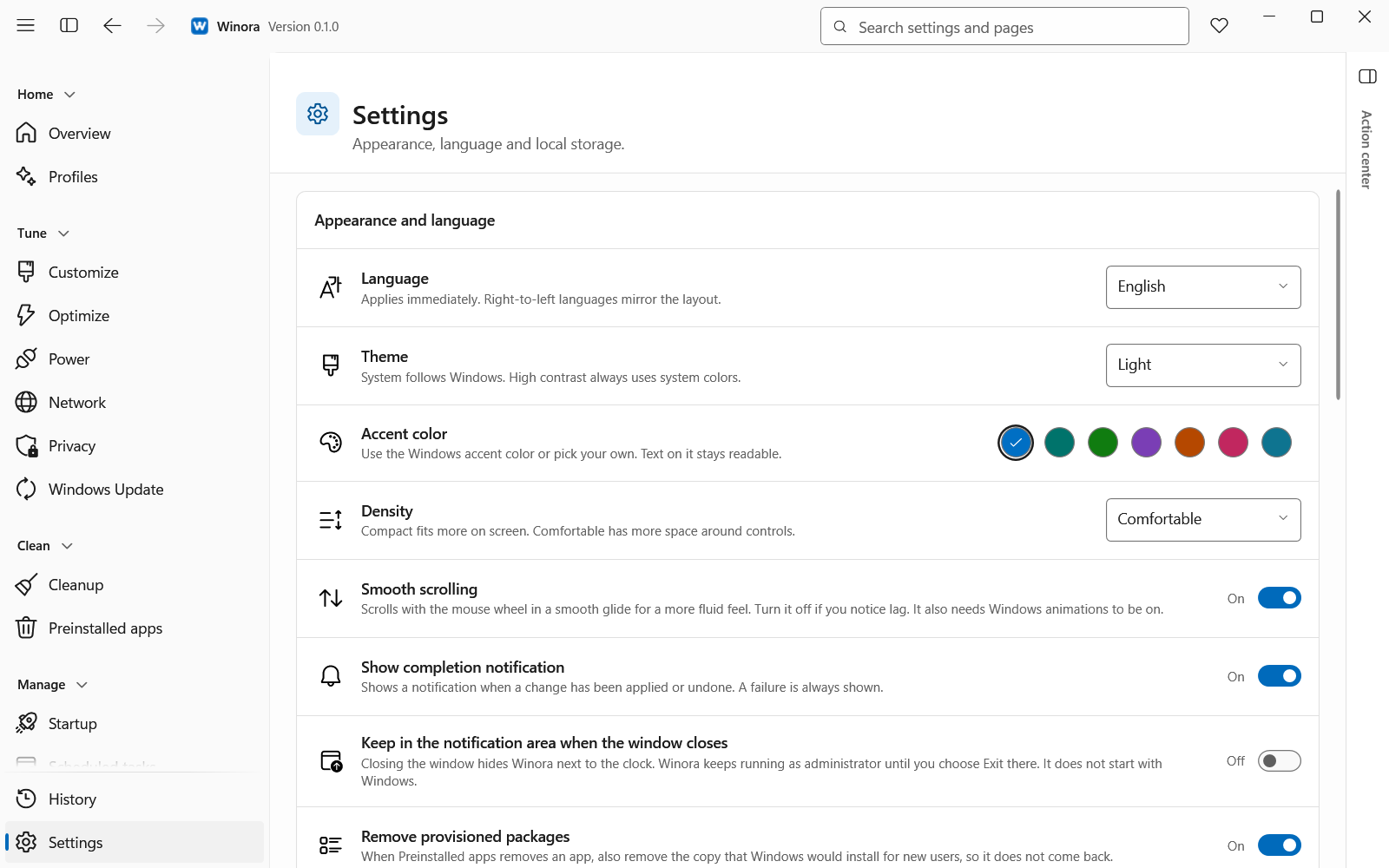
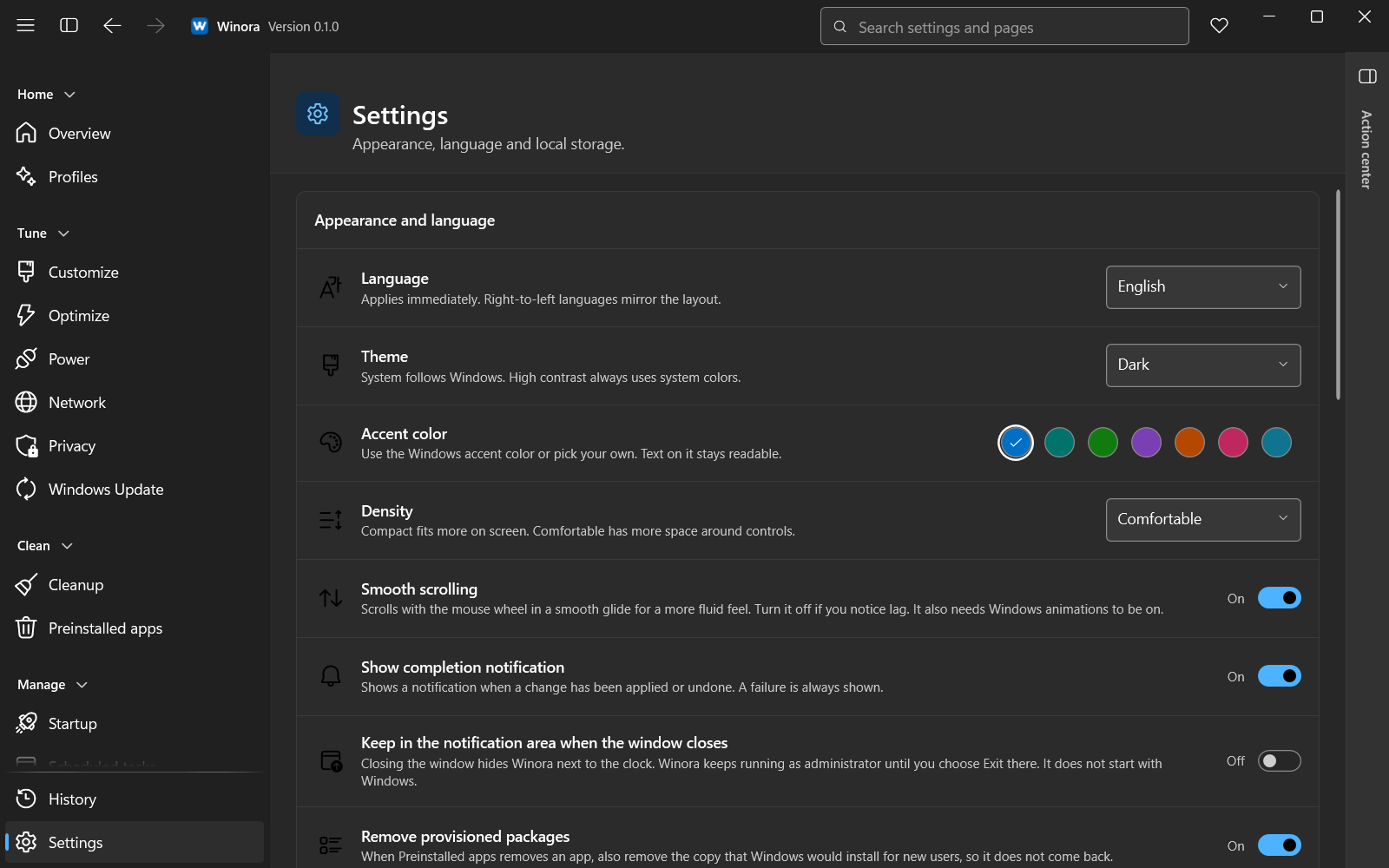
Appearance, language and local storage.
Appearance and language
| Setting | Choices | What it does |
|---|---|---|
| Language | English, فارسی | Changes the language of Winora. Persian mirrors the layout from right to left. |
| Theme | System, Light, Dark | System follows Windows. High contrast always uses system colors. |
| Accent color | Windows accent, Teal, Green, Purple, Orange, Rose, Custom color | Sets the color of buttons and marks. Text on it stays readable. |
| Density | Comfortable, Compact | Compact fits more on screen. Comfortable has more space around controls. |
| Smooth scrolling | On, Off | Scrolls with the mouse wheel in a smooth glide. It also needs Windows animations to be on. |
For Custom color, type a color in Custom color (#RRGGBB), for example #0E7490. If text on it would be hard to read, Winora adjusts the color.
The same group has three switches:
- Show completion notification. Shows a notification when a change has been applied or undone. A failure is always shown.
- Keep in the notification area when the window closes. Closing the window hides Winora next to the clock. Winora keeps running until you choose Exit there. It does not start with Windows.
- Remove provisioned packages. When Preinstalled apps removes an app, Winora also removes the copy that Windows would install for new users, so it does not come back.
Behavior
- Keyboard shortcuts. Click Keyboard shortcuts to see every shortcut in one list. F1 opens the same list. See Keyboard shortcuts.
- Welcome guide. Click Show again to open the first-start guide. See The first-start guide.
Advanced
Wait for slow tools sets how long Winora waits for uninstallers, DISM, SFC and other repair tools. Choose Normal, Long (2 times) or Very long (4 times). When a wait ends, Winora stops waiting and never ends the program.
Data and diagnostics
Local data folder
This is where Winora keeps its journal and preferences. Nothing leaves your PC. Click Copy path to copy the folder path, or Open to open the folder in File Explorer. See Privacy policy for what Winora stores.
Export diagnostics
Use this when you report a problem.
- Click Export diagnostics.
- Choose a folder.
- Winora creates a diagnostics archive there and shows its path.
The archive holds versions, error-code counts, redacted log lines and operation states. It never contains your files, user name, machine name or setting values. Nothing is uploaded. Attach the archive to your report yourself.
The Log folder line shows where Winora writes its small local log. Click Copy path to copy it.
About
This part shows the version, the build and the license of Winora. It also lists the addresses of the website and GitHub with a copy button each. Winora does not open links. Paste the address into your browser.
Was this page helpful?