All guides
No guide matches your search.
Apps and preinstalled apps
Remove programs you no longer need, move their leftover folders to Quarantine, and remove or restore the Store apps that came with Windows.
On this page
Winora has two pages for apps:
- Apps under Manage lists the programs installed on this PC.
- Preinstalled apps under Clean lists the Microsoft Store apps that came with Windows or your PC maker.
Remove a program on the Apps page
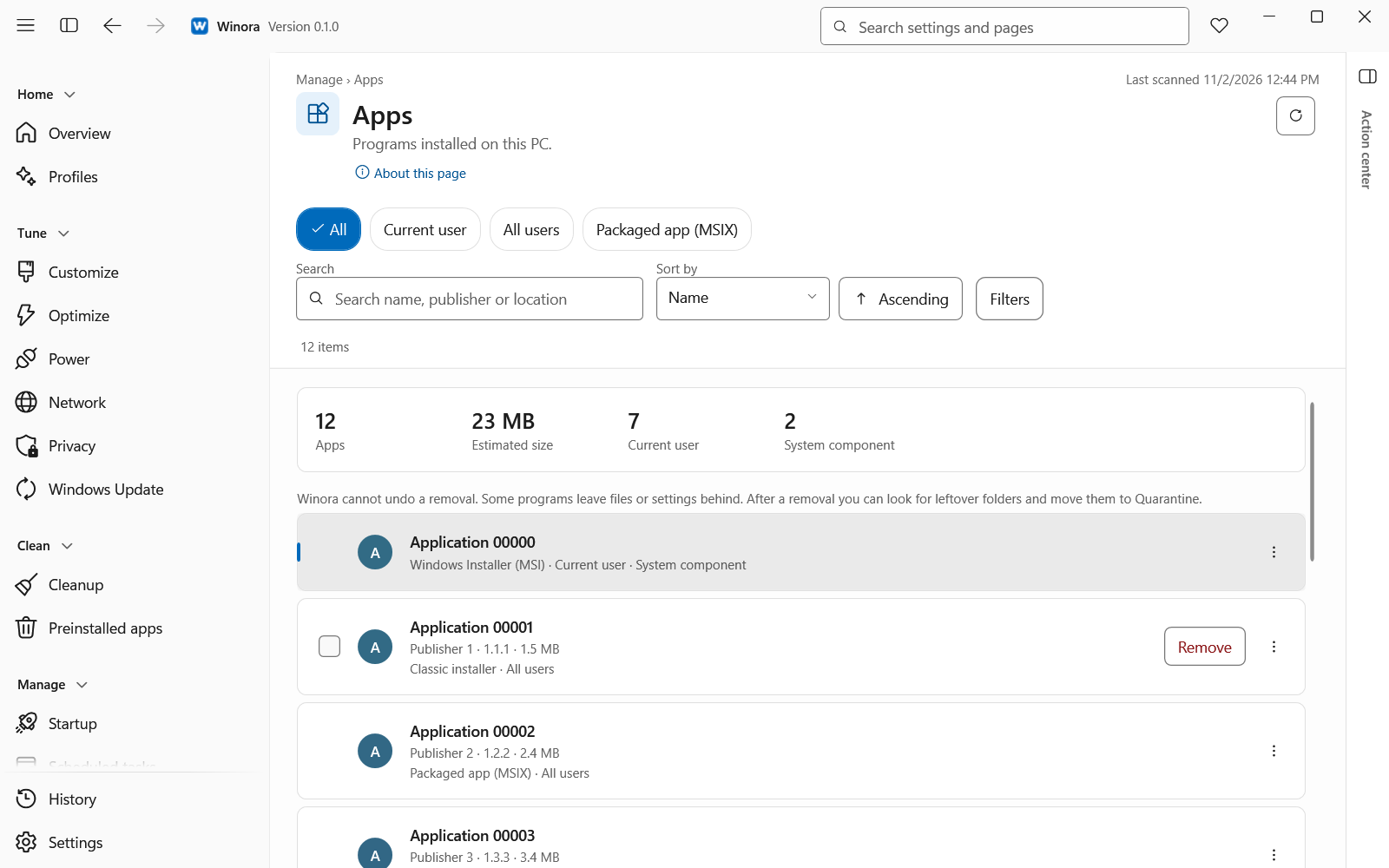
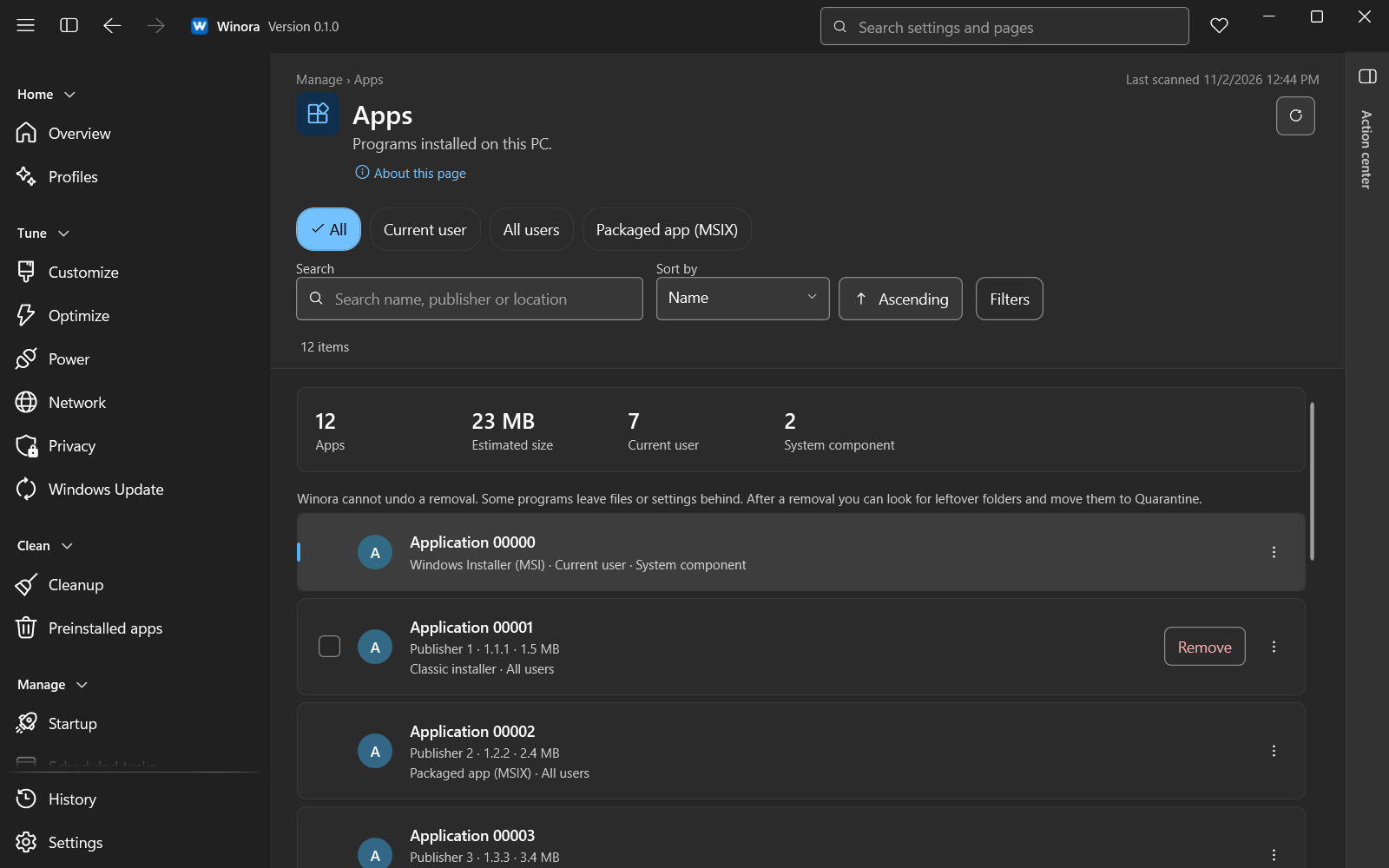
Tick the programs you want to remove.
- Find the program. Type in the search box, or use the filters such as Hide system components.
- Tick the programs you want to remove. The bar shows how many are selected, for example 2 programs selected. Clear unticks them all.
- Click Review and remove. The confirmation lists each program.
- Close the programs first, or they may refuse to be removed. Then click Remove.
Winora starts the uninstaller of each program, one after the other. Some run quietly with no window. Others open their own window, and you follow its steps there. Click Stop to stop after the program that is being removed now.
Some programs cannot be removed here. The row then says why, for example Protected by Winora, Other apps need it or No uninstaller found. A program installed for your account only shows For your account only. Remove it in Windows Settings.
Removing a program cannot be undone
Winora cannot bring a removed program back. It stays gone until you install it again from its vendor or the Microsoft Store. Programs can leave files, settings and documents behind.
Move leftovers to Quarantine
After a removal, click Find leftovers on the program. Winora looks for folders the program left behind and shows them in Leftovers of with the program name.
- Tick the folders you want to move. Folders in AppData can hold your own settings for this program, so they start unticked.
- Click Move to Quarantine. Nothing is deleted now.
In Quarantine you can restore the folders or delete them for good. Items in Quarantine are deleted for good after 30 days. See Free up space and clean up.
Remove preinstalled apps
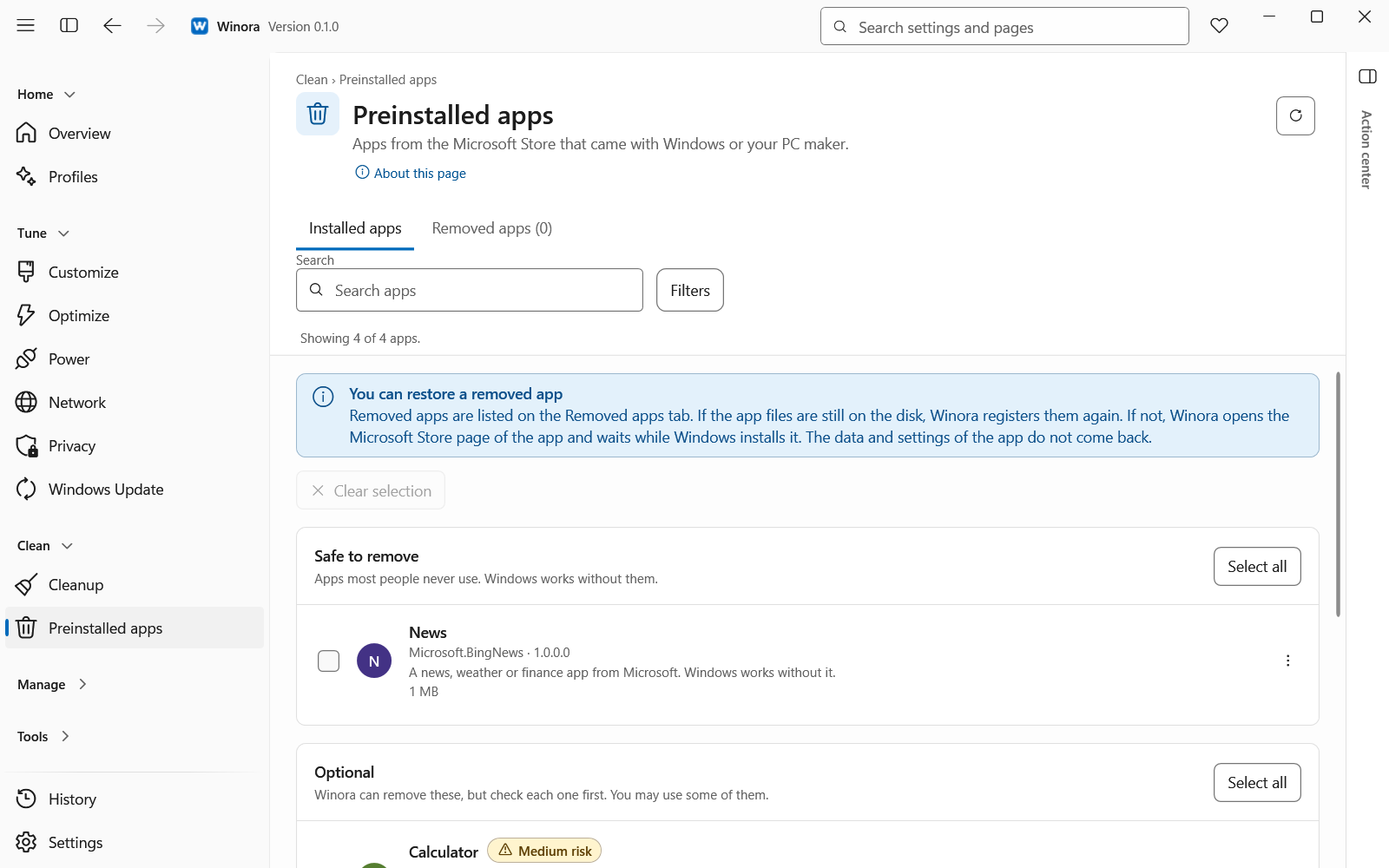
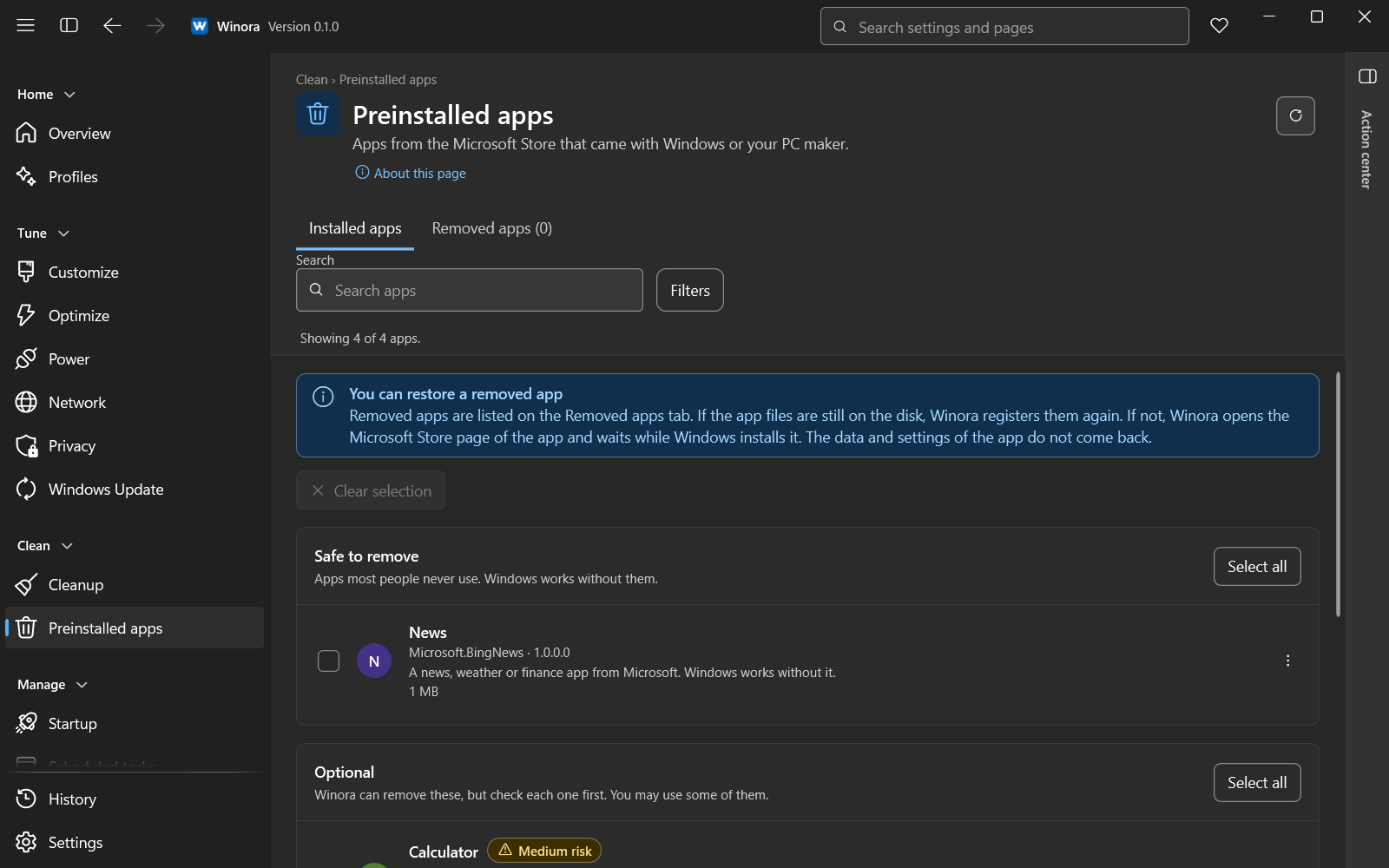
Each app shows why it is in its group.
The Installed apps tab groups the apps into three classes:
- Safe to remove. Apps most people never use. Windows works without them.
- Optional. Winora can remove these, but check each one first. You may use some of them.
- Keep. Part of Windows or needed by it. Winora does not remove these.
Each app has a line that says what you lose without it. Apps that Winora does not know are shown but not selected.
- Tick the apps you do not need. Select all and Select none work on a whole group. Use Search apps and the filters Risk class and Where it is installed to narrow the list.
- Click Remove selected. The confirmation lists the apps and their sizes.
- Read the notes and click Remove.
Winora removes an app for every user. If Remove provisioned packages is on in Settings, it also removes the copy that Windows would install for new users. The app files and the app data are deleted.
Removing an app can stop a Windows feature, for example a codec, the camera or a gaming service. The confirmation warns you when this applies.
Restore a removed Store app
Open the Removed apps tab. It lists the apps that Winora removed and that are not installed now.
- If the app files are still on the disk, click Restore. Windows registers the app again for your account.
- If not, click Restore from the Store, then Open the Store. Winora opens the Microsoft Store page of the app. Press Install there. Winora waits and tells you when Windows has installed the app.
Open Store page opens the Store page without waiting. The Store needs an internet connection and may ask you to sign in. Winora downloads nothing itself. The data and settings of the app do not come back.
An app that did not come from the Microsoft Store cannot be restored here. Install it again from its publisher.
Was this page helpful?