All guides
No guide matches your search.
The Overview page
Read the setup score, the recommended next steps and the facts of your PC on the Overview page, and scan the PC or copy a summary.
On this page
Overview is the first page under Home. It shows facts read from this PC, what needs attention and your recent changes. Reading these facts changes nothing.
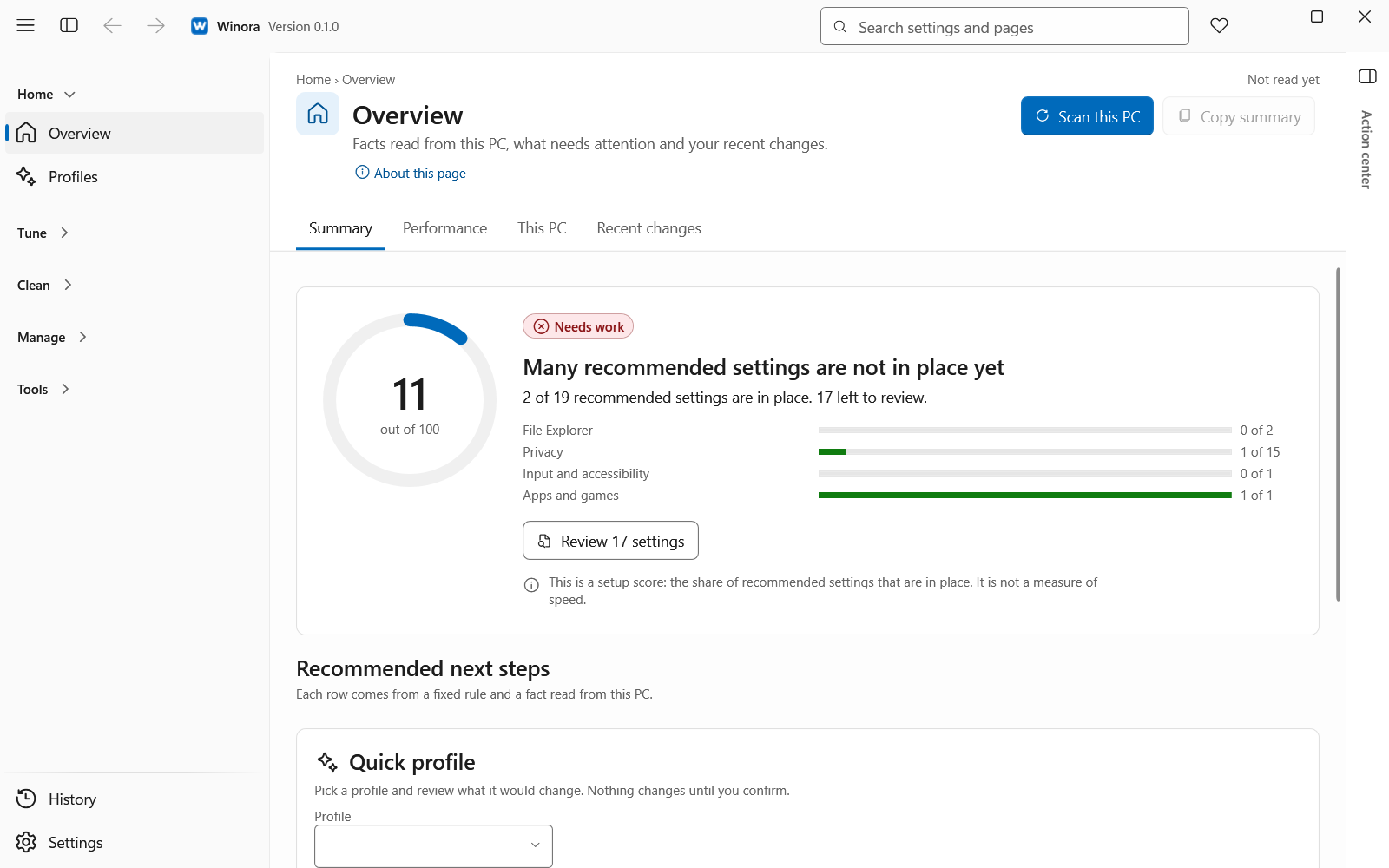
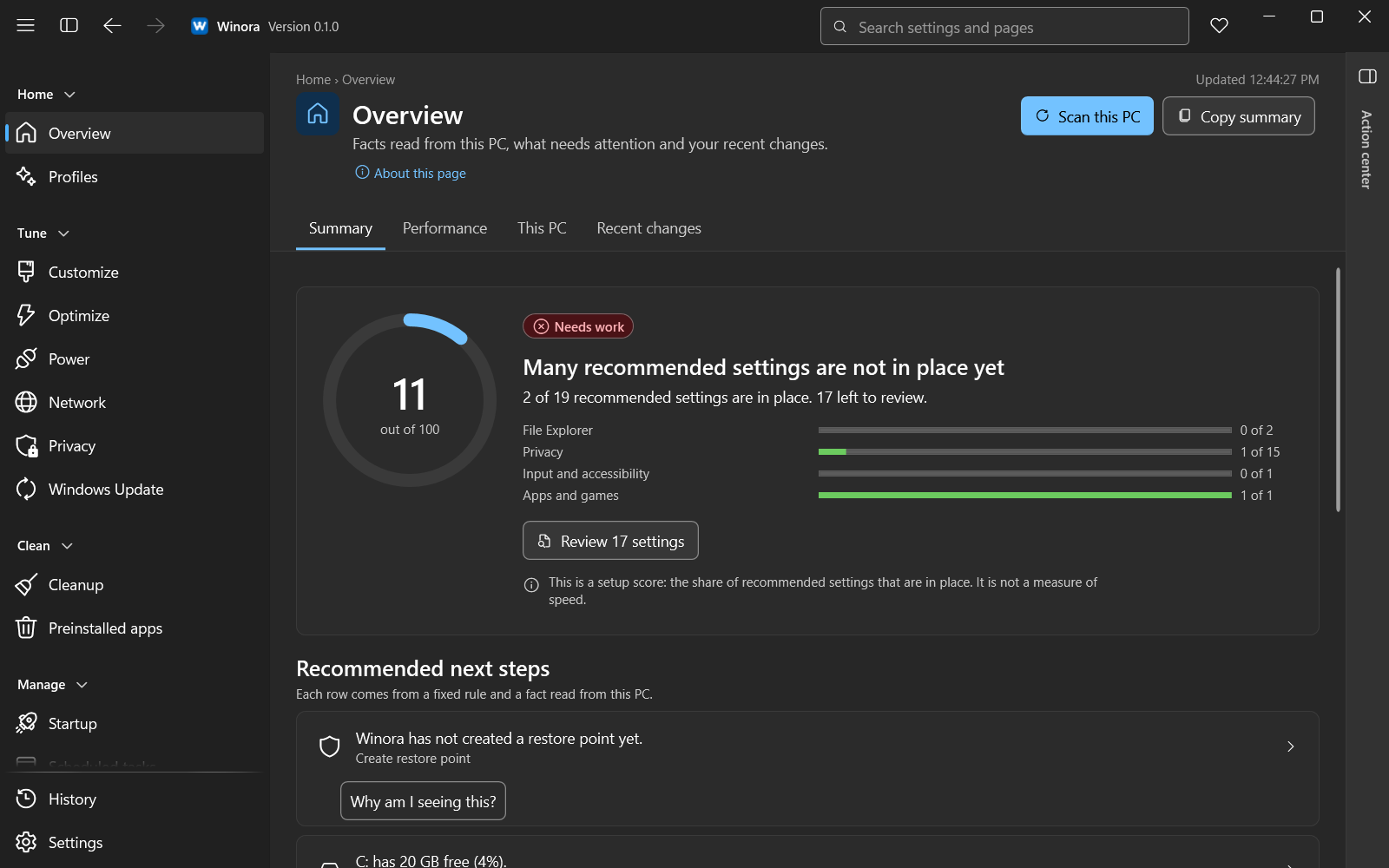
The Summary tab of the Overview page.
The buttons at the top
- Scan this PC reads the facts of this PC again and scans the startup items, tasks, services and apps. Nothing is changed. While it runs you can click Cancel.
- Copy summary copies a plain text summary of this PC to the clipboard. It has no serial numbers. You can paste it into a support request.
The Summary tab
Setup score
The setup score is a number out of 100. It is the share of recommended settings that are in place on this PC. It is not a measure of speed.
The score has three bands: Good, Fair and Needs work. Below it you see how many recommended settings are in place and a count per category. Click Review with the number of settings, for example Review 12 settings, to open the Customize page. Nothing changes until you review and confirm.
Recommended next steps
Each row comes from a fixed rule and a fact read from this PC. A row can say, for example, that Winora has not made a restore point yet, that the system drive is low on space, or that a setting changed since Winora set it.
Each row has a button that takes you to the right place, such as Open Cleanup, Create restore point or Open History. Click Why am I seeing this? to read the rule behind a row. When no rule applies, the list says Nothing needs attention.
Quick profile
Pick Balanced, Privacy, Gaming or Minimal in the list. The card shows how many settings would change on this PC. Click Review changes to open the plan on the Profiles page. Nothing is applied yet. See Profiles.
The Performance tab
The performance check reads five values when you click Measure: boot time, startup items, memory in use, free space on the system drive and processor load. It takes a few seconds and changes nothing. Nothing runs in the background.
Each value is marked Good, Can improve or Needs attention, with its limit. The score is the average of the five values. It shows how this PC is set up and loaded right now. It is not a speed test. Click Measure again for new values.
The This PC tab
This tab lists facts about Windows, the processor, memory, graphics, drives, the device and its firmware, security and power. It also shows whether Winora runs as administrator.
The section On this PC counts the startup items, scheduled tasks, services and apps from the last scan. Click a count to open its page.
The Recent changes tab
This tab shows the last three changes from every page, with an Undo button when one is possible. Click See all to open History with every change.
Was this page helpful?