All guides
No guide matches your search.
Repair tools and optional features
Run the repair programs that come with Windows from one page, and turn optional Windows features such as Windows Sandbox or WSL on or off.
On this page
Open Repair and features under Tools. The page has two parts: Repair tools and Optional Windows features. Both need administrator rights. Without them, the page still shows what each tool does.
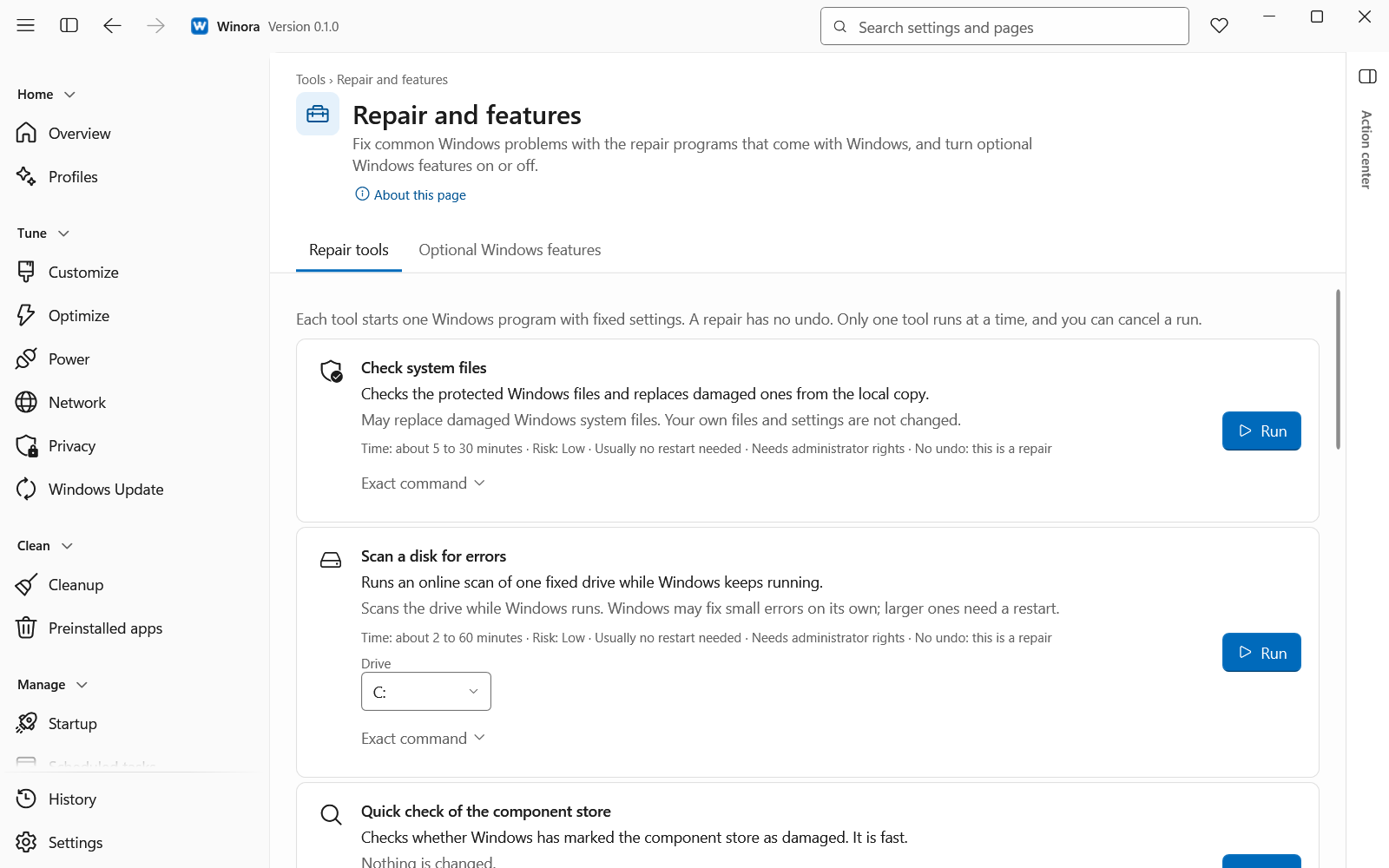
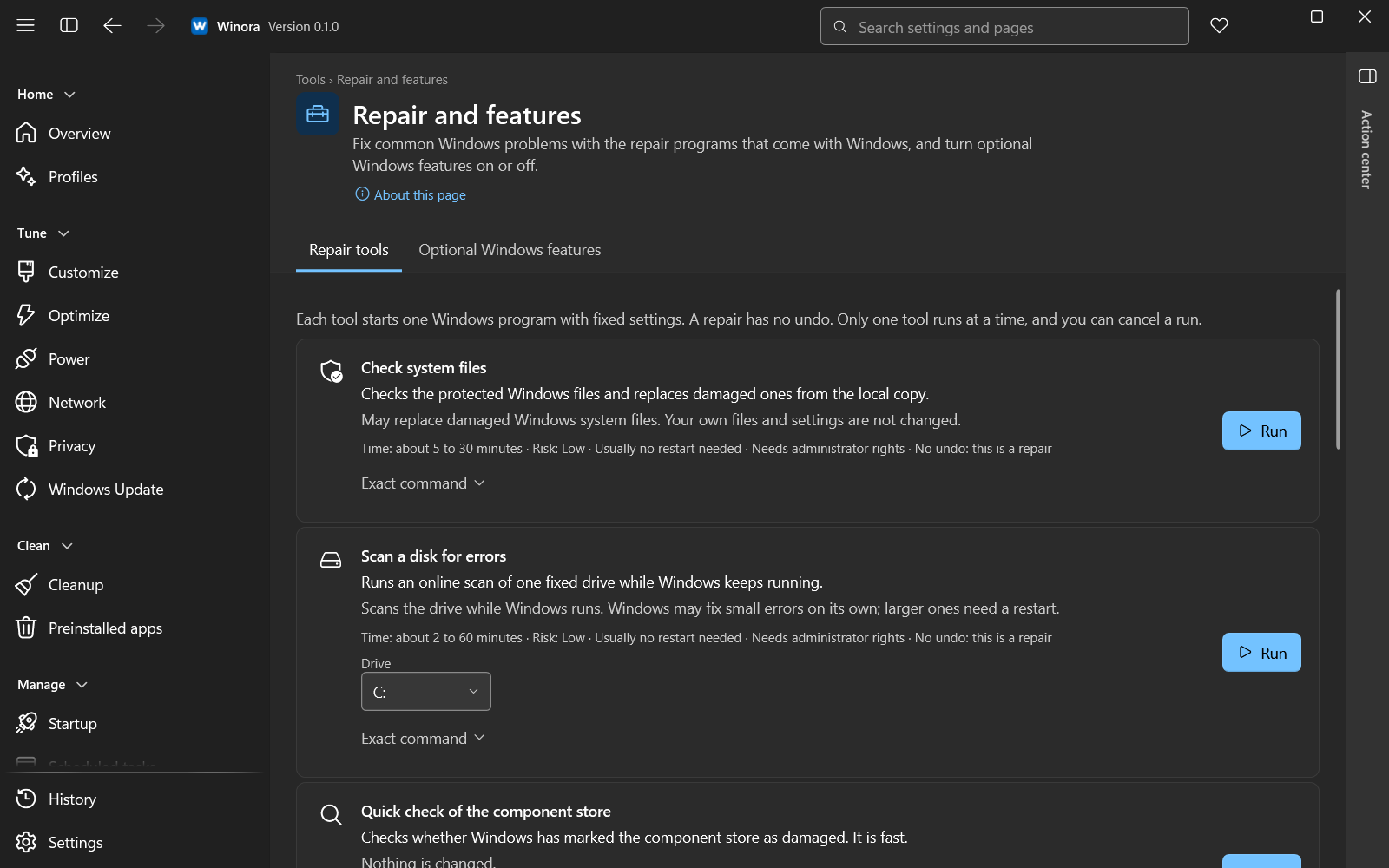
Each tool shows its time, risk and exact command.
Repair tools
Each tool starts one Windows program with fixed settings.
| Tool | What it does |
|---|---|
| Check system files | Checks the protected Windows files and replaces damaged ones from the local copy. |
| Scan a disk for errors | Scans one fixed drive while Windows keeps running. Choose the drive in Drive. |
| Quick check of the component store | Checks whether Windows has marked the component store as damaged. Nothing is changed. |
| Full scan of the component store | Looks for damage in the component store. It takes longer. Nothing is changed. |
| Repair the component store | Repairs damage in the component store. It may download good files from Windows Update. |
| Reset the Microsoft Store cache | Clears the Store cache. Your apps and sign-in are kept. |
| Reset Winsock | Sets the Winsock catalog back to the Windows default. |
| Reset the IPv4 stack | Sets the TCP/IP (IPv4) settings back to the Windows default. |
| Reset the IPv6 stack | Sets the TCP/IP (IPv6) settings back to the Windows default. |
| Reset the WinHTTP proxy | Removes the system-wide WinHTTP proxy. Browser proxy settings are not changed. |
Each tool card shows the time it takes, its risk, whether a restart may be needed and What it changes. Click Exact command to see the program and settings it starts.
Run a tool
- Click Run on the tool.
- Read the confirmation. It names the exact program and settings.
- Click Run again.
Only one tool runs at a time. While it runs, you see its progress. Click Cancel the run to stop it and the programs it started. A repair has no undo, and a half-done repair is not rolled back.
When the tool ends, Last result shows the outcome, for example Done or Problems found. Click Copy the result log to paste it into a support request.
If a restart is needed, a banner says Restart needed. Winora does not restart the PC for you.
A slow tool can show Still running. Winora waits and never ends the program because of the time. Click Stop only when the program seems stuck. You can set how long Winora waits with Wait for slow tools in Settings.
Optional Windows features
- Click Load the feature list. Reading the list can take up to a minute and changes nothing.
- Type in Filter by name to find a feature.
- Click Turn on or Turn off on the feature, read the confirmation, and confirm.
Winora changes only the features in its reviewed list, such as .NET Framework 3.5, Windows Sandbox, Windows Subsystem for Linux, Hyper-V and SMB 1.0 file sharing. Each feature shows its class:
- Class: safe. You can turn it on or off.
- Class: caution. It can affect security, start-up or other programs. Read the description first.
- Class: protected. The system needs it, so Winora does not change it.
Features that are not in the list are shown but not changed.
The state before is saved, so you can undo a change while the feature is still in the state Winora left. Some features need a restart and show Turns on after a restart or Turns off after a restart.
Was this page helpful?