All guides
No guide matches your search.
Show pages in a tab control
Use MxTabControl to show pages under tabs. Add pages in code, choose where the tabs go, show close buttons and react when the user picks a tab.
On this page
MxTabControl shows one page at a time with a strip of tabs. Each page is an MxTabPage, a container that holds your controls. Both types are in the Mordex.Windows.UI.Tabs namespace.
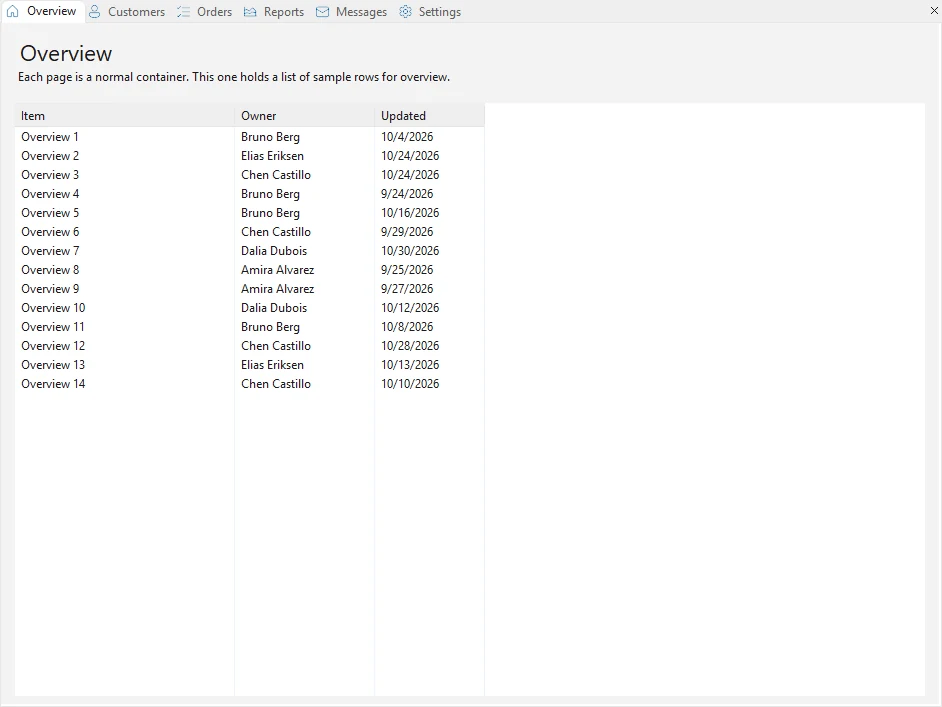
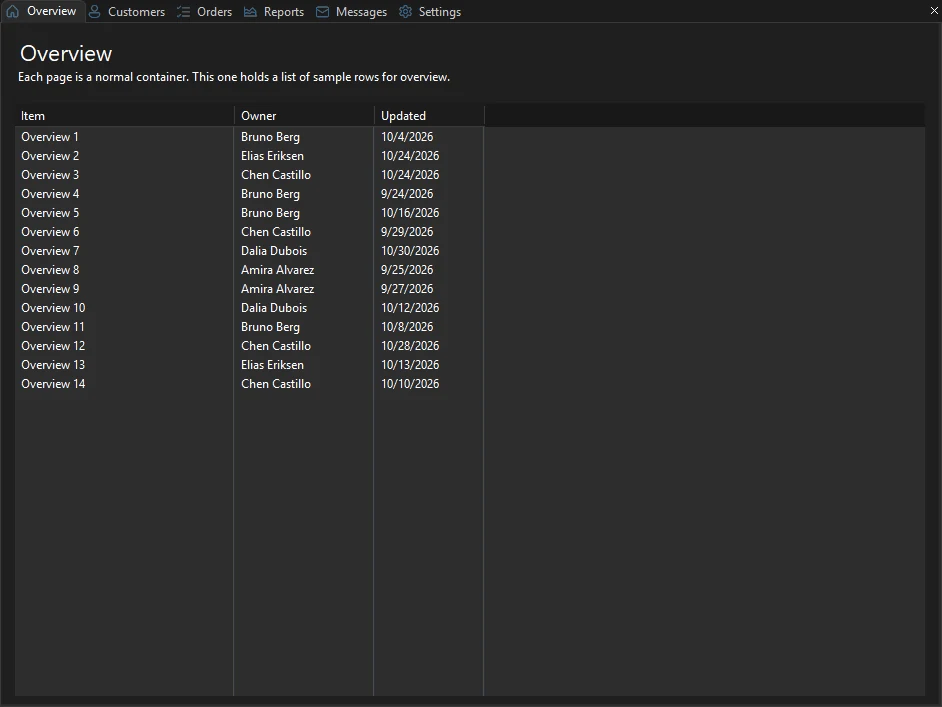
Tabs with icons and close buttons
Add a tab control and pages
Drop MxTabControl on a form in the designer, or create it in code. Add pages to TabPages.
using System.Windows.Forms;
using Mordex.Windows.UI.Tabs;

MxTabControl tabs = new MxTabControl { Dock = DockStyle.Fill };

foreach (string name in new[] { "Overview", "Customers", "Orders", "Reports" })
{
    MxTabPage page = new MxTabPage(name) { Key = name.ToLowerInvariant(), ToolTipText = name + " page" };
    page.Controls.Add(new ListView { Dock = DockStyle.Fill });
    tabs.TabPages.Add(page);
}

Controls.Add(tabs);
TabPages also has Insert, Remove, Clear and Contains. You can find a page by index or by its Key with tabs.TabPages["orders"]. The key match ignores case. A missing key throws ArgumentOutOfRangeException.
Select a tab in code
Set SelectedTab to a page, or SelectedIndex to its position.
MxTabPage opened = new MxTabPage("New tab");
tabs.TabPages.Add(opened);
tabs.SelectedTab = opened;
EnsureVisible(page) scrolls the strip so the tab of that page is in view.
Show icons on the tabs
Give the control an ImageList. Then pass an image index to the page constructor, or set ImageIndex or ImageKey on the page. A page can also use its own Image or Icon.
tabs.ImageList = icons;
tabs.ImageSize = new Size(16, 16);
tabs.TabPages.Add(new MxTabPage("Messages", 4));
TabDisplay decides what each tab shows.
| Value | The tab shows |
|---|---|
ImageAndText | The image and the text |
Text | The text only |
Image | The image only |
ImageAndTextOnSelected | The text on the selected tab, the image on every tab |
Place the tab strip
TabStripAlignment puts the strip at the Top, Bottom, Left or Right of the control.
tabs.TabStripAlignment = TabStripAlignment.Left;These properties also change the strip:
MultiLine. Shows several rows of tabs when they do not fit in one row.SizeMode. Sizes the tabs with aTabSizeModevalue from Windows Forms:Normal,FixedorFillToRight.ShowTabs. Hides the strip whenfalse. Only the selected page shows.PageBorder. Draws a border around the page withAll, a line on the side of the strip withStripLine, or no border withNone.
Let the user close tabs
Set ShowCloseButton to true to show a close button for the selected tab. With a browser theme, such as Chrome or Firefox, each tab gets its own close button when the tabs are in one row at the top or bottom.
Set AllowClose to false on a page that must stay open.
tabs.ShowCloseButton = true;
tabs.TabPages["overview"].AllowClose = false;
The close button does not remove the page. It sets TabVisible of the page to false, so the page stays in TabPages. Set TabVisible back to true to show it again. To remove a page for good, remove it from TabPages and dispose it.
MxTabPage page = tabs.SelectedTab;
if (page != null && page.AllowClose)
{
    tabs.TabPages.Remove(page);
    page.Dispose();
}
ShowCloseButton has no effect when MultiLine is true.
React to tab changes
| Event | When it fires |
|---|---|
ChangingSelectedTab | Before another tab is selected. Set e.Cancel to stop it. |
SelectedTabChanged | After another tab is selected |
ClosingTab | Before a tab closes. Set e.Cancel to keep it open. |
TabClosed | After a tab closes |
Each event gives the page in e.Page.
tabs.ClosingTab += (s, e) =>
{
    if (e.Page.Text == "Settings")
    {
        e.Cancel = true;
    }
};

tabs.SelectedTabChanged += (s, e) =>
    statusLabel.Text = "Selected tab: " + e.Page.Text;
GetTabAt(point) returns the page whose tab is at a point in client coordinates. Use it to show a context menu for a tab.
Show tool tips on tabs
Set ToolTipText on a page. ShowToolTips is true by default, so the text shows when the mouse rests on the tab.
Put the tabs in the title bar
With the Chrome and Firefox themes, the tab strip can sit in the title bar of the form, as in a web browser. The form needs an MxThemedFormFrame to draw its frame. See Themes.
tabs.TabsInCaption = true;
tabs.ShowAddTabButton = true;
tabs.AddTabClick += (s, e) =>
{
    MxTabPage page = new MxTabPage("New tab");
    tabs.TabPages.Add(page);
    tabs.SelectedTab = page;
};
ShowAddTabButton adds a button after the last tab in the title bar. The AddTabClick event fires when the user clicks it.
The title bar has room for one strip. When two tab controls on the same form ask for it, the last one gets the title bar and the other keeps its own strip.
Use tabs in a docking layout
An MxTabControl works well as the document area of a docking layout. Put it in the InnerContainer of a panel whose DockStyle is Fill. See Build a docking layout with dock panels.
For MDI child forms, use the tabbed MDI mode of the dock manager instead. It is in the same guide.
Was this page helpful?