All guides
No guide matches your search.
Build a docking layout with dock panels
Add panels that dock to the edges of a form, share tabs, hide at the edge or float. Then save the layout and load it again on the next start.
On this page
MxDockManager is a component. It places dock panels inside one container control, usually the form. Each panel is an MxDockPanel. Panels can be grouped in an MxDockPanelGroup. The user drags panels by their caption to move them.
All docking types are in the Mordex.Windows.UI.Docking namespace.
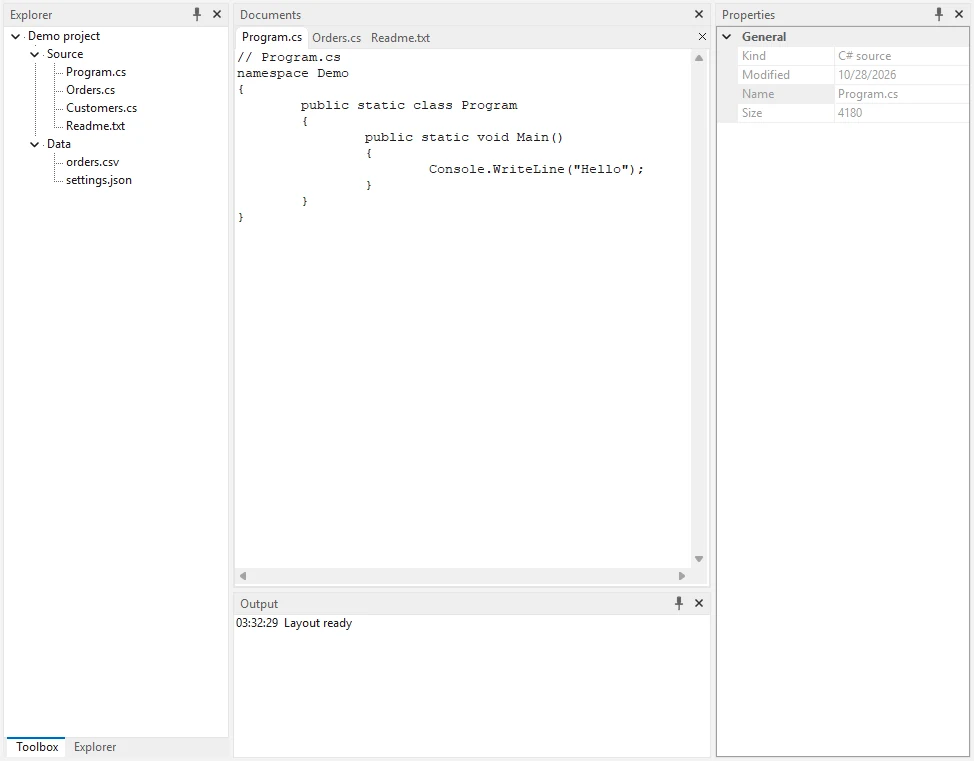
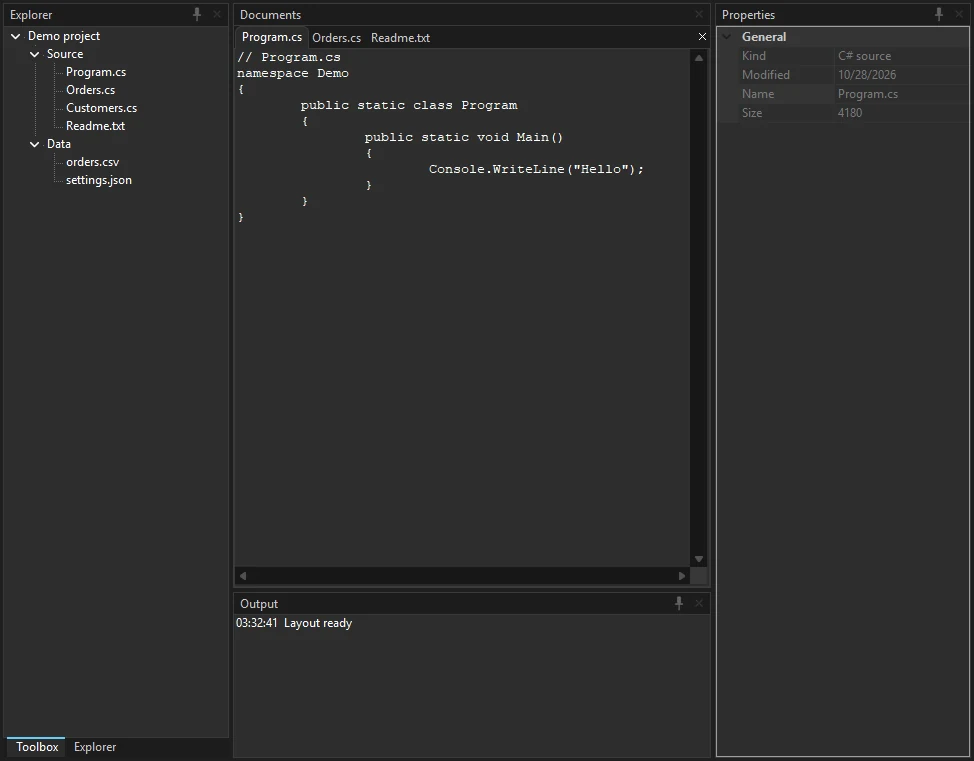
Explorer and Toolbox share tabs on the left, Properties is on the right and Output is at the bottom
Add the dock manager
You can drop MxDockManager on a form in the Visual Studio designer. Its designer adds panels and writes the code for you. You can also build the layout in code.
Set ContainerControl to the control that holds the panels. Then add panels to Panels.
using System.Drawing;
using System.Windows.Forms;
using Mordex.Windows.UI.Docking;

public partial class MainForm : Form
{
    private readonly MxDockManager _dockManager = new MxDockManager();

    public MainForm()
    {
        InitializeComponent();

        MxDockPanel explorer = new MxDockPanel("Explorer", PanelDockStyle.Left);
        MxDockPanel properties = new MxDockPanel("Properties", PanelDockStyle.Right);
        MxDockPanel output = new MxDockPanel("Output", PanelDockStyle.Bottom);

        explorer.Size = new Size(230, 300);
        properties.Size = new Size(260, 300);
        output.Size = new Size(300, 170);

        _dockManager.ContainerControl = this;
        _dockManager.Panels.Add(explorer);
        _dockManager.Panels.Add(properties);
        _dockManager.Panels.Add(output);
    }

    protected override void Dispose(bool disposing)
    {
        if (disposing)
        {
            _dockManager.Dispose();
        }
        base.Dispose(disposing);
    }
}
When you create the manager in code, dispose it with the form. The designer does this for you.
Put content in a panel
Each MxDockPanel has an InnerContainer. Add your controls to it, and set their Dock to DockStyle.Fill.
TreeView tree = new TreeView { Dock = DockStyle.Fill };
explorer.InnerContainer.Controls.Add(tree);
Choose the edge of a panel
The DockStyle property of a panel takes a PanelDockStyle value.
| Value | Where the panel goes |
|---|---|
Left | The left edge of the container |
Right | The right edge of the container |
Top | The top edge of the container |
Bottom | The bottom edge of the container |
Fill | The space that the other panels leave free |
Use one Fill panel for the main work area, for example a document area with an MxTabControl in it.
The panel Size sets the width of a left or right panel and the height of a top or bottom panel.
Group panels in tabs
An MxDockPanelGroup holds several panels in one place. Pass a PanelGroupStyle to its constructor. Add the group to the manager first, then add panels to the group.
MxDockPanel toolbox = new MxDockPanel("Toolbox", PanelDockStyle.Left);

MxDockPanelGroup left = new MxDockPanelGroup(PanelGroupStyle.Tab) { DockStyle = PanelDockStyle.Left };
_dockManager.Panels.Add(left);
left.Panels.Add(toolbox);
left.Panels.Add(explorer);
left.Size = new Size(230, 300);| Group style | How the panels show |
|---|---|
Tab | One panel at a time, with a tab for each panel |
HorizontalTiles | Side by side |
VerticalTiles | One above the other |
OfficeTaskPane | One panel at a time, in the style of an Office task pane |
OutlookNavigator | One panel at a time, with large buttons in the style of Outlook |
To show a panel of a group in code, set SelectedPanel or call SelectPanel(panel, giveFocus). The SelectedPanelChanged event of the group fires after the change.
CreateGroup(groupStyle, panelToGroupWith) on a panel puts it and another panel into a new group.
Hide a panel at the edge
Set AutoHide to true to hide a docked panel at its edge. The panel then shows only a tab. It slides out when the user points at the tab, and hides again when it loses focus.
properties.AutoHide = true;The user can do the same with the pin button in the panel caption. Set AutoHideButtonVisible to InheritableBoolean.False to remove that button from a panel. InheritableBoolean is in the Mordex.Windows.UI namespace.
These manager properties change how hidden panels behave:
ShowAutoHidePanelsOnClick. Whentrue, a hidden panel opens only when the user clicks its tab.AllowAutoHideAnimation. Whenfalse, the panel opens at once without a slide.
Float a panel in its own window
Call UndockPanel() to move a panel into a floating window. Call DockPanel() to put it back.
if (output.DockState == PanelDockState.Docked)
{
    output.UndockPanel();
}
else
{
    output.DockPanel();
}
DockState is PanelDockState.Docked or PanelDockState.Floating. FloatingLocation and FloatingSize set where the floating window opens and how large it is. More about floating windows is in Use scroll panels, group boxes and floating windows.
A panel inside a group with StaticGroup set to true cannot float or dock alone. The call throws InvalidOperationException.
Close and show a panel
Set Closed to true to close a panel. Set it to false to show it again.
output.Closed = !output.Closed;Set CloseButtonVisible to InheritableBoolean.False to remove the close button from a panel caption.
Control what the user can do
These properties of MxDockManager turn user actions on and off. All of them are true by default.
| Property | When it is false |
|---|---|
AllowPanelDrag | The user cannot drag panels by their caption |
AllowPanelDrop | The user cannot drop a panel on another panel to make a group |
AllowPanelResize | The user cannot resize panels with the splitter |
Each panel also has AllowPanelDrag, AllowPanelDrop and AllowResize. They take an InheritableBoolean and are Default until you set them.
Pick the docking guides
DockingStyleMode sets how the manager shows where a dragged panel will land.
VS2005. The manager shows drop guides over the panel under the mouse. The user drops the panel on a guide. This is the default.Standard. The drop place follows the edge of the panel under the mouse.
_dockManager.DockingStyleMode = DockingStyleMode.Standard;React to panel changes
The manager raises events when the user changes the layout. Each event gives the panel in e.Panel.
_dockManager.PanelAutoHideChanged += (s, e) =>
    statusLabel.Text = e.Panel.Text + (e.Panel.AutoHide ? " is hidden at the edge" : " is pinned");

_dockManager.PanelDockStateChanged += (s, e) =>
    statusLabel.Text = e.Panel.Text + " is now " + e.Panel.DockState;

_dockManager.PanelClosedChanged += (s, e) =>
    statusLabel.Text = e.Panel.Text + (e.Panel.Closed ? " closed" : " opened");

_dockManager.PanelActivated += (s, e) =>
    statusLabel.Text = e.Panel.Text + " activated";
Some events fire before the change and let you stop it. Set e.Cancel to true in PanelClosedChanging, PanelAutoHideChanging or PanelStartDrag.
_dockManager.PanelClosedChanging += (s, e) =>
{
    if (e.Panel == properties && !e.Panel.Closed)
    {
        e.Cancel = true;
    }
};
ActivePanel returns the active panel. Activate() on a panel selects it in its group. A hidden panel slides out, and a floating panel brings its window to the front.
Show MDI child forms as tabs
The dock manager can show the child forms of an MDI form as tabs. Each set of tabs is an MxMdiTabGroup.
- Set
IsMdiContainerof the form totrue. - Set
ContainerControlof the manager to the form. - Set
TabbedMditotrue.
IsMdiContainer = true;
_dockManager.ContainerControl = this;
_dockManager.TabbedMdi = true;

Form child = new Form { Text = "Orders", MdiParent = this };
child.Show();
TabbedMdi can be true only when ContainerControl is a form. Otherwise the setter throws InvalidOperationException.
TabbedMdiSettings holds the options of the tabs:
ShowCloseButton. Shows the close button in the tab groups.ShowCloseButtonOnSelectedTab. Shows the close button on the selected tab.UseFormIcons. Shows the icon of each form on its tab.AllowDrag. Lets the user drag tabs to make new groups.GroupOrientation. Places new groups side by side or one above the other, with anMdiGroupOrientationvalue.
Call NewMdiTabGroup(MdiGroupOrientation.Vertical) to split the document area into a new group. MdiTabGroups returns the groups, and FindMdiTab(childForm) returns the MdiChildTab of a form.
The MdiTabClosing event fires before a tab closes. Set e.Cancel to true to keep it open. e.Tab.Form is the child form.
Save and load the layout
SaveLayoutFile writes the whole layout to a stream. LoadLayoutFile reads it back.
using System.IO;

private void SaveLayout(string path)
{
    using (FileStream stream = File.Create(path))
    {
        _dockManager.SaveLayoutFile(stream);
    }
}

private void LoadLayout(string path)
{
    if (File.Exists(path))
    {
        using (FileStream stream = File.OpenRead(path))
        {
            _dockManager.LoadLayoutFile(stream);
        }
    }
}
Call SaveLayoutFile(stream, PersistMode.PanelLayout) to save only the panels. PersistMode.TabbedMdiLayout saves only the MDI tab groups, and PersistMode.All saves both.
Give panels a fixed Id
The layout finds each panel by its Id. A panel that you create in code gets a new Id each time the program starts. Set Id to a fixed Guid on every panel and group before you load a layout. Panels made in the designer already keep their Id.
explorer.Id = new Guid("3b1f6a52-8c4e-4a39-9f0d-1e2a7c5b6d01");
properties.Id = new Guid("3b1f6a52-8c4e-4a39-9f0d-1e2a7c5b6d02");
left.Id = new Guid("3b1f6a52-8c4e-4a39-9f0d-1e2a7c5b6d03");
Save the layout in the user settings
Set SaveSettings to true to save the layout in the user settings when the manager is disposed. SettingsKey names the entry. In the designer it defaults to the component name.
Call LoadComponentSettings() to read the saved layout, for example in the Load event of the form. ResetComponentSettings() clears the saved layout.
Change the look
The manager and its panels follow the theme of the application. See Themes.
Was this page helpful?