All guides
No guide matches your search.
Show appointments in the scheduler
Show appointments in day, week or month view. Put people side by side, repeat events, shade working time and let users drag appointments.
On this page
MxScheduler shows appointments on a calendar grid. It lives in the Mordex.Windows.Scheduler namespace. If the package is not in your project yet, read Get started first.
Add a scheduler to a form
Drag MxScheduler from the toolbox to a form, or create it in code.
using System;
using System.Windows.Forms;
using Mordex.Windows.Scheduler;

MxScheduler scheduler = new MxScheduler();
scheduler.Dock = DockStyle.Fill;
scheduler.View = SchedulerView.DayView;
scheduler.Date = DateTime.Today;
Controls.Add(scheduler);
Choose the view
The View property sets how many days the scheduler shows. Date sets the day that the view starts from.
| Value | What it shows |
|---|---|
SchedulerView.DayView | One day with a row for each time slot. |
SchedulerView.WorkWeek | The work days of one week. |
SchedulerView.WeekView | All seven days of one week. |
SchedulerView.MonthView | Several weeks in a grid. |
In month view, Weeks sets the number of weeks. It accepts 1 to 6, and the default is 5.
FirstDayOfWeek takes a SchedulerDayOfWeek value, for example SchedulerDayOfWeek.Monday.
Set the time slots
In day and work week view, Interval sets the length of one row. Use a value such as Interval.FifteenMinutes, Interval.ThirtyMinutes or Interval.SixtyMinutes.
DayStartHour and DayEndHour limit the hours that the day grid shows. DayStartHour accepts 0 to 23 and DayEndHour accepts 1 to 24. The start must be lower than the end, so set the end first when you move both.
FirstVisibleTime scrolls the grid so that a time is at the top.
scheduler.Interval = Interval.ThirtyMinutes;
scheduler.DayEndHour = 20;
scheduler.DayStartHour = 7;
scheduler.FirstVisibleTime = TimeSpan.FromHours(7);
scheduler.HighlightCurrentTime = TriState.True;
HighlightCurrentTime marks the current time on the grid.
Add appointments
Create a SchedulerAppointment with a start, an end and a subject. Then add it to Appointments.
using System.Drawing;
using System.Windows.Forms;

DateTime day = DateTime.Today;
SchedulerAppointment meeting = new SchedulerAppointment(day.AddHours(10), day.AddHours(11), "Design review");
meeting.Description = "Room A";
meeting.FormatStyle.BackColor = Color.FromArgb(0, 114, 188);
meeting.FormatStyle.ForeColor = Color.White;
meeting.BorderColor = ControlPaint.Dark(Color.FromArgb(0, 114, 188), 0.1f);
scheduler.Appointments.Add(meeting);
FormatStyle sets the colors of one appointment. Set AllDayEvent to true for an event without a time.
To read the appointments of a period, call GetAppointmentsFromDate or GetAppointmentsFromRange.
Show people side by side
Each person is an owner. Add the owners first, then set Owner on each appointment to the value of its owner.
scheduler.Owners.Add("Anna", "Anna");
scheduler.Owners.Add("Ben", "Ben");

SchedulerAppointment call = new SchedulerAppointment(day.AddHours(9), day.AddHours(9.5), "Client call");
call.Owner = "Ben";
scheduler.Appointments.Add(call);

scheduler.MultiOwner = true;
Owners.Add takes the value and the text of the header. With MultiOwner set to true, each owner gets a column.
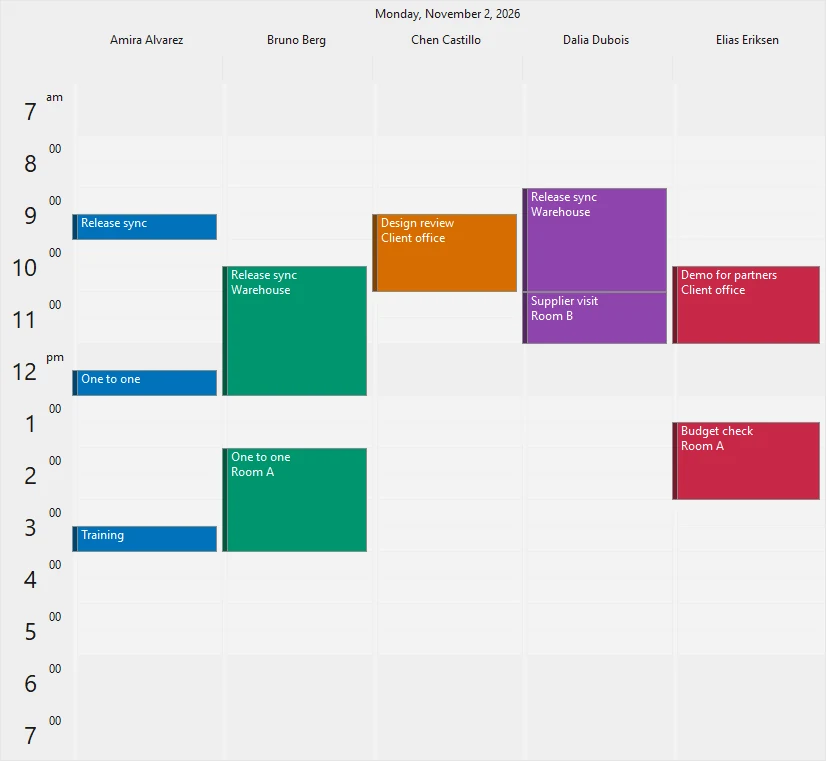

Day view with people side by side
To show one person at a time, set MultiOwner to false and set CurrentOwner.
scheduler.MultiOwner = false;
scheduler.CurrentOwner = scheduler.Owners[1];
Tip
The day view has the most room for people side by side. In week and month view, one person at a time is easier to read.
Add a date navigator
MxCalendarView is a month calendar in the same namespace. Link it to the scheduler with its Scheduler property.
MxCalendarView navigator = new MxCalendarView();
navigator.Dock = DockStyle.Left;
navigator.FirstDayOfWeek = CalendarDayOfWeek.Monday;
navigator.SelectionStyle = CalendarSelectionStyle.Schedule;
navigator.Scheduler = scheduler;
Controls.Add(navigator);
With CalendarSelectionStyle.Schedule, the days that the user selects in the calendar are the days that the scheduler shows. The calendar also gives its first day of the week to the scheduler.
Days with appointments are bold. BoldDatesMode changes this: BoldDatesMode.All, BoldDatesMode.CurrentOwner or BoldDatesMode.None.
For more about the calendar, read Pick dates with the date picker and calendar.
Let users drag and edit appointments
AllowEdit lets users change the text of an appointment. AllowAppointmentDrag sets what a drag can do. Its values are flags, so you can join them with |.
| Value | What the user can do |
|---|---|
AllowAppointmentDrag.None | Nothing. Appointments stay in place. |
AllowAppointmentDrag.Move | Move an appointment to another time. |
AllowAppointmentDrag.Resize | Drag an edge to change the length. |
AllowAppointmentDrag.OwnerChange | Move an appointment to another person. |
AllowAppointmentDrag.Copy | Copy an appointment while dragging. |
AllowAppointmentDrag.All | All of the above. This is the default. |
scheduler.AllowEdit = true;
scheduler.AllowAppointmentDrag = AllowAppointmentDrag.Move | AllowAppointmentDrag.Resize;
scheduler.AllowDragInNonWorkingTime = false;
Set AllowDragInNonWorkingTime to false to keep dragged appointments out of non working time.
Check a change before it happens
DroppingAppointment runs before a dragged appointment is dropped. Set Cancel to stop the drop.
scheduler.DroppingAppointment += (sender, e) =>
{
    if (e.ProposedStartTime.DayOfWeek == DayOfWeek.Sunday)
    {
        e.Cancel = true;
    }
};

scheduler.AppointmentChanged += (sender, e) =>
{
    // Save e.Appointment to your data store here.
};
Other useful events are AppointmentAdded, AppointmentRemoved, AppointmentDoubleClick and AppointmentChanging.
Repeat an appointment
Give an appointment a RecurrencePattern to repeat it. The first appointment sets the time of day and the length.
DateTime monday = DateTime.Today.AddDays(-(((int)DateTime.Today.DayOfWeek + 6) % 7));

SchedulerAppointment standup = new SchedulerAppointment(monday.AddHours(9), monday.AddHours(9.25), "Daily stand-up");
RecurrencePattern daily = new RecurrencePattern();
daily.RecurrenceType = RecurrenceType.Daily;
daily.DailyRecurrenceMode = DailyRecurrenceMode.WeekDays;
daily.PatternStartDate = monday;
daily.RecurrenceEndMode = RecurrenceEndMode.NoEndDate;
standup.RecurrencePattern = daily;
scheduler.Appointments.Add(standup);

SchedulerAppointment review = new SchedulerAppointment(monday.AddDays(4).AddHours(15), monday.AddDays(4).AddHours(16), "Weekly review");
RecurrencePattern weekly = new RecurrencePattern();
weekly.RecurrenceType = RecurrenceType.Weekly;
weekly.DayOfWeek = SchedulerDayOfWeek.Friday;
weekly.Interval = 1;
weekly.PatternStartDate = monday;
weekly.RecurrenceEndMode = RecurrenceEndMode.NoEndDate;
review.RecurrencePattern = weekly;
scheduler.Appointments.Add(review);
RecurrenceType can be Daily, Weekly, Monthly or Yearly, among others. For a monthly pattern, set DayOfMonth. Interval repeats the pattern every so many periods.
RecurrenceEndMode sets when the series stops.
| Value | When the series stops |
|---|---|
RecurrenceEndMode.NoEndDate | Never. |
RecurrenceEndMode.EndDate | On the date in PatternEndDate. |
RecurrenceEndMode.Occurrences | After the number in Occurrences. |
When a user drags one occurrence, the scheduler changes only that occurrence and keeps the rest of the series. CreatingRecurrenceException runs first and can cancel. RecurrenceExceptionCreated runs after the change.
Set working time
The scheduler shades the time outside working hours. Set the work days and the hours of the day.
scheduler.WorkWeek = SchedulerDayOfWeek.Monday | SchedulerDayOfWeek.Tuesday | SchedulerDayOfWeek.Wednesday
    | SchedulerDayOfWeek.Thursday | SchedulerDayOfWeek.Friday;
scheduler.WorkStartTime = TimeSpan.FromHours(8);
scheduler.WorkEndTime = TimeSpan.FromHours(18);
Add a lunch break
Add a SchedulerHourRange with false as the last argument. That range is not working time.
SchedulerHourRange lunch = new SchedulerHourRange(scheduler.WorkWeek, TimeSpan.FromHours(12), TimeSpan.FromHours(13), false);
scheduler.WorkingHourSchema.WorkingHoursRange.Add(lunch);
Mark a holiday
A WorkingHourException changes the working time for a range of dates.
DateTime holiday = monday.AddDays(2);
Color holidayColor = Color.FromArgb(246, 222, 222);

WorkingHourException dayOff = new WorkingHourException();
dayOff.DateRange = new DateRange(holiday, holiday.AddDays(1));
dayOff.HourRange.StartTime = TimeSpan.Zero;
dayOff.HourRange.EndTime = TimeSpan.FromDays(1);
dayOff.HourRange.IsWorkingTime = false;
dayOff.HourRange.FormatStyle.BackColor = holidayColor;
scheduler.WorkingHourSchema.Exceptions.Add(dayOff);
scheduler.SetDateBackColor(holiday, holidayColor);
SetDateBackColor colors the whole day. Each owner also has a WorkingHourSchema for the hours of one person.
Find a free time slot
FindFreeTimeSlot returns the first start time with no appointment for the length you ask for. Pass true to search only in working time.
DateTime from = DateTime.Today.AddHours(8);
DateTime slot = scheduler.FindFreeTimeSlot(from, TimeSpan.FromHours(1), true);
if (slot != DateTime.MaxValue)
{
    scheduler.Appointments.Add(new SchedulerAppointment(slot, slot.AddHours(1), "New meeting"));
}
It returns DateTime.MaxValue when no slot is free up to MaxDate. Another overload takes an owner and searches the time of that person only. IsWorkingTime tells you if a period is in working time.
Bind the scheduler to data
The scheduler can read appointments from a data source such as a DataTable. Name the columns, then set DataSource.
scheduler.StartTimeMember = "Start";
scheduler.EndTimeMember = "End";
scheduler.TextMember = "Title";
scheduler.DescriptionMember = "Location";
scheduler.OwnerMember = "Person";
scheduler.DataSource = table;
A change in a row shows in its appointment. AppointmentRead runs for each appointment that is read from the data source.
Was this page helpful?