All guides
No guide matches your search.
The side panel: your bookmarks beside the page
The side panel stays open while you read. It lists the bookmarks of the site you are on, or your whole library, and lets you move them into folders.
On this page
Open it
- Chrome and Edge. Open the browser's side panel menu and choose Bookmark Scope. You can also press the side panel button in the popup header, next to the star, or choose Open side panel in the popup's More controls menu.
- Firefox. Open View, then Sidebars, and choose Bookmark Scope. The side panel button in the popup header and the Open side panel menu item work too.
- Shortcut. Press Alt + Shift + S. You can change the key on the browser's extension shortcuts page (
chrome://extensions/shortcutsin Chrome, the gear menu in Firefox's Add-ons Manager).
The toolbar button still opens the popup. The popup shows only the site you are on. The side panel stays open when you click on the page or switch tabs.
This site and All
Two buttons at the top switch the view.
- This site lists the bookmarks for the page you are on, with the same Page, Host and Domain switch as the popup. The list follows you when you switch tabs or open another page.
- All lists your whole library. The folder list above the search box limits it to one folder and everything inside it. Each row shows the site name, because the rows come from many sites.
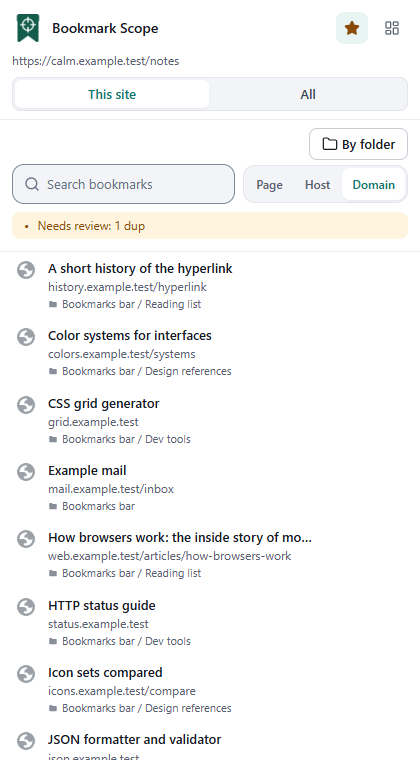
Group by folder
The By folder button, under the two view buttons, works in both views. Press it to see the list as a folder tree instead of a flat list. Press it again to go back.
- In This site you see only the folders that hold bookmarks for this site.
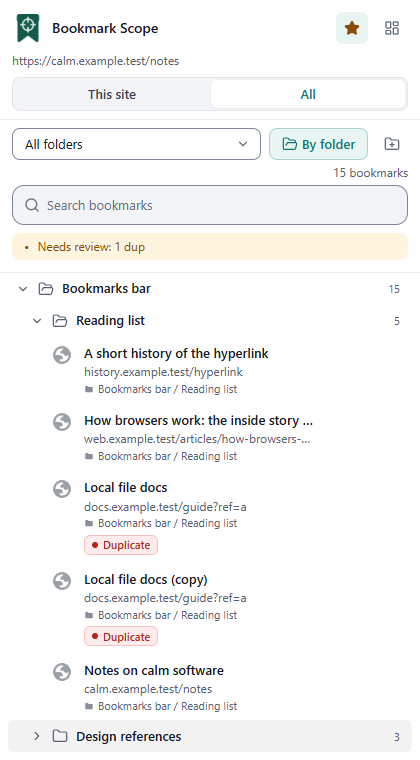
- In All you see your whole folder tree, with empty folders too. Only the browser's top-level folders start open. A search or the folder list narrows the tree to the folders that have matches, and opens them.
- Click a folder to open or close it. The number on the right is how many bookmarks are inside, subfolders included. An open folder lists its bookmarks 100 at a time; Show more adds the next 100.
Move by dragging
With By folder on, drag a bookmark and drop it on a folder to move it there. Drop it on another bookmark to put it in that bookmark's folder. You can drag a folder onto another folder too, and it moves with everything inside. The target folder is outlined while you drag, and a closed folder opens if you hold over it. A toast offers Undo.
The browser's top-level folders (such as Bookmarks bar) cannot be dragged, and a folder cannot be dropped into itself or one of its own subfolders. Dragging needs a mouse or trackpad; on a touch screen use Move to folder on the row instead.
The panel remembers whether you use By folder.
The search box works as in the popup: every word must appear in the title, address or folder, and a search with no result falls back to fuzzy matching.
On a row
Click the title to open the bookmark in a new tab. Ctrl or Cmd plus click, or a middle click, opens it in a background tab. The row has three buttons when you point at it:
- Move to folder opens the folder list. Pick a folder, or make a new one in the same dialog, and press Move here. A toast offers Undo.
- Show in bookmarks opens the browser's bookmark manager on the folder (not in Firefox).
- Delete asks first and offers Undo.
The button next to the folder list, Manage folders, opens the same folder dialog as the dashboard: new subfolder, rename, move and delete empty folders. See Organizing.
The header
The star bookmarks the current page, or removes the bookmark if you already have it. The grid button opens the dashboard.
Limits
- Bulk actions, link health checks, import, export and cleanup stay in the dashboard.
- The panel remembers the view and the folder you chose, and opens on them next time.
Was this page helpful?