Bookmarks

Bookmark Scope

Shows the bookmarks you already have for the site you are on. A dashboard finds duplicates and dead links, and backs up your bookmarks.

On this page

See it in action
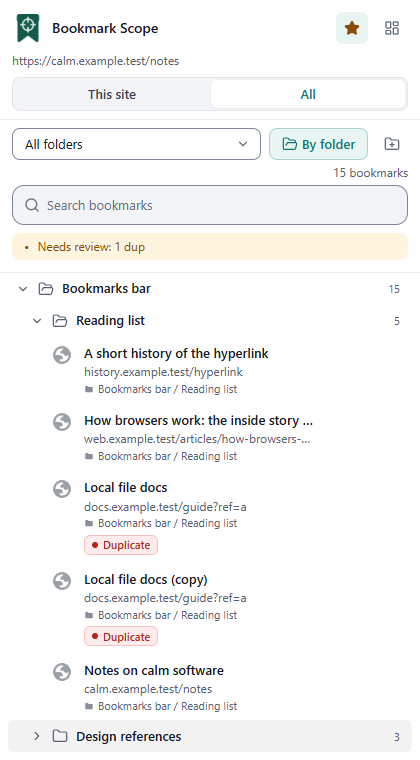
The Bookmark Scope popup showing the current page address, a count of bookmarks in scope, a search box, a Page, Host, Domain switch and a short list of matching bookmarksThe Bookmark Scope popup showing the current page address, a count of bookmarks in scope, a search box, a Page, Host, Domain switch and a short list of matching bookmarks
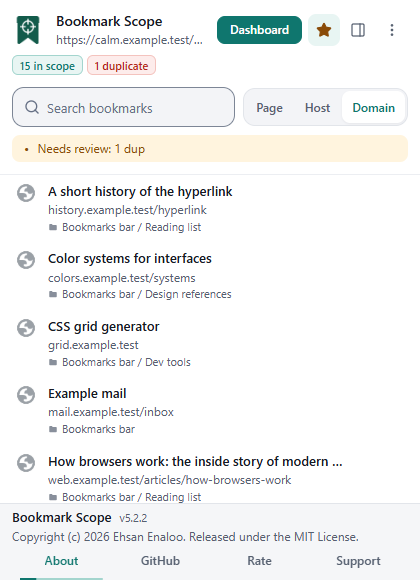
The Bookmark Scope popup showing the current page address, a count of bookmarks in scope, a search box, a Page, Host, Domain switch and a short list of matching bookmarks
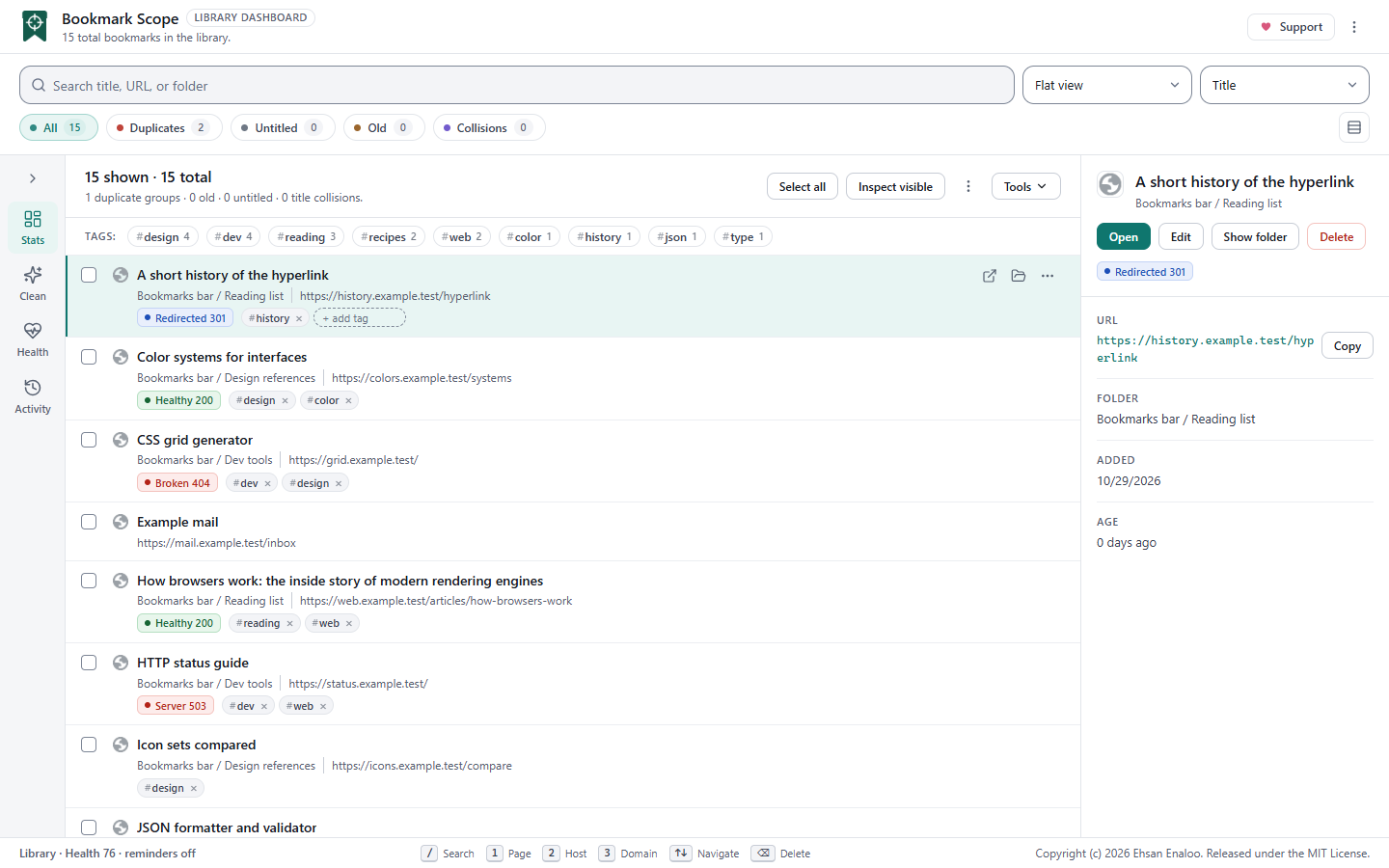
The Bookmark Scope dashboard with the filter chips, a side rail of panels, the bookmark list and a detail panelThe Bookmark Scope dashboard with the filter chips, a side rail of panels, the bookmark list and a detail panel
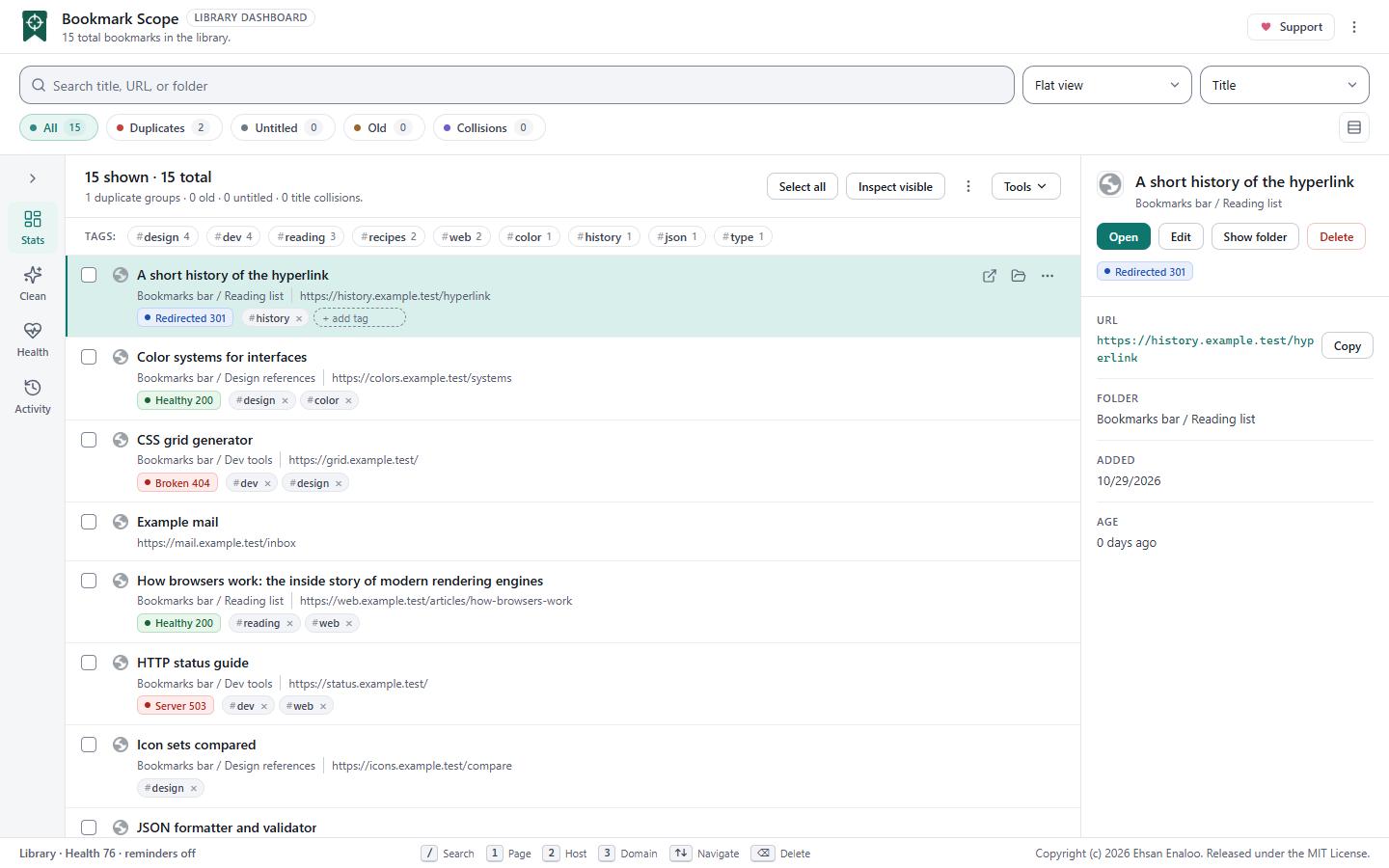
The Bookmark Scope dashboard with the filter chips, a side rail of panels, the bookmark list and a detail panel
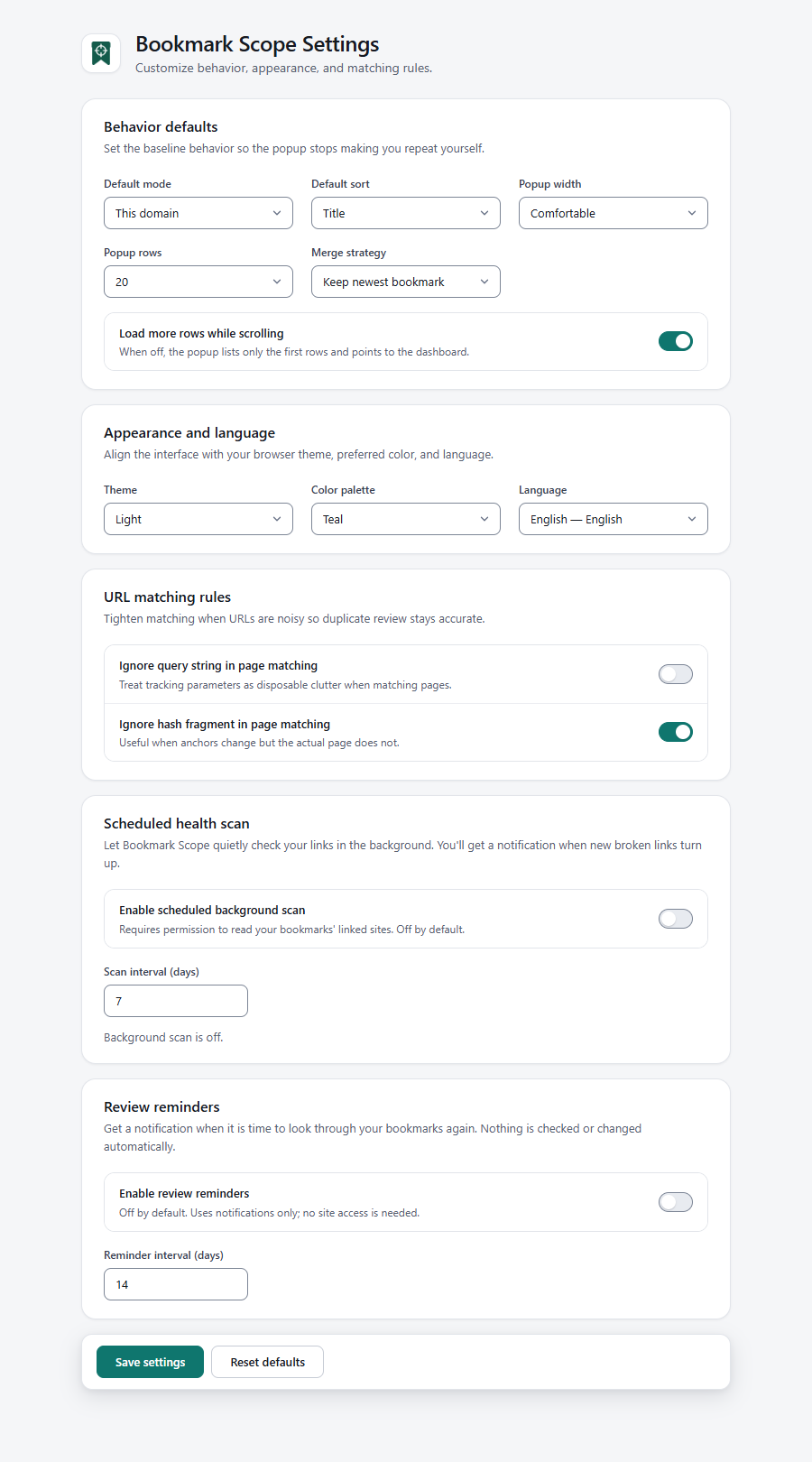
The Bookmark Scope settings page with sections for behavior defaults, appearance and language, URL matching rules, the scheduled health scan and review remindersThe Bookmark Scope settings page with sections for behavior defaults, appearance and language, URL matching rules, the scheduled health scan and review reminders
The Bookmark Scope settings page with sections for behavior defaults, appearance and language, URL matching rules, the scheduled health scan and review reminders
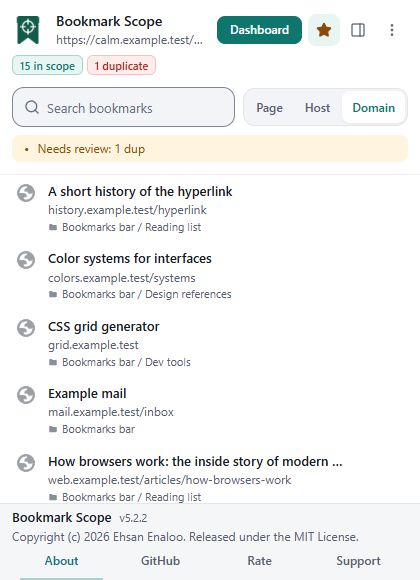
The popup with the About tab selected in the footer, showing the app name, version and the line Made by Ehsan Enaloo
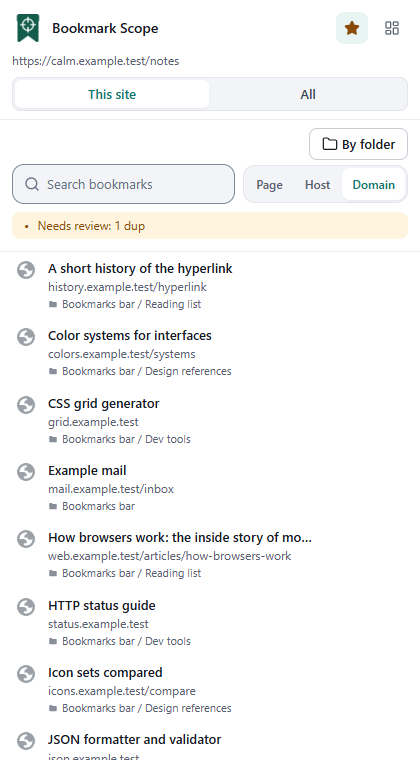
The side panel in the This site view: the page address, the This site and All buttons, a search box and a list of bookmarks for the site
The side panel in the All view with By folder on: the Reading list folder is open and lists its bookmarks, the other folders are closed
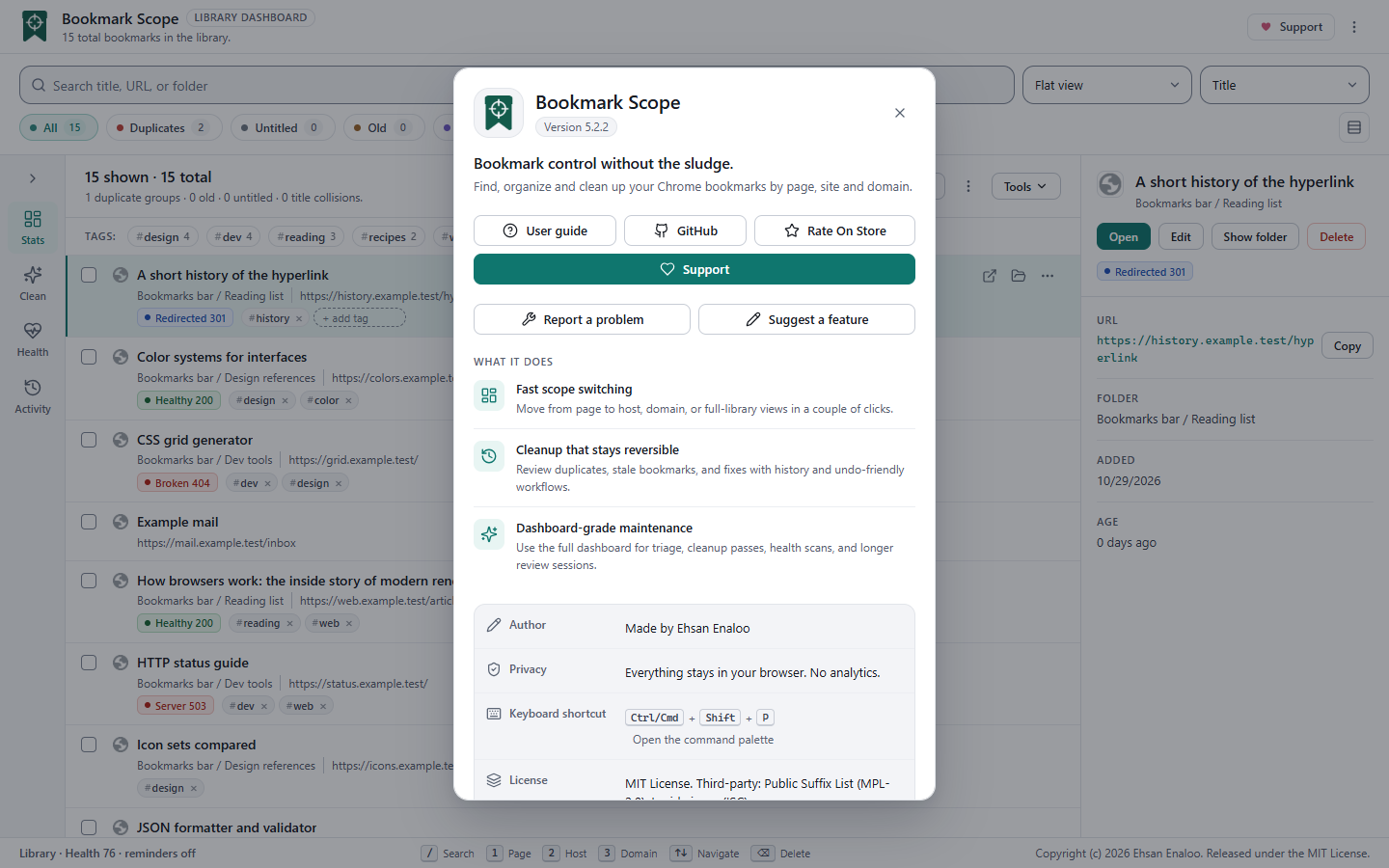
The About dialog over the dashboard: app icon, name and version, User guide, GitHub, Rate on Store and Support buttons, a list of what the extension does, and details for author, privacy, keyboard shortcut and license
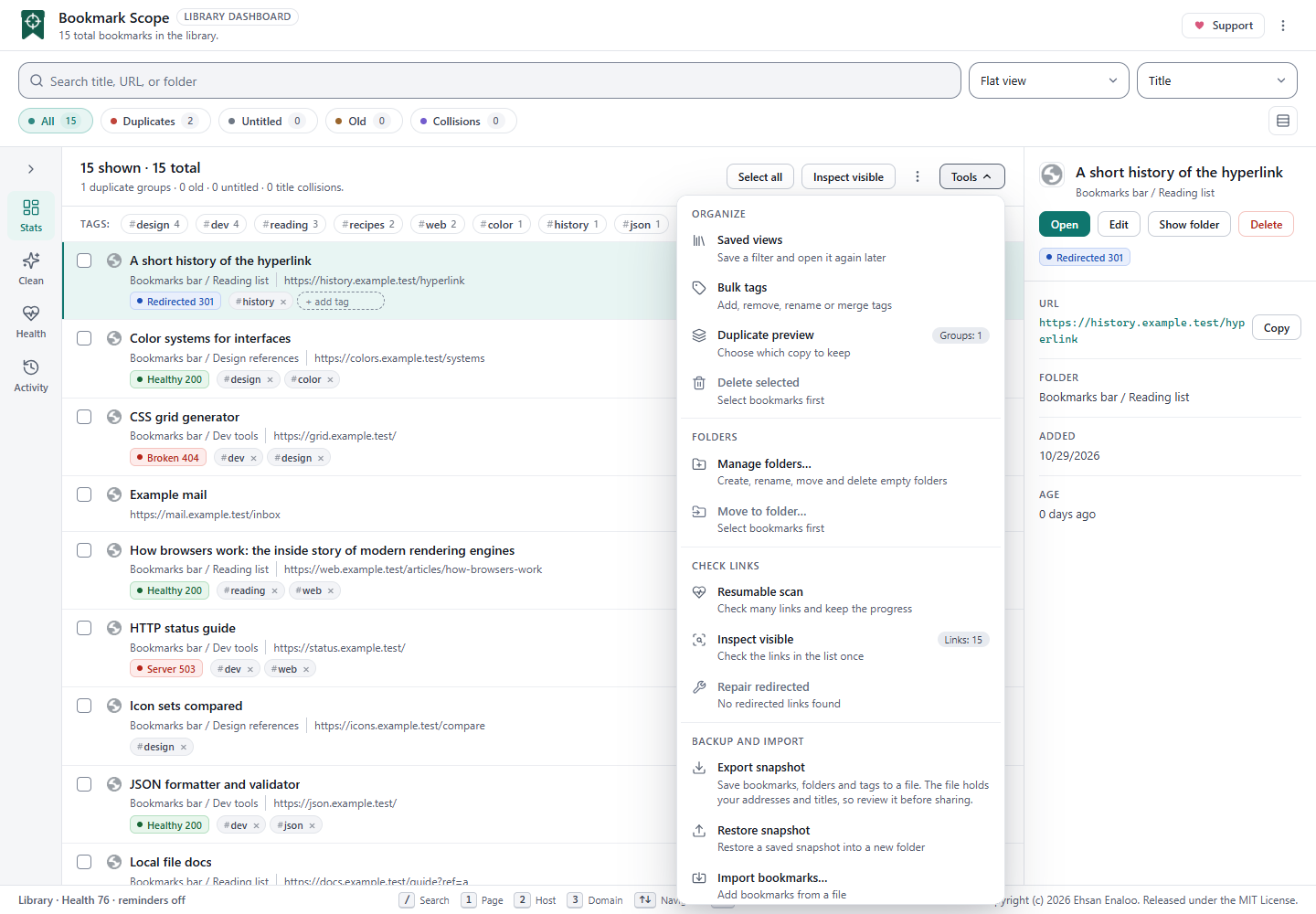
The Tools menu listing commands in five groups with hints and counts
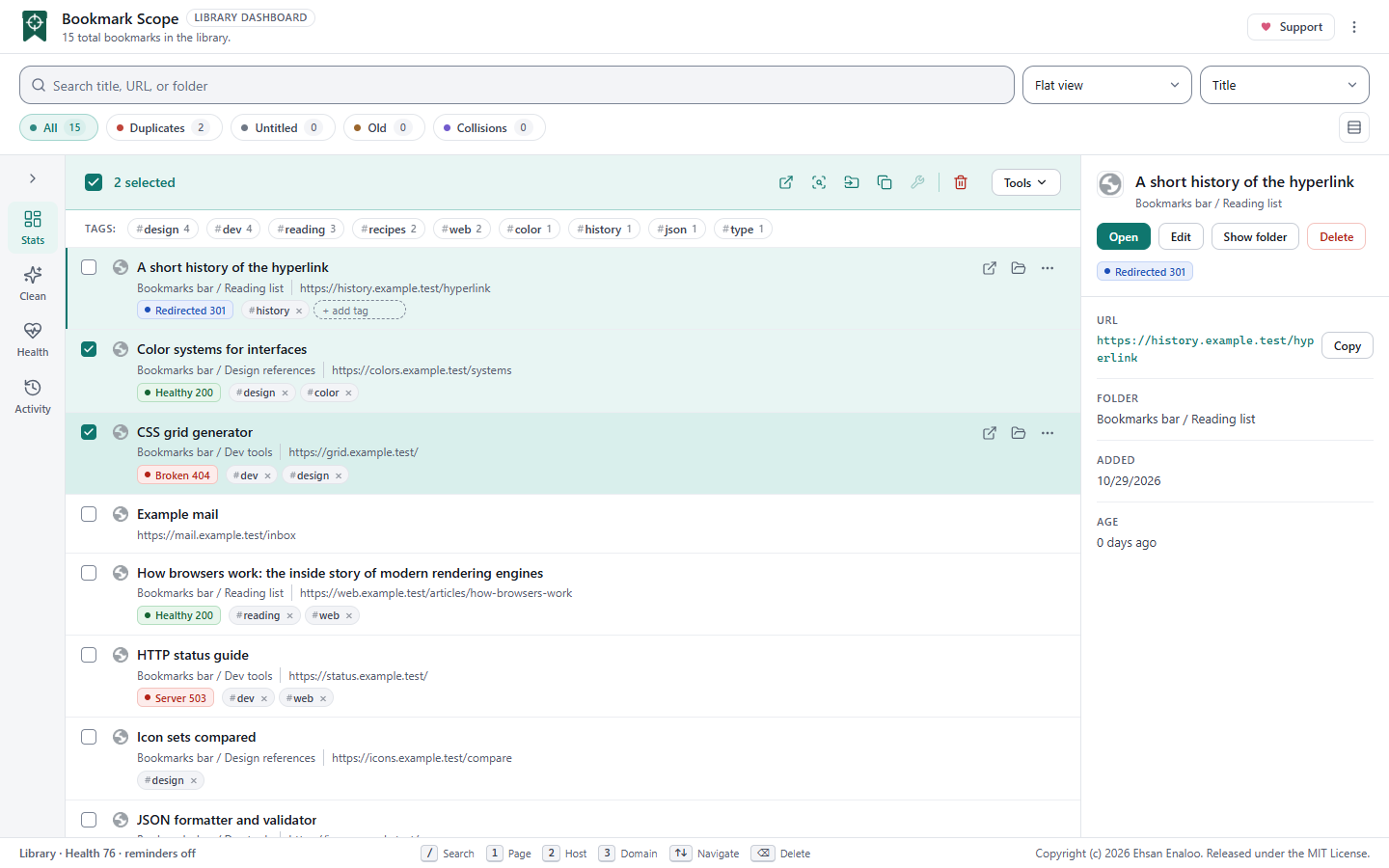
The dashboard with two rows selected and a selection bar above the list with a count and icon buttons for the batch actions, next to the Tools button
The dashboard with the detail panel on the right showing the active bookmark title, folder path, Open, Edit, Show folder and Delete buttons, a health badge, and fields for URL, folder, date added, age and redirect target
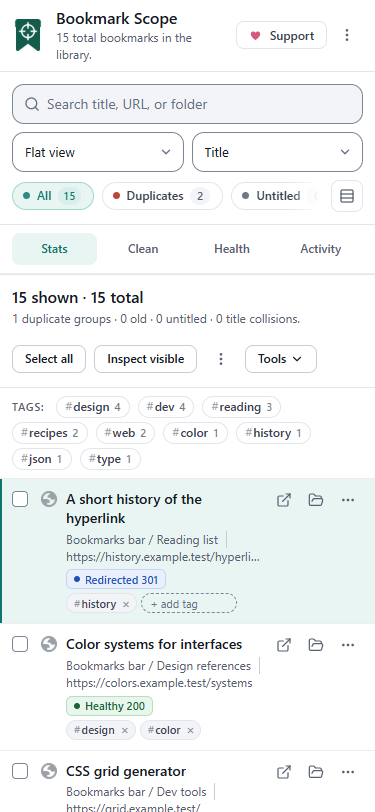
The dashboard at phone width with the toolbar stacked above a single column list
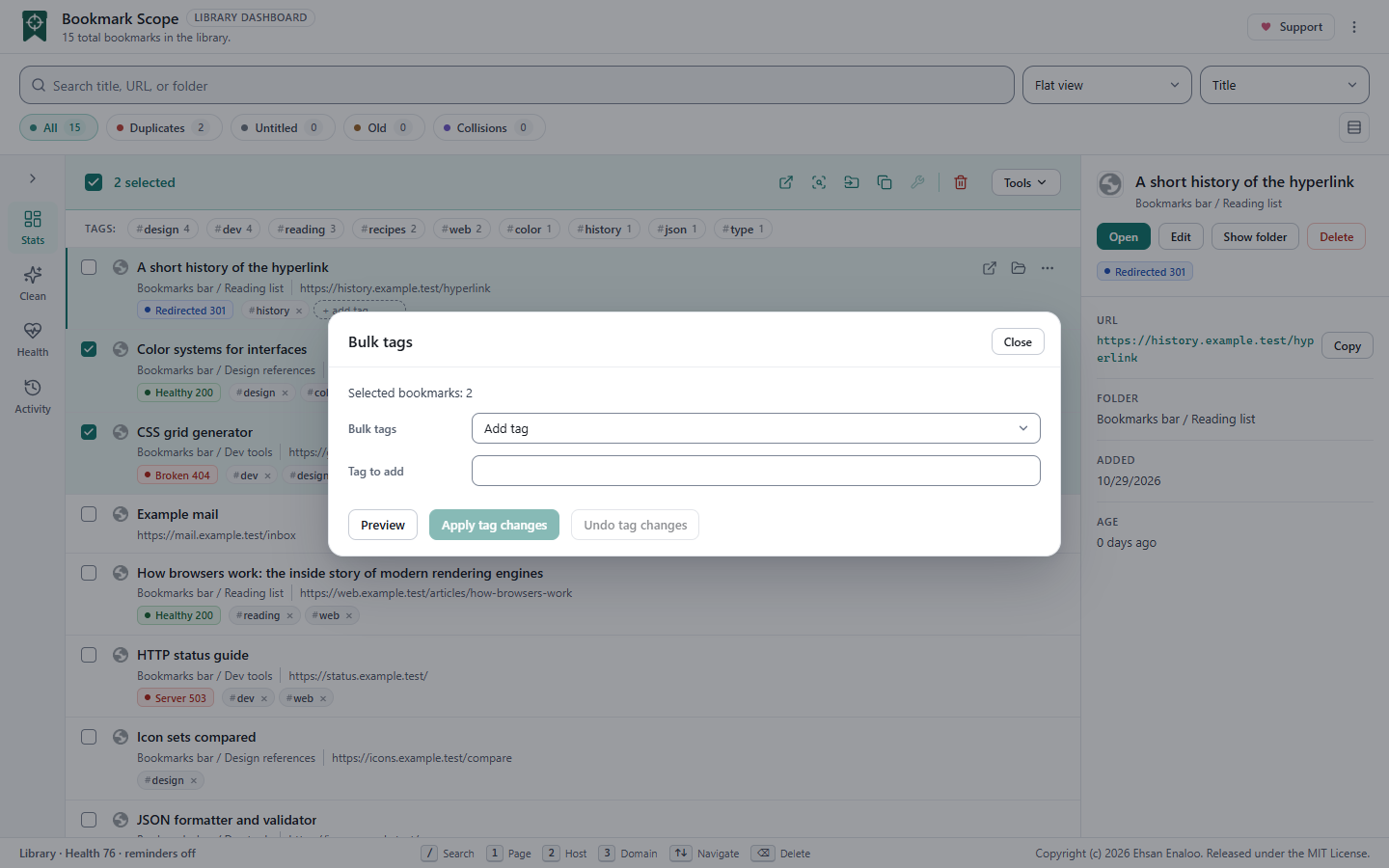
The Bulk tags dialog showing the target scope, the operation selector, a tag field and a preview listing the before and after tags for each bookmark

What it does

  • Bookmarks for the page you are on. See what you saved for the current page, host or domain with one click.
  • Merge duplicates. Preview the merge and choose which bookmark stays. It also finds untitled, old and look alike bookmarks.
  • Link health. Find dead links after you allow site access. Run a scan by hand or on a schedule.
  • Snapshots. Save your folders and tags, and restore them later.
  • Smart views. Save a search, a filter or a grouping as a named view. A view keeps the recipe, not the bookmarks.
  • Import and export. Bring in bookmarks from Pocket, Pinboard and Raindrop. Export to JSON or CSV.
  • Tags and drag and drop. Change tags on many bookmarks at once, with a preview and undo. Drag bookmarks to move them.
  • Themes and languages. Light, dark and system themes. 52 languages, including right to left layouts.
  • Chrome, Edge and Firefox. Available from the Chrome Web Store, Microsoft Edge Add-ons and Firefox Add-ons.

Before you delete

Deleting is not a recycle bin. Undo makes the bookmarks again with new IDs and dates, and it works only while the page stays open. Take a snapshot before a big cleanup.

Privacy and data

WhatHow
serverNone. The app sends no data to me or to anyone else.
accountNone. The app has no sign in, no analytics and no tracking.
storedYour tags, settings and saved work stay in your browser's local extension storage. Your bookmarks stay in the browser.
support reminderAfter two weeks, and then at most once a month, a heart on the toolbar icon and one card in the popup. It stores only dates and your choice, and you can turn it off.
web pagesThe app has no content scripts. It does not read or change the pages you visit.
link checksThese need optional site access. The app asks only when you start a scan. Your browser then contacts the bookmarked sites directly.
full policyRead the privacy policy of Bookmark Scope

Guides

Feedback

Found a bug or have an idea? Tell me here. I read every message.

What do you want to send?

A short example that shows the problem helps most. Do not paste passwords, keys or personal data. Remove them from logs and screenshots first.

I use it only to answer this message.

Have an account? Sign in to follow the status of your reports.