All guides
No guide matches your search.
Command palette and keyboard shortcuts
Press Ctrl+Shift+P (Cmd+Shift+P on Mac) in the dashboard to run any maintenance command from the keyboard.
On this page
The command palette
In the dashboard, press Ctrl+Shift+P (Cmd+Shift+P on Mac). A dialog titled Command palette opens with a Search commands box.
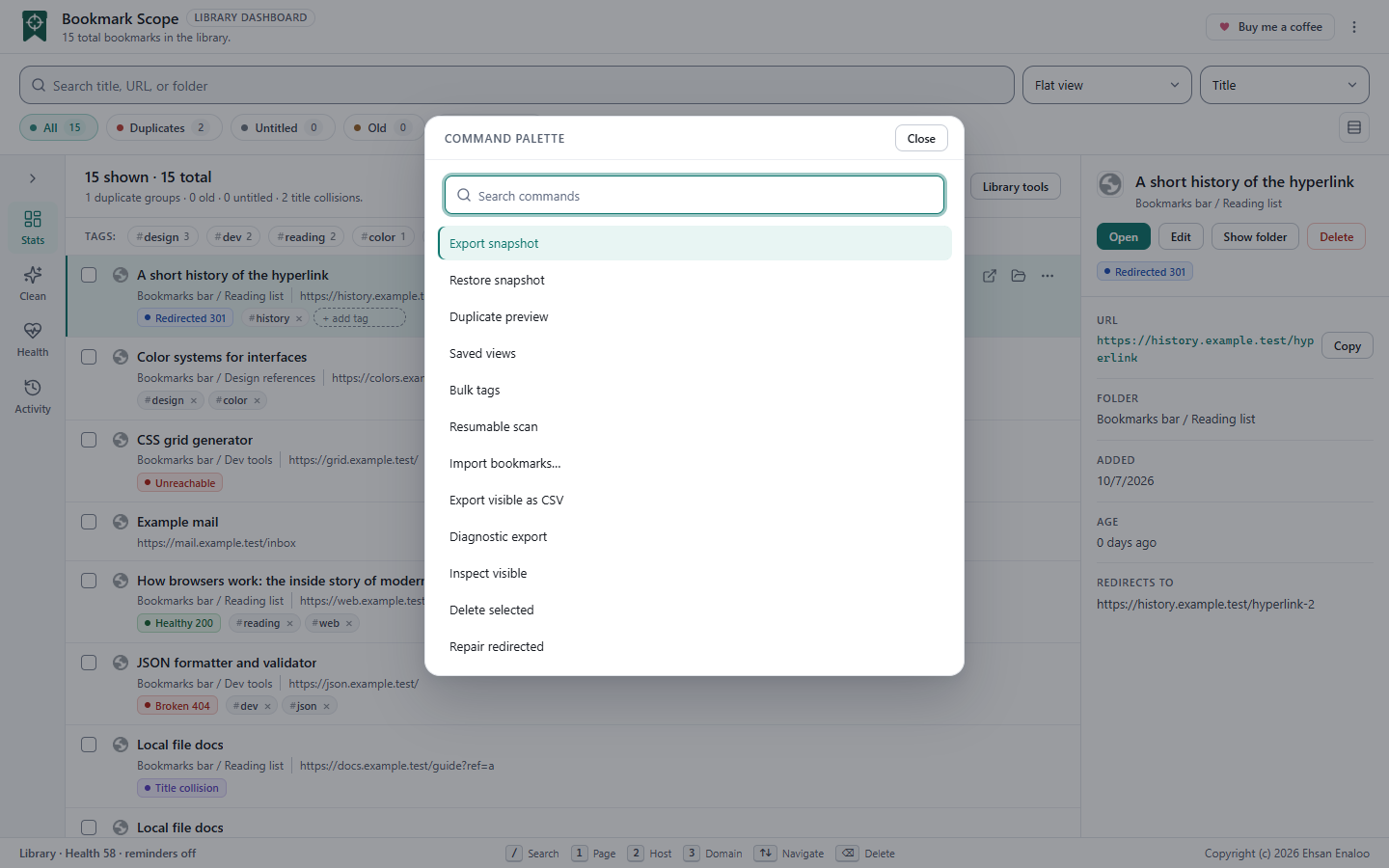
- Type to filter by name. Matching ignores case and looks anywhere in the command name.
- ↓ and ↑ move the highlight, and wrap around.
- Enter runs the highlighted command. Esc closes the palette without running anything.
- Tab stays inside the dialog. When it closes, focus returns to where you were.
- If another dialog is already open, the shortcut does nothing, so you cannot stack dialogs by accident.
The shortcut was chosen to avoid Ctrl+K, which browsers use for search.
The thirteen commands
Commands that change bookmarks keep their normal confirmations; the palette is only a faster way to reach them.
| Command | Library tools group | What it does |
|---|---|---|
| Saved views | Organize | Save, open or delete a smart view |
| Bulk tags | Organize | Add, remove, rename or merge tags with preview and undo. See Organizing |
| Duplicate preview | Organize | Choose survivors and merge duplicates. See Cleaning up |
| Delete selected | Organize | Delete the selected bookmarks (asks first) |
| Resumable scan | Check links | Start, pause, resume or cancel a saved link scan. See Link health |
| Inspect visible | Check links | Check the selected, or else all visible, bookmarks once |
| Repair redirected | Check links | Update redirected bookmarks to their final address (asks first) |
| Export snapshot | Backup and import | Download a snapshot file. See Backup and restore |
| Restore snapshot | Backup and import | Choose a snapshot file and restore it into a new folder |
| Import bookmarks… | Backup and import | Choose a file to import, with preview |
| Export visible as CSV | Backup and import | Download the visible bookmarks as a spreadsheet-safe CSV file. See Backup and restore |
| Diagnostic export | Troubleshoot | Preview and download a privacy-filtered diagnostic file. See Diagnostics |
| Clear cached health data | Troubleshoot | Forget cached link-health results (asks first) |
The same commands appear under the Library tools button, grouped as shown. The palette is the quickest route to them from the keyboard.
Keyboard shortcuts
Dashboard
| Keys | Does this | Notes |
|---|---|---|
| Ctrl+Shift+P / Cmd+Shift+P | Open the command palette | Works even when a text box has focus; ignored while another dialog is open |
| / | Focus the search box | Only when you are not already typing in a field |
| Ctrl+A / Cmd+A | Select all bookmarks in the current view | Selects the whole filtered view, not only drawn rows |
| ↓ / ↑ | Move the active row down or up | The detail panel follows the active row |
| Enter | Open the active bookmark in a new tab | |
| E | Edit the active bookmark | Then Ctrl+Enter saves and Esc cancels |
| Space | Select or unselect the active row | |
| Delete / Backspace | Delete the selected bookmarks | Only if something is selected; asks to confirm |
| Esc | Back out one layer | See below |
| 1 2 3 | Page, Host, Domain scope | Only when the dashboard was opened from a right-click entry; see below |
The 1, 2 and 3 keys switch the dashboard between the page, host and domain scope of an address. They need an address to work from, which only a right-click entry (see the popup guide) provides. On a dashboard you opened normally they show This page is not supported with an empty list; reload the dashboard to get your whole library back.
When single-key shortcuts are paused
- While you are typing in the search box, a title field or a tag field. (The exceptions are Ctrl + Shift + P , Esc to cancel an edit, and Ctrl + Enter to save one.)
- While focus is on a button, link, checkbox, menu item or other control, so Space and Enter keep their normal meaning on it.
- While any dialog (confirm, Library tools, palette) is open.
Escape clears things one layer at a time
With the cursor outside any text box, each press of Esc undoes the innermost thing that is active. In order:
- Cancel editing a bookmark.
- Clear the search text.
- Clear the active filter chip.
- Clear the selection.
- Dismiss the toast (which also removes an Undo button you have not used).
Menus close on Esc first. Inside any dialog, Esc closes the dialog.
Tag field on a row
Enter or , adds the tag and Esc clears the field. See Organizing.
Popup
The popup has no custom shortcuts. Esc closes its menu or dialog, and Tab moves between controls. Chrome lets you assign a shortcut to open the popup at chrome://extensions/shortcuts.
In the settings page
Standard form behavior: Tab between fields, Enter in a field submits Save settings.
Accessibility notes
- Dialogs have accessible names, trap Tab while open, close on Esc or a backdrop click, and return focus to the control that opened them.
- Each row checkbox is named with the bookmark's title and address.
- Screen-reader behavior and contrast have not been formally audited. If you find a barrier, please report it (opens in a new tab) .
Was this page helpful?