All guides
No guide matches your search.
Quick start and first run
In about ten minutes you will see every bookmark you already have for the site you are on, open the full library dashboard, find a duplicate, and learn how to undo a delete.
On this page
What you will do: install the extension, pin it, use the popup on a normal web page, open the dashboard, and try one safe cleanup.
Before you start: Chrome (the only browser this guide has been checked against) and a few existing bookmarks. You do not need to change any settings.
1. Install and pin
Add the extension from the Chrome Web Store (opens in a new tab) (or follow Installation to load it unpacked). Then pin it so the toolbar button is always visible:
- Click the Extensions (puzzle piece) button in the Chrome toolbar.
- Find Bookmark Scope and click its pin icon.
On a fresh install Bookmark Scope also shows a notification titled Pin Bookmark Scope for faster access, and a Quick setup card at the top of the dashboard. Choose Got it on the card to dismiss it.
2. Open the popup on a normal website
Go to any http or https page, then click the Bookmark Scope toolbar button.
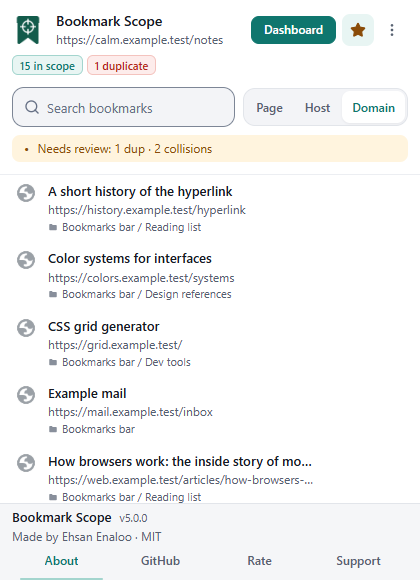
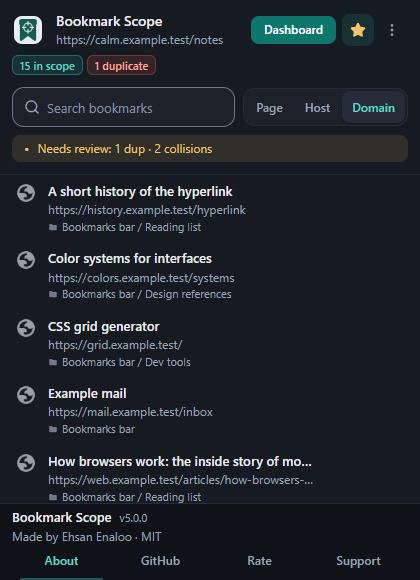
The popup answers one question: what do I already have saved for this site?
You should see
the page address under the title, a pill such as 3 in scope, a search box, and a three-way Page / Host / Domain switch. The list shows up to eight matching bookmarks. On a page you have never saved the list is empty.
On a browser-internal page (for example chrome://extensions) the popup says Unsupported page and shows No scope. That is expected: Bookmark Scope only matches web addresses.
3. Change the scope
Choose Page, Host or Domain to widen or narrow what counts as "the same site":
| Scope | Matches | Example for https://docs.example.com/guide |
|---|---|---|
| Page | The same page address | Only bookmarks of that exact page |
| Host | The same host name | Anything on docs.example.com |
| Domain | The same registrable domain (the default) | Anything on example.com, including www.example.com and shop.example.com |
Your choice is remembered. The number shown on the toolbar icon follows the same scope. The popup guide explains each control.
4. Bookmark or un-bookmark the page
The star button in the popup header says Bookmark current page when the page is not saved, and Remove bookmark when it is. Removing a bookmark from the popup shows a toast with Undo.
5. Open the dashboard
Choose Dashboard in the popup header. The dashboard opens in a new tab and shows your whole bookmark library, not just one site.
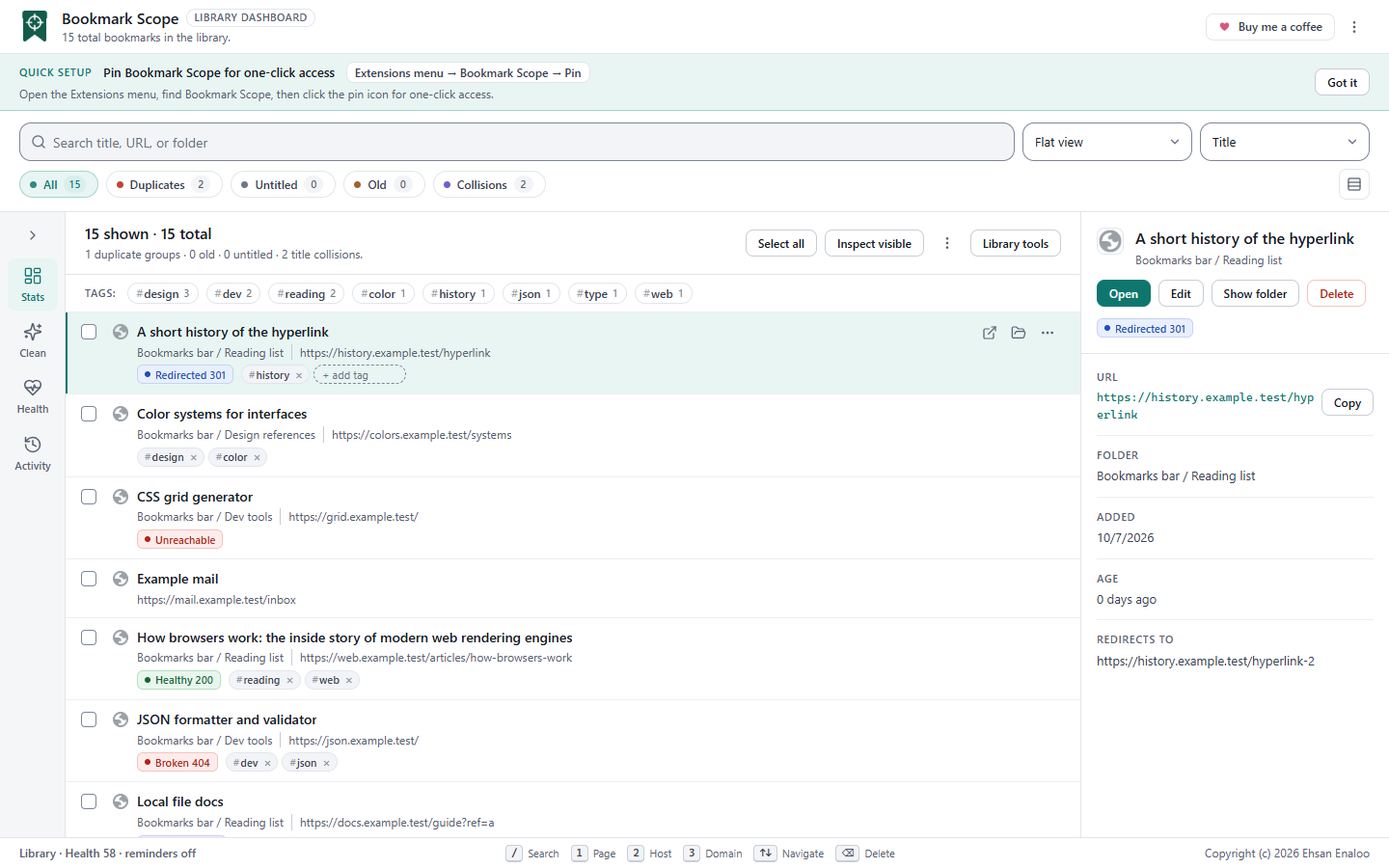
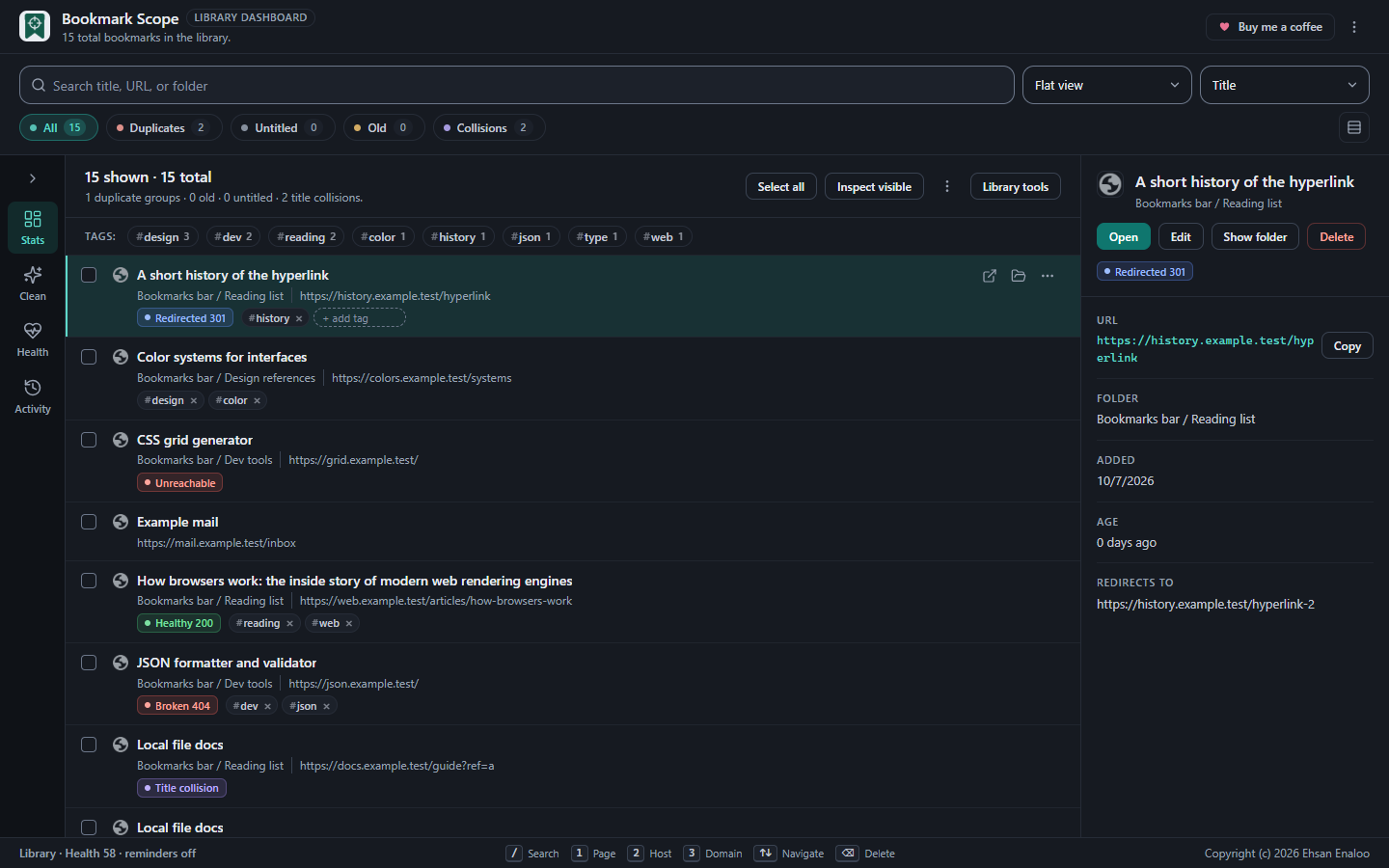
The dashboard: search and filters on top, your library in the middle, details for the active bookmark on the right.
You should see
a header reading N total bookmarks in the library, a search box, filter chips (All, Duplicates, Untitled, Old, Collisions) with counts, and the list. Nothing has been changed or sent anywhere.
6. Find your duplicates
- Filter. Click the Duplicates chip. The list now shows only bookmarks whose page address appears more than once.
- Inspect. Click a row. The detail panel shows its full address, folder, the date it was added and its age.
- Preview, do not delete yet. Open Library tools and choose Duplicate preview. You pick which copy to keep in each group and see exactly what will be removed. Nothing changes until you press Merge and remove duplicates.
Full details, including how tags are merged, are in Cleaning up.
7. Know how Undo works before you delete anything
After a delete, a toast shows how many bookmarks were deleted and an Undo button. Undo recreates the bookmarks in their folders and puts their tags back, but:
- the browser gives them new internal IDs and a new "date added" , because a bookmark cannot be recreated with its original ones;
- Undo only lives in the open dashboard or popup. If you close the tab, you cannot undo.
Be careful
Before a large cleanup, take a backup: Library tools → Export snapshot. See Backup and restore.
What to try next
- Tag bookmarks and filter by tag.
- Check for broken links . This is the one feature that contacts the sites you bookmarked, and it asks for your permission first.
- Learn the keyboard shortcuts , starting with Ctrl + Shift + P .
- Open settings to set your default scope, theme and language.
Was this page helpful?