AI chats

AI Bulk Chat Manager is installed

Thank you for trying AI Bulk Chat Manager. It is ready to use, and you can close this tab. These notes are here if you want them.

Quick startAll guides

What it does

Select many chats at once on ChatGPT, Claude, Gemini, Grok, DeepSeek, Perplexity, Copilot, Meta AI, Kimi, Qwen and Z.ai. Check the list, then delete, archive or export them in one step.

  • A panel on the pageA floating panel shows how many chats you selected.
  • Many ways to selectSelect all, filter by title, pick the oldest chats, or Shift-click a range.
  • A check before it changes anythingA list shows the chats that will change, and you can untick single chats. A large delete needs one more confirmation.
  • Export firstSave the text of one chat, or of many chats in one ZIP, as Markdown, plain text, JSON, Word, PDF or a long image. You can also save a list of titles and links.
  • A clear resultChats the site did not confirm are listed, never repeated for you, and can be checked again. You can save a report of every chat as JSON or CSV.
  • Eleven sitesDelete works on ChatGPT, Claude, Gemini, Grok, DeepSeek, Perplexity, Copilot, Meta AI, Kimi, Qwen and Z.ai. Archive works on ChatGPT only, and you can undo it.

See it in action
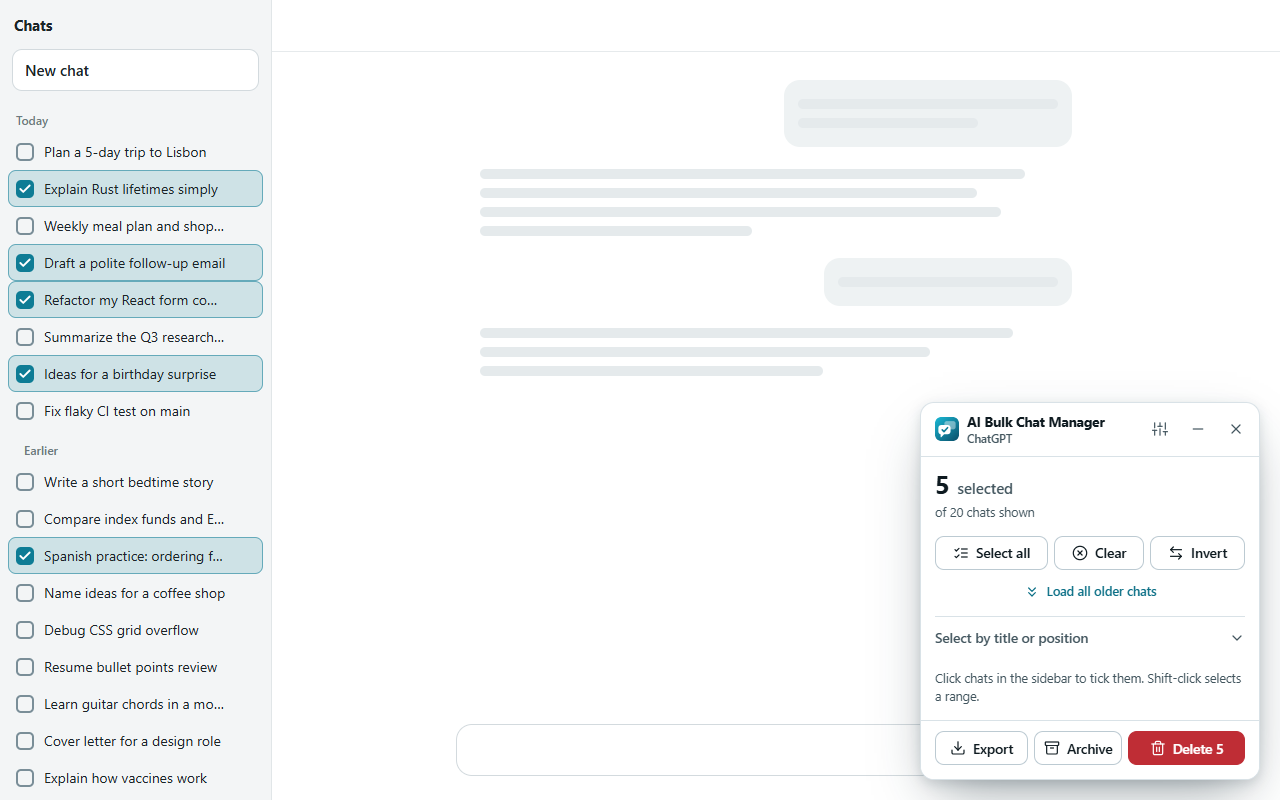
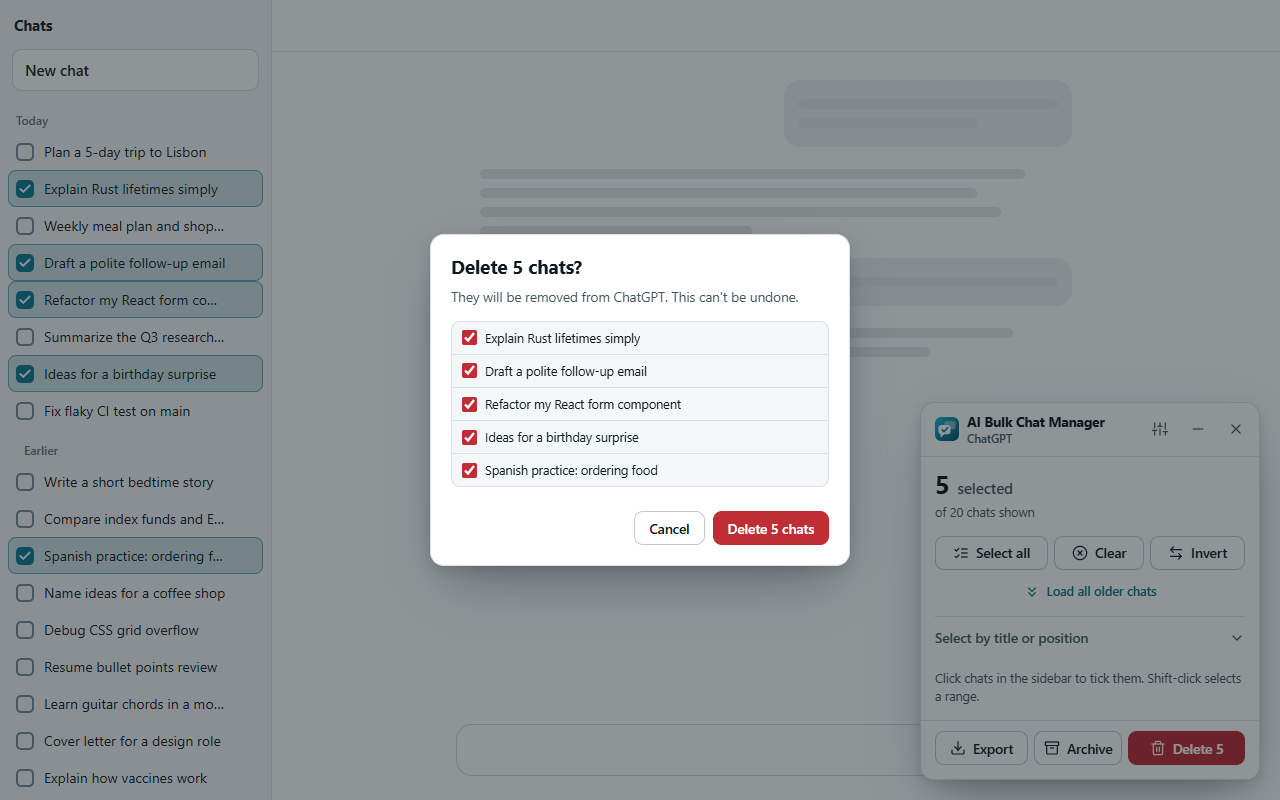
The panel beside the chat list with five chats ticked, showing 5 selected of 20 chats shownThe panel beside the chat list with five chats ticked, showing 5 selected of 20 chats shown
The panel beside the chat list with five chats ticked, showing 5 selected of 20 chats shown
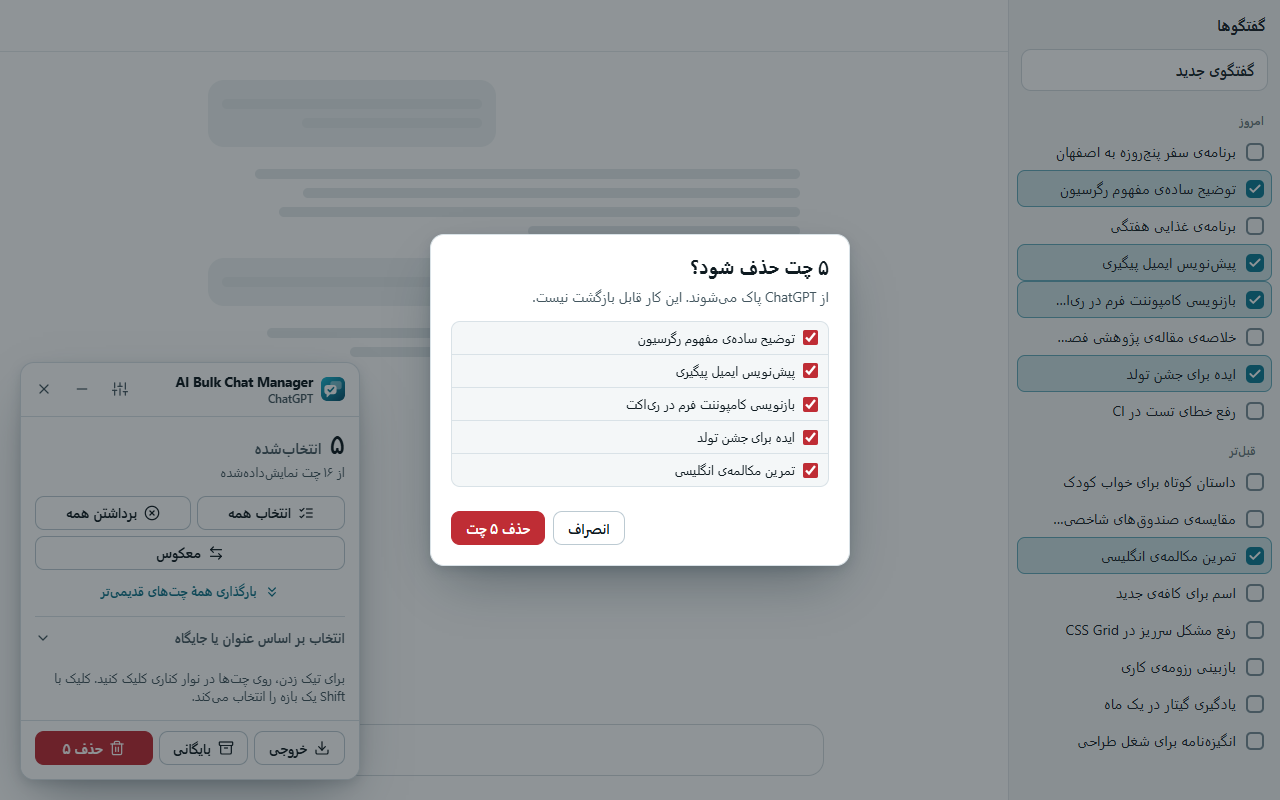
The confirmation dialog asking Delete 5 chats, with the list of chats and the Cancel and Delete 5 chats buttonsThe confirmation dialog asking Delete 5 chats, with the list of chats and the Cancel and Delete 5 chats buttons
The confirmation dialog asking Delete 5 chats, with the list of chats and the Cancel and Delete 5 chats buttons
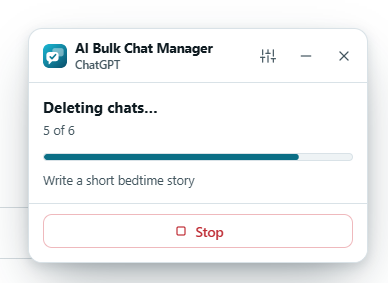
The panel showing Deleting chats, 4 of 6, a progress bar, the title of the current chat and a Stop buttonThe panel showing Deleting chats, 4 of 6, a progress bar, the title of the current chat and a Stop button
The panel showing Deleting chats, 4 of 6, a progress bar, the title of the current chat and a Stop button
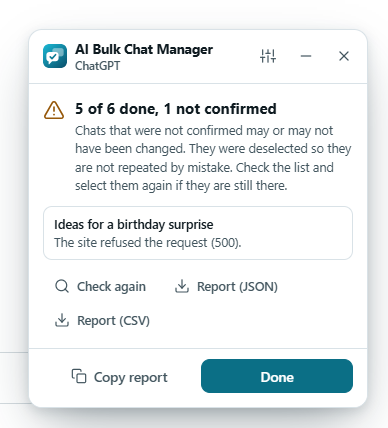
The result panel reading 5 of 6 done, 1 failed, with the failed chat and its reason and the Copy report, Retry failed and Done buttonsThe result panel reading 5 of 6 done, 1 failed, with the failed chat and its reason and the Copy report, Retry failed and Done buttons
The result panel reading 5 of 6 done, 1 failed, with the failed chat and its reason and the Copy report, Retry failed and Done buttons
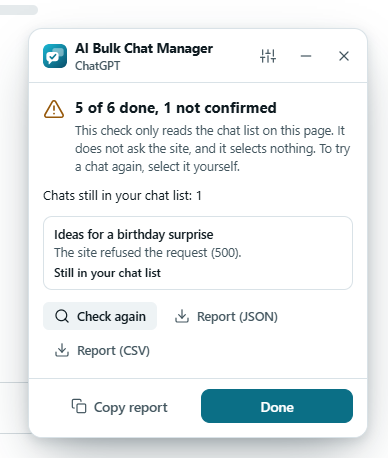
The result panel after Check again: Chats still in your chat list 1, with the chat marked Still in your chat list, and the Check again, Report (JSON) and Report (CSV) buttonsThe result panel after Check again: Chats still in your chat list 1, with the chat marked Still in your chat list, and the Check again, Report (JSON) and Report (CSV) buttons
The result panel after Check again: Chats still in your chat list 1, with the chat marked Still in your chat list, and the Check again, Report (JSON) and Report (CSV) buttons
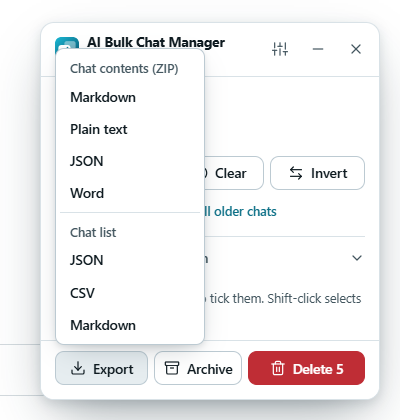
The Export menu with two groups: Chat contents (ZIP) with Markdown, Plain text, JSON and Word, and Chat list with JSON, CSV and MarkdownThe Export menu with two groups: Chat contents (ZIP) with Markdown, Plain text, JSON and Word, and Chat list with JSON, CSV and Markdown
The Export menu with two groups: Chat contents (ZIP) with Markdown, Plain text, JSON and Word, and Chat list with JSON, CSV and Markdown
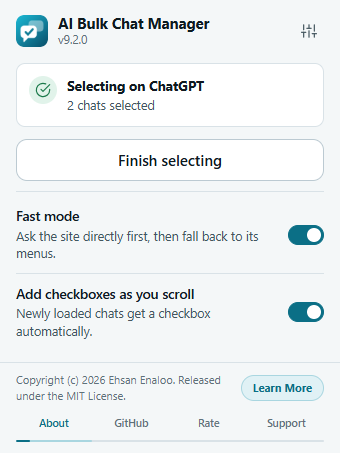
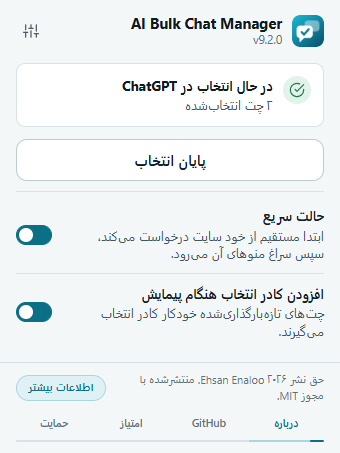
The toolbar popup showing Selecting on ChatGPT, 2 chats selected, a Finish selecting button, the Fast mode and Add checkboxes as you scroll switches and the About footerThe toolbar popup showing Selecting on ChatGPT, 2 chats selected, a Finish selecting button, the Fast mode and Add checkboxes as you scroll switches and the About footer
The toolbar popup showing Selecting on ChatGPT, 2 chats selected, a Finish selecting button, the Fast mode and Add checkboxes as you scroll switches and the About footer
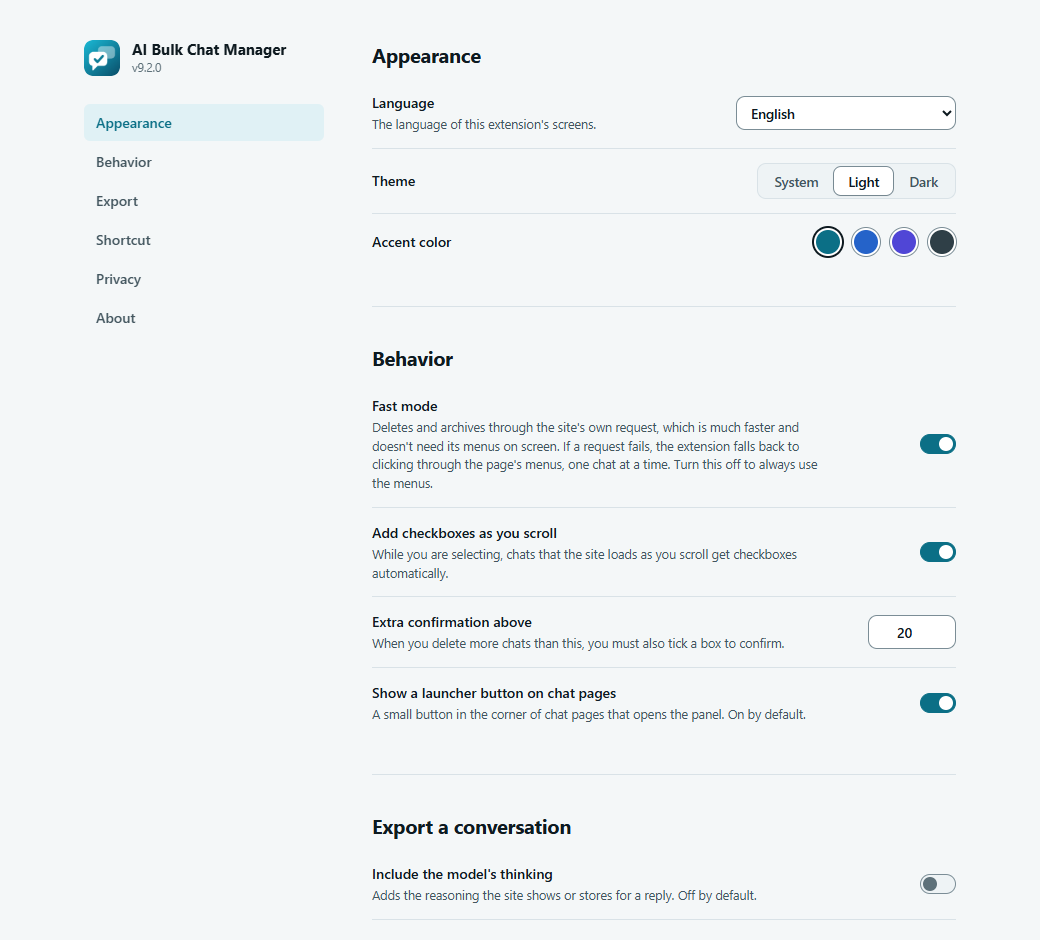
The Options page with the Appearance and Behavior sections: language, theme, accent color, fast mode, checkboxes as you scroll, extra confirmation and launcher buttonThe Options page with the Appearance and Behavior sections: language, theme, accent color, fast mode, checkboxes as you scroll, extra confirmation and launcher button
The Options page with the Appearance and Behavior sections: language, theme, accent color, fast mode, checkboxes as you scroll, extra confirmation and launcher button
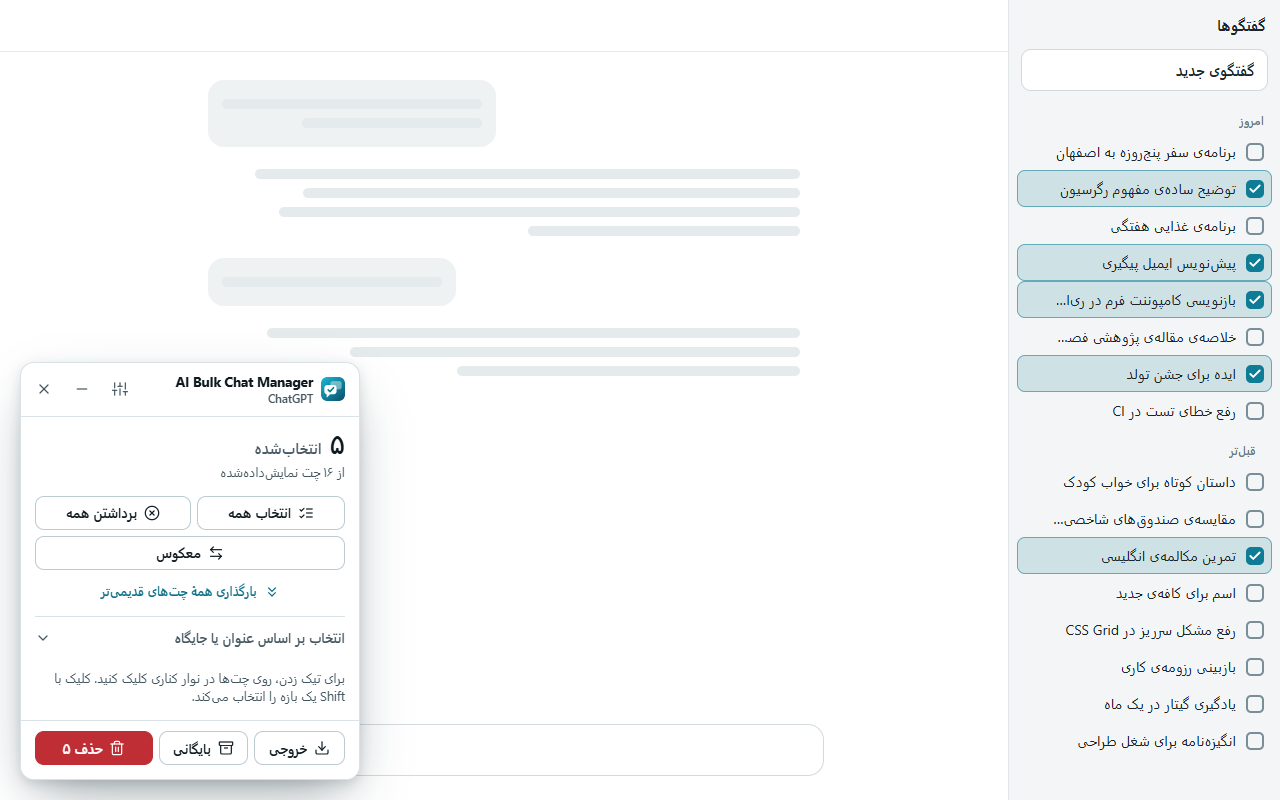
The panel in Persian on a right-to-left page: the chat list is on the right, checkboxes are at the right edge of each row and the panel buttons are mirrored
The toolbar popup in Persian, mirrored right to left
The delete confirmation dialog in Persian with the list of chats

Keep it within reach

  • Chrome: Click the puzzle icon in the toolbar, then the pin next to AI Bulk Chat Manager.
  • Edge: Click the puzzle icon in the toolbar, then the eye icon next to AI Bulk Chat Manager to show it in the toolbar.
  • Firefox: Click the puzzle icon in the toolbar, then the gear next to AI Bulk Chat Manager and choose Pin to Toolbar.

Questions or problems

The first way to report a bug or share an idea is a GitHub issue. No GitHub account? Use the form on this site. I read every message.

Open on GitHub (opens in a new tab)Use the form

Learn more

Short guides for the main features.

This page has no form, no cookies and no tracking. Opening it adds one to a daily count of installs, with no address and no identifier. It loads no third-party script. The optional chat button sends nothing until you ask a question. Privacy policy