All guides
No guide matches your search.
Quick start
In about five minutes you will install the extension, tick some chats and save a list of them. Deleting is the last step, and you choose whether to take it.
On this page
What you will do: install the extension, start selecting on a chat site, tick a few chats, save a list of them, and then delete or archive them.
Before you start: you need a desktop browser (Chrome, Edge or Firefox 140 or newer) and an account on at least one of ChatGPT, Claude, Gemini or Grok. Sign in to it first. You do not need to change any settings.
1. Install the extension
Add it from the Chrome Web Store (opens in a new tab). On Edge and Firefox the steps differ a little, so follow Installation.
Then pin the toolbar icon so it is always in reach. Click the Extensions (puzzle piece) button in the toolbar, find AI Bulk Chat Manager and click its pin.
2. Open a chat site
Go to chatgpt.com, claude.ai, gemini.google.com or grok.com. Make sure the chat list is showing in the sidebar. If the sidebar is closed, open it.
Tab already open?
If the site was open before you installed the extension, you do not need to reload it. Clicking the toolbar icon attaches the extension to that tab. If the popup says Can't reach the site, click Reload page.
3. Start selecting
Click the toolbar icon, then click Start selecting chats. Or press Alt+Shift+B.
You should see
a checkbox next to every chat in the sidebar, and a small panel in the bottom corner of the page. The panel is titled AI Bulk Chat Manager, shows the site name, and reads 0 selected with a line such as of 20 chats shown.
4. Tick some chats
Click chats in the sidebar. Clicking a row ticks it. It does not open the chat while you are selecting. The count in the panel goes up as you tick.
- Click Select all to tick every chat that is shown.
- Hold Shift and click a second chat to tick everything between it and the last one you ticked.
- Click Clear to start again.
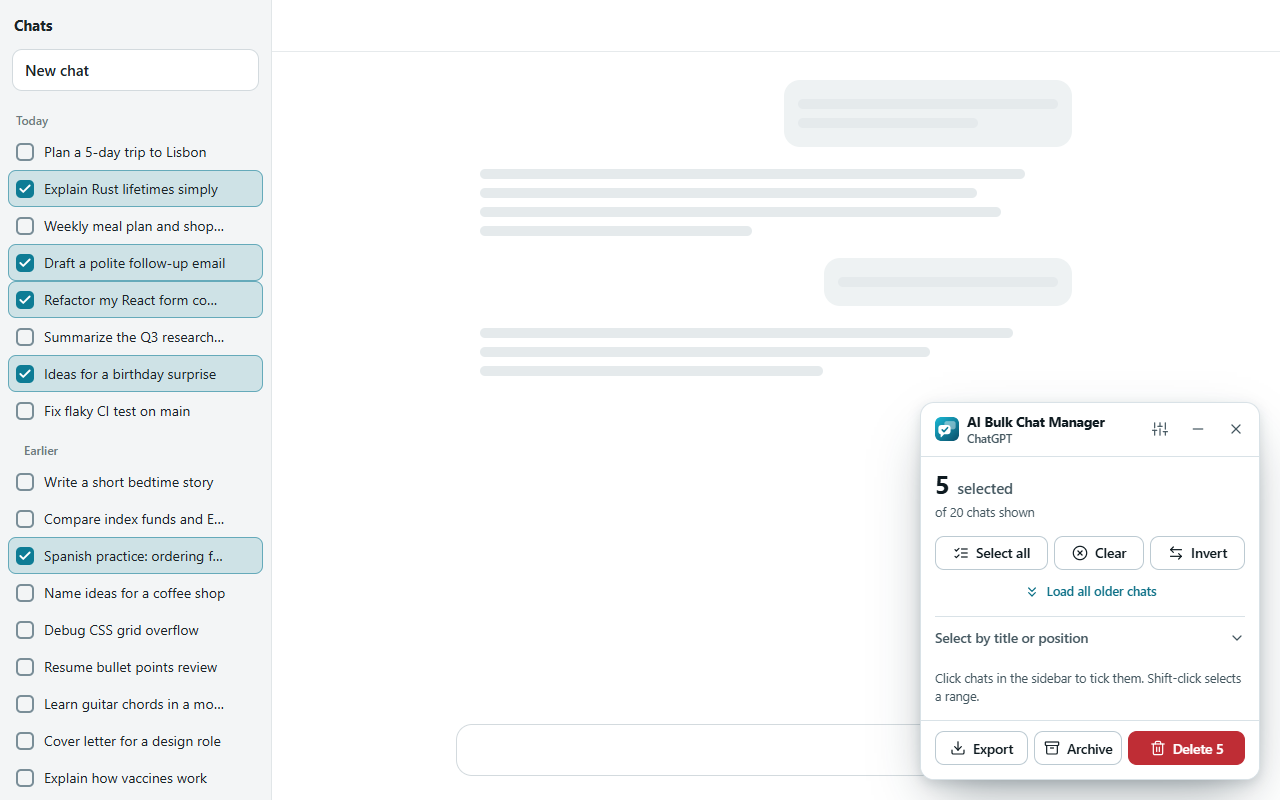
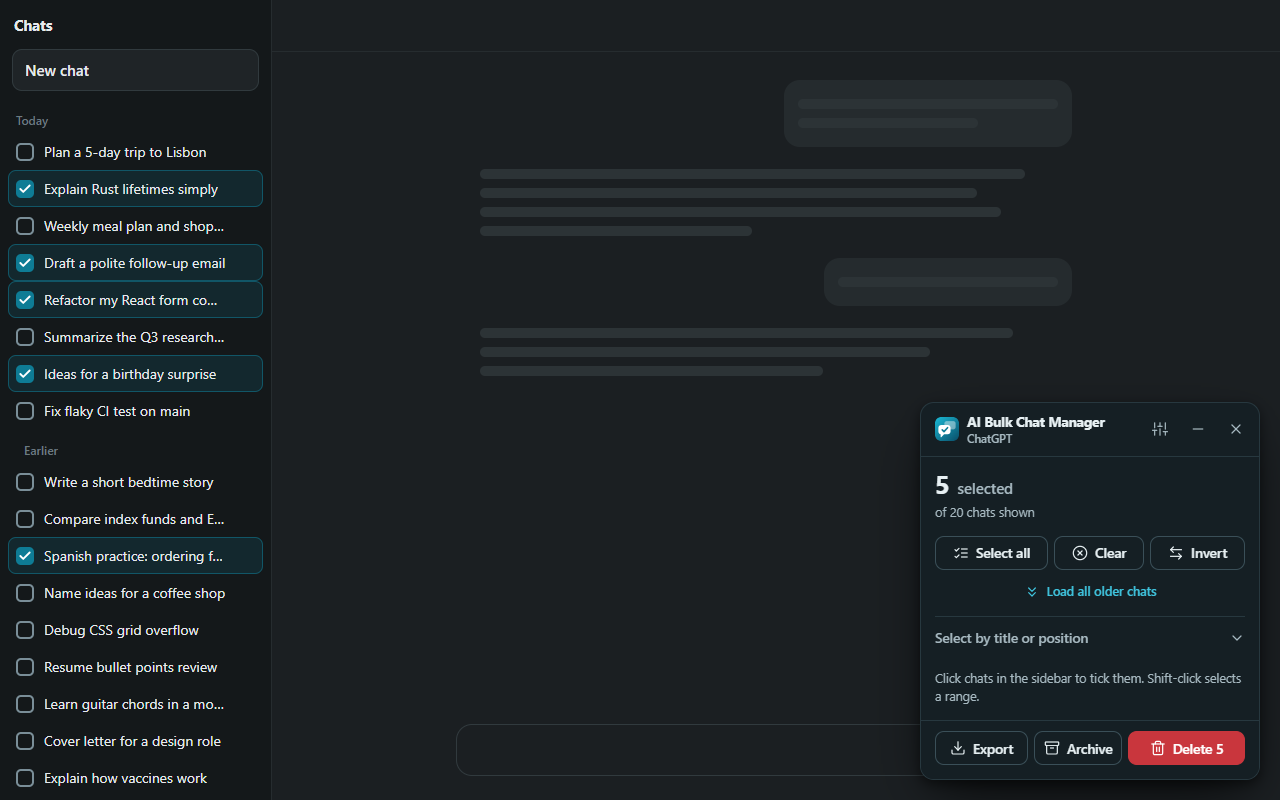
Five chats ticked. The buttons at the bottom of the panel act on exactly these chats.
The full list of ways to select is in Selecting chats.
5. Export a list first (optional)
Click Export and choose JSON, CSV or Markdown. Your browser saves a file with the titles and links of the selected chats. A message such as Exported 5 chats as JSON appears in the panel. Nothing is deleted. See Exporting.
6. Delete or archive
- Press the button. Click Delete. When chats are selected the button shows the count, for example Delete 5. On ChatGPT you can click Archive instead. The other three sites have no archive, so the button is hidden there.
- Check the list. A dialog asks Delete 5 chats? and lists every chat. The Cancel button has the focus. Read the list. If it is wrong, press Cancel or Esc.
- Confirm. Click Delete 5 chats. The panel shows Deleting chats…, a progress bar and a Stop button.
- Read the result. The panel shows a summary such as 5 chats deleted. Click Done to go back to selecting.
Deleting cannot be undone
A deleted chat is gone from the site. The extension has no recycle bin and cannot bring it back. Use Export first if you may want the titles later. On ChatGPT, Archive can be reversed from ChatGPT's own settings.
7. Finish
Click the X in the panel (its tooltip is Finish and close), or press Alt+Shift+B again. The checkboxes disappear and your selection is forgotten. You can also click Finish selecting in the toolbar popup.
What to try next
- Load all older chats so that Select all reaches your whole history.
- Understand fast mode and what to do when a chat fails.
- Change the settings , such as the extra confirmation threshold.
- Read the limits before you delete a lot of chats.
Was this page helpful?