Windows 11

Winora

Winora puts the settings of Windows 11 on a few clear pages. You see every change before it happens, and you can undo it later from History.

On this page

See it in action
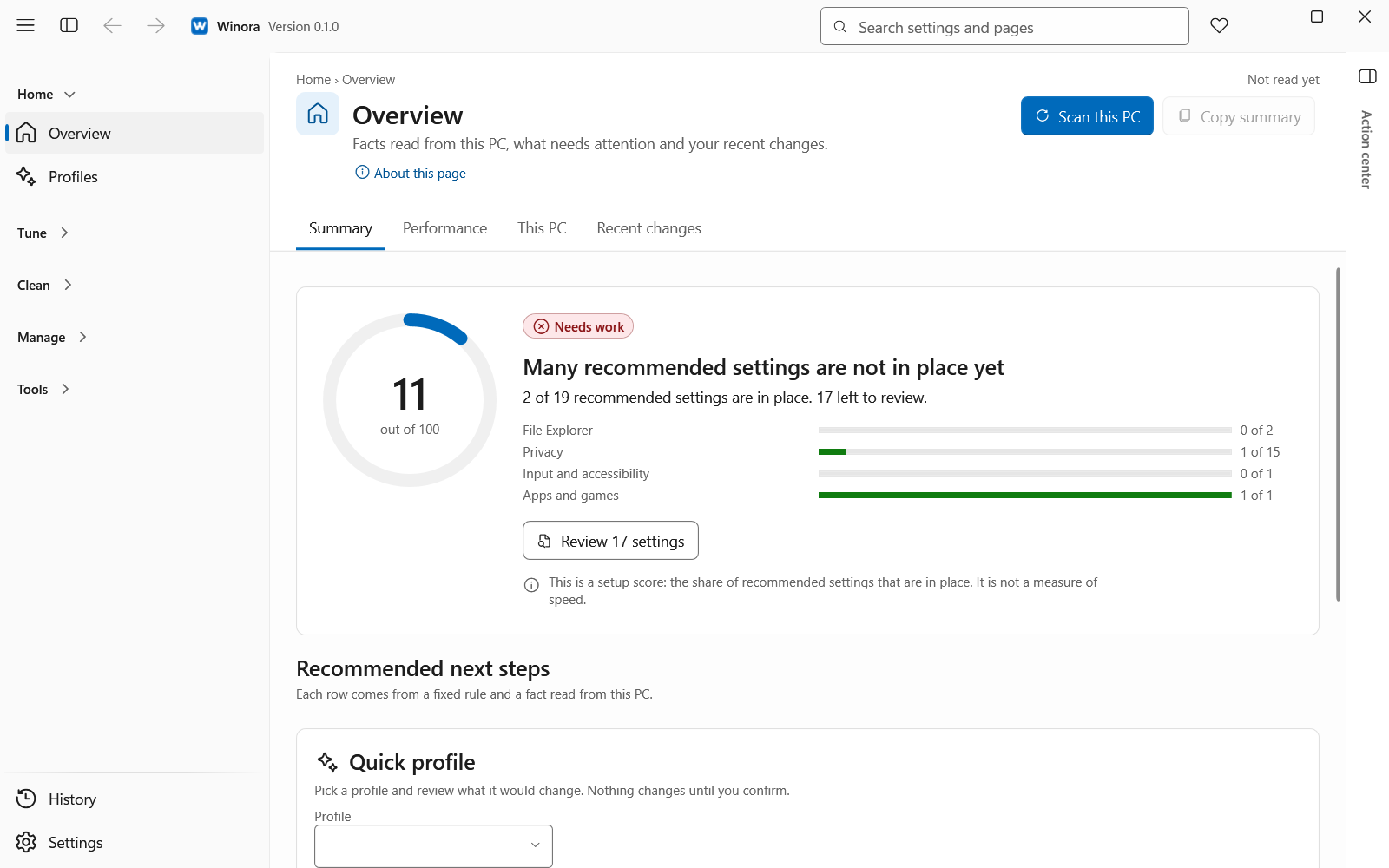
The Overview page with the setup score, the recommended next steps and the quick profileThe Overview page with the setup score, the recommended next steps and the quick profile
The Overview page with the setup score, the recommended next steps and the quick profile
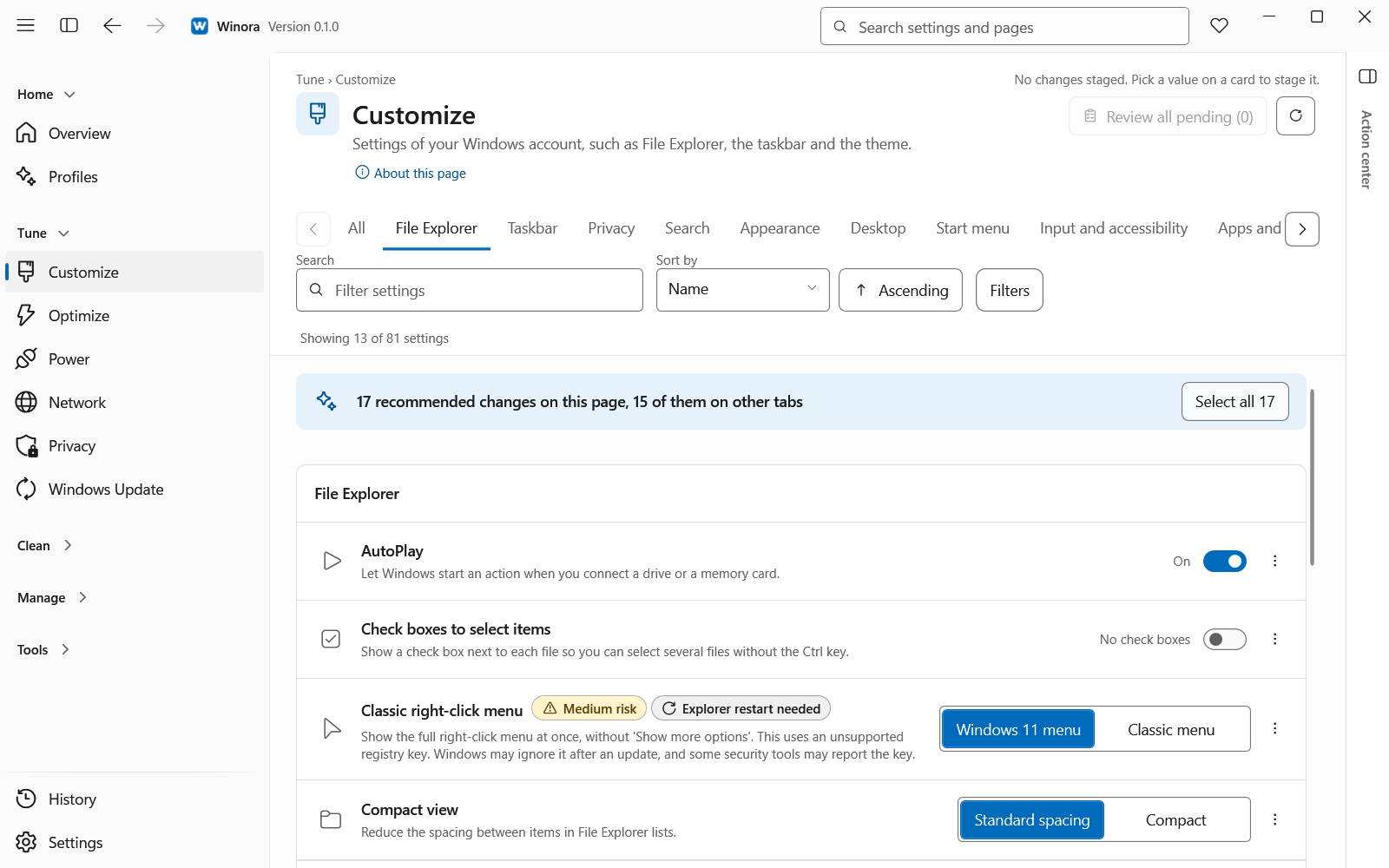
The Customize page with File Explorer settings, each with its current value and risk levelThe Customize page with File Explorer settings, each with its current value and risk level
The Customize page with File Explorer settings, each with its current value and risk level
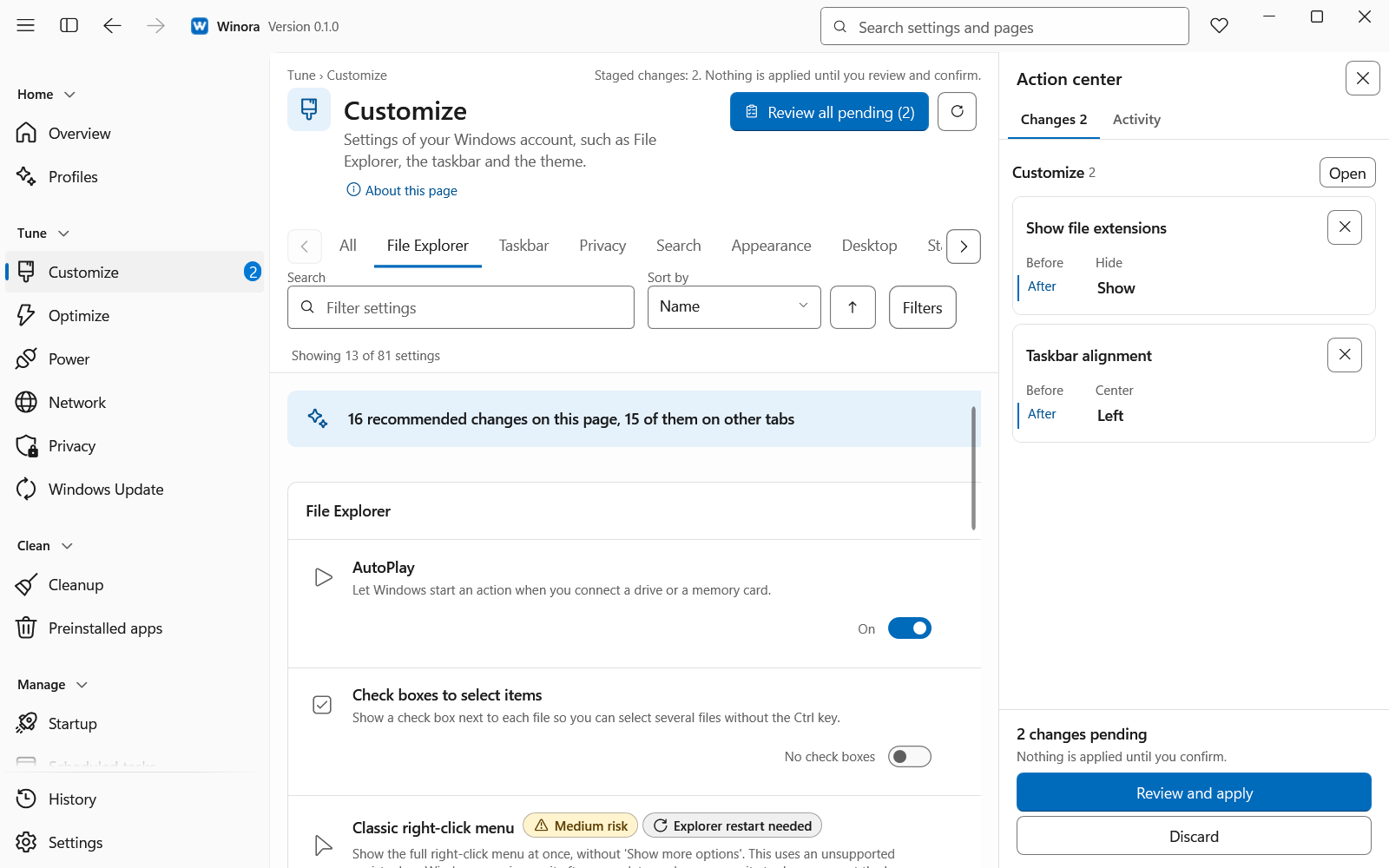
The Action center open on the Changes tab with pending changes and their before and after valuesThe Action center open on the Changes tab with pending changes and their before and after values
The Action center open on the Changes tab with pending changes and their before and after values
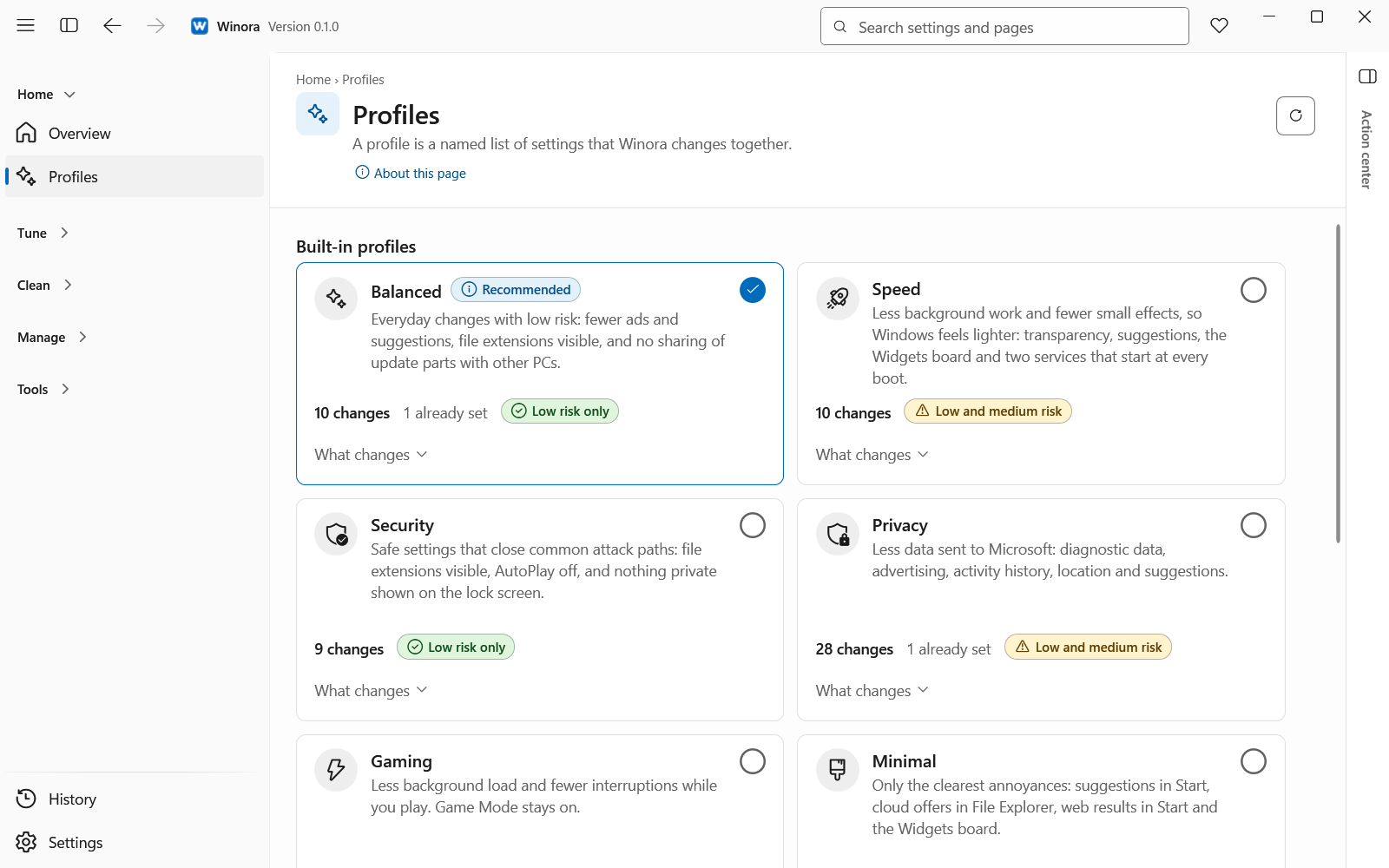
The Profiles page with the built-in profile cards and the number of changes for this PCThe Profiles page with the built-in profile cards and the number of changes for this PC
The Profiles page with the built-in profile cards and the number of changes for this PC
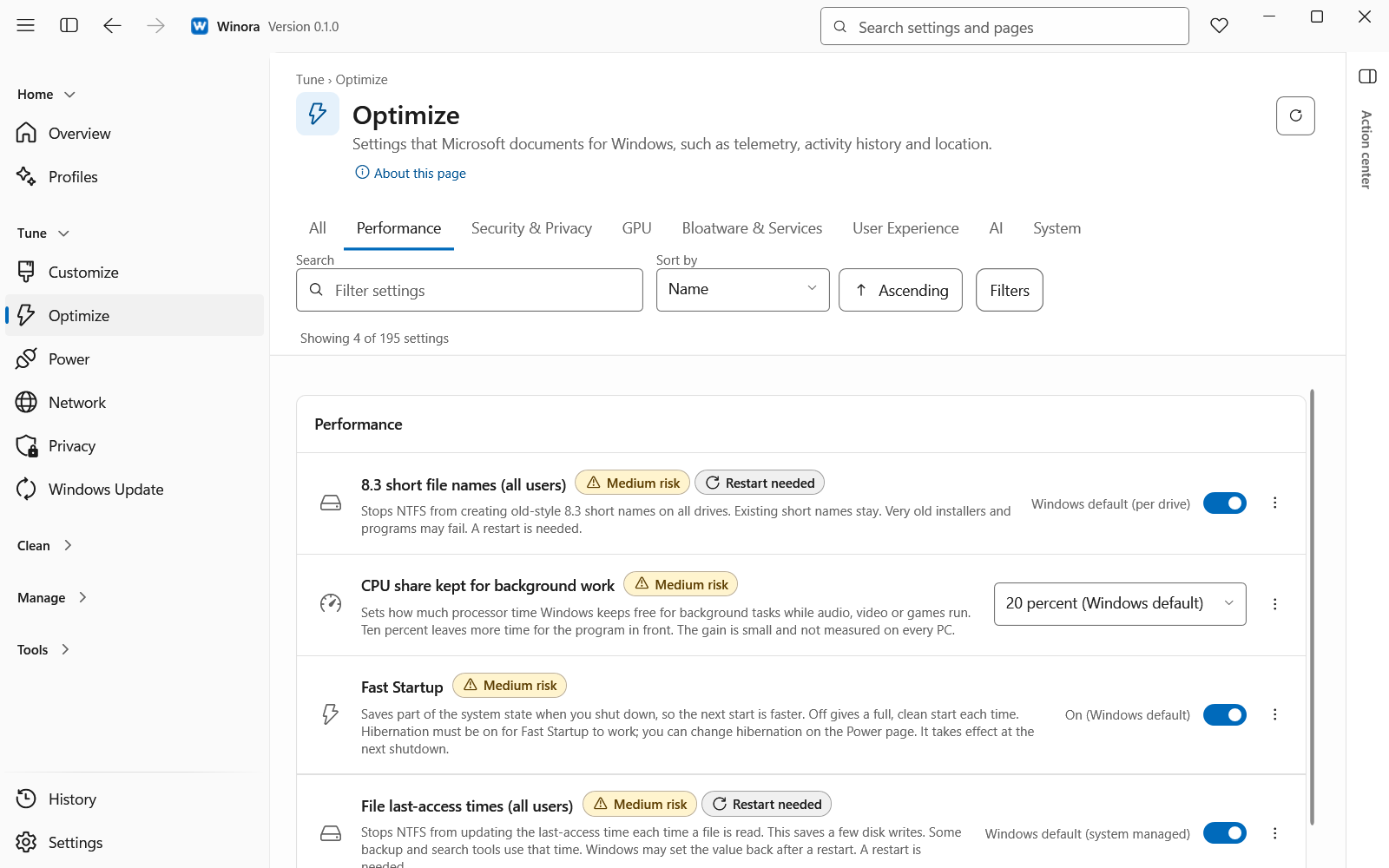
The Optimize page with the Performance tab open and a risk level on each settingThe Optimize page with the Performance tab open and a risk level on each setting
The Optimize page with the Performance tab open and a risk level on each setting
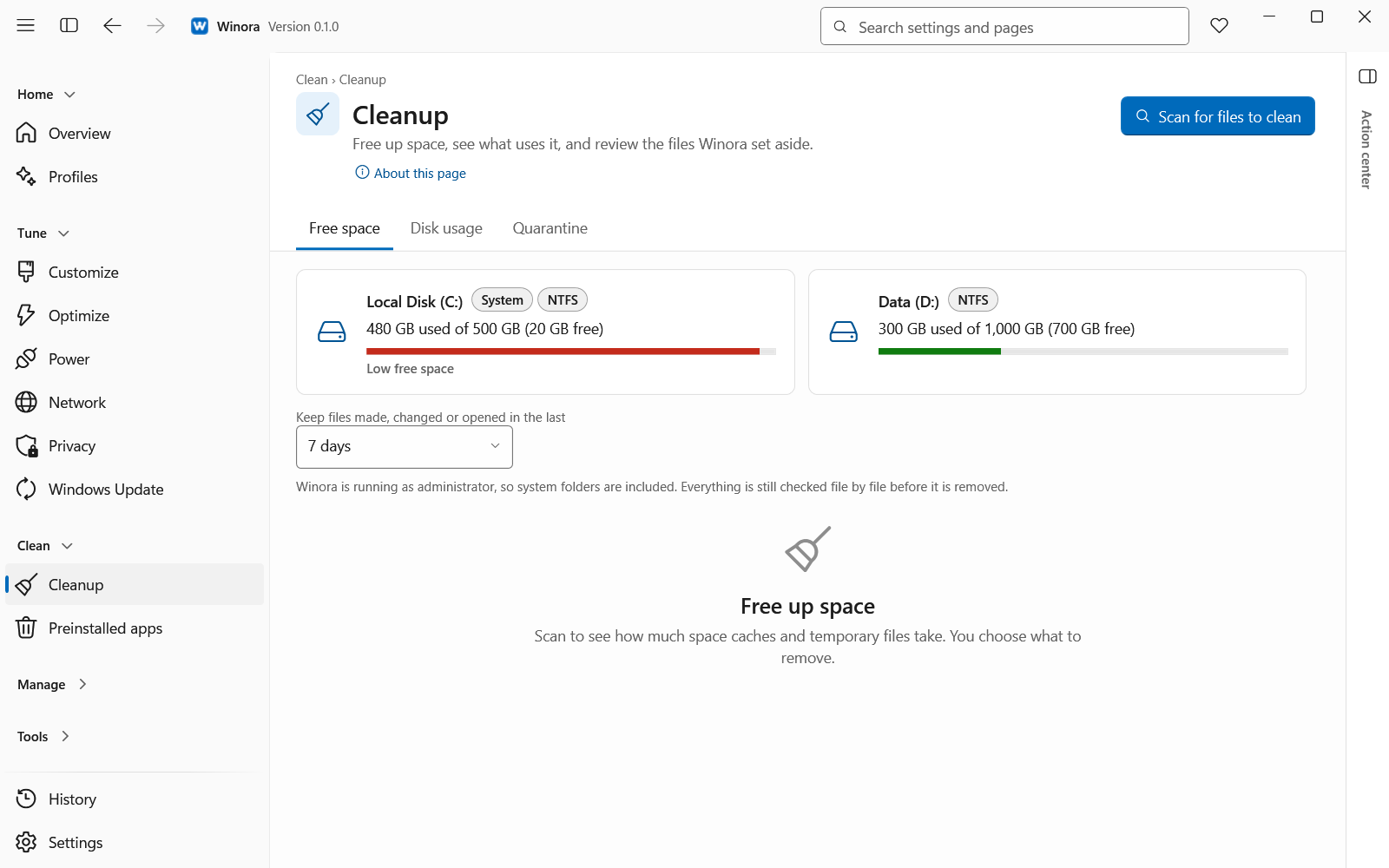
The Cleanup page with groups of cache and temporary files and their sizesThe Cleanup page with groups of cache and temporary files and their sizes
The Cleanup page with groups of cache and temporary files and their sizes
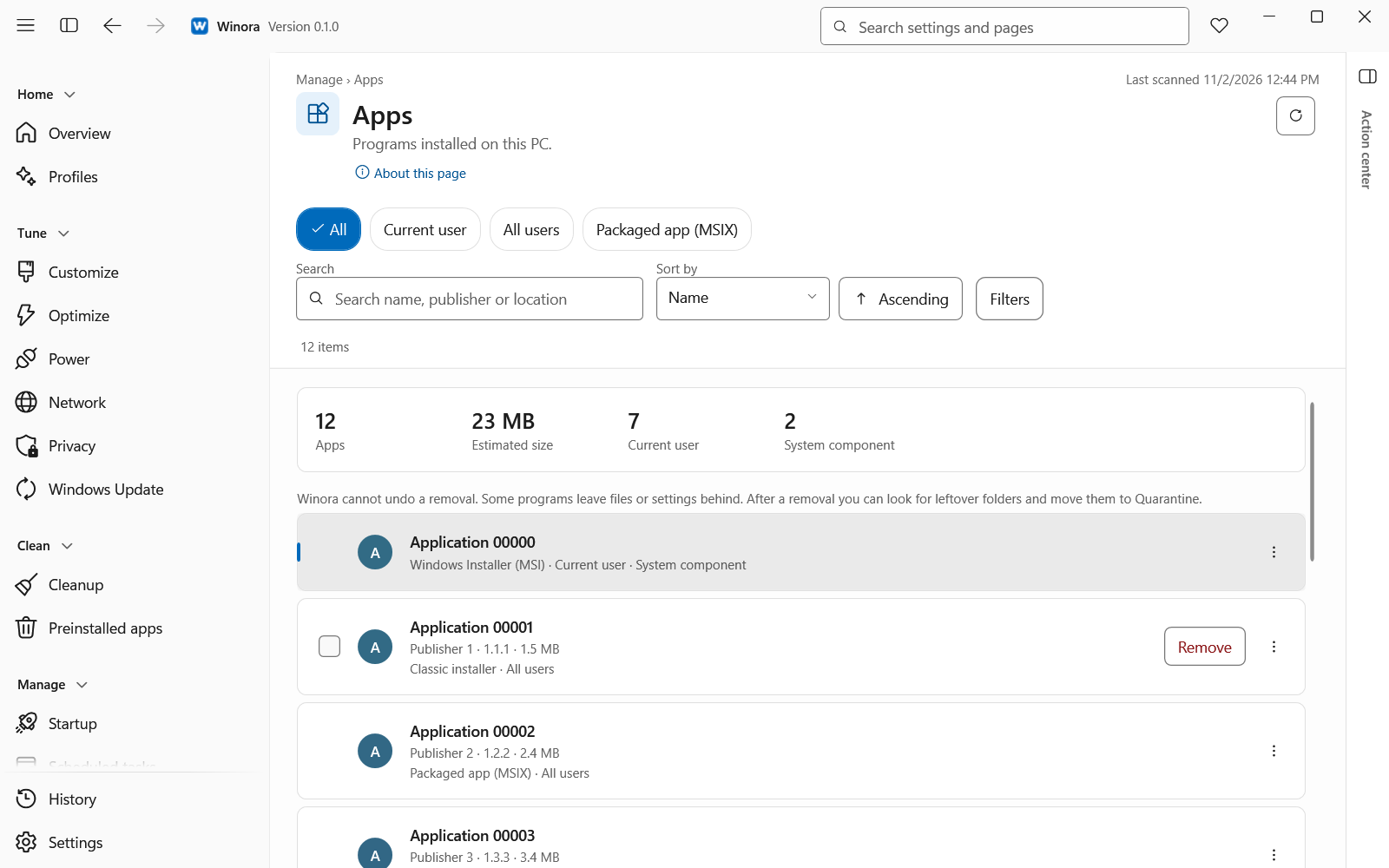
The Apps page with installed programs, their publisher and sizeThe Apps page with installed programs, their publisher and size
The Apps page with installed programs, their publisher and size
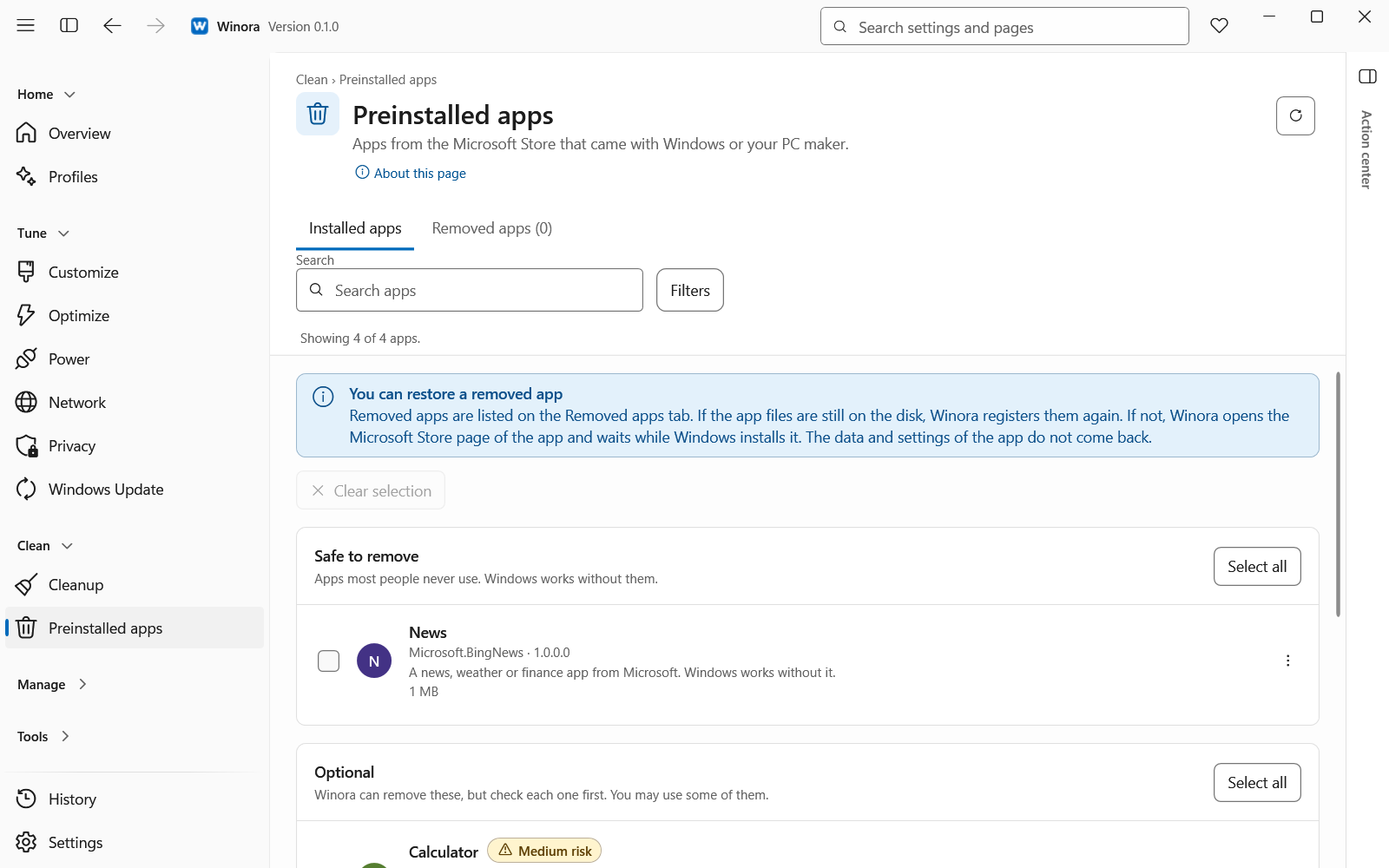
The Preinstalled apps page with apps grouped as Safe to remove, Optional and KeepThe Preinstalled apps page with apps grouped as Safe to remove, Optional and Keep
The Preinstalled apps page with apps grouped as Safe to remove, Optional and Keep
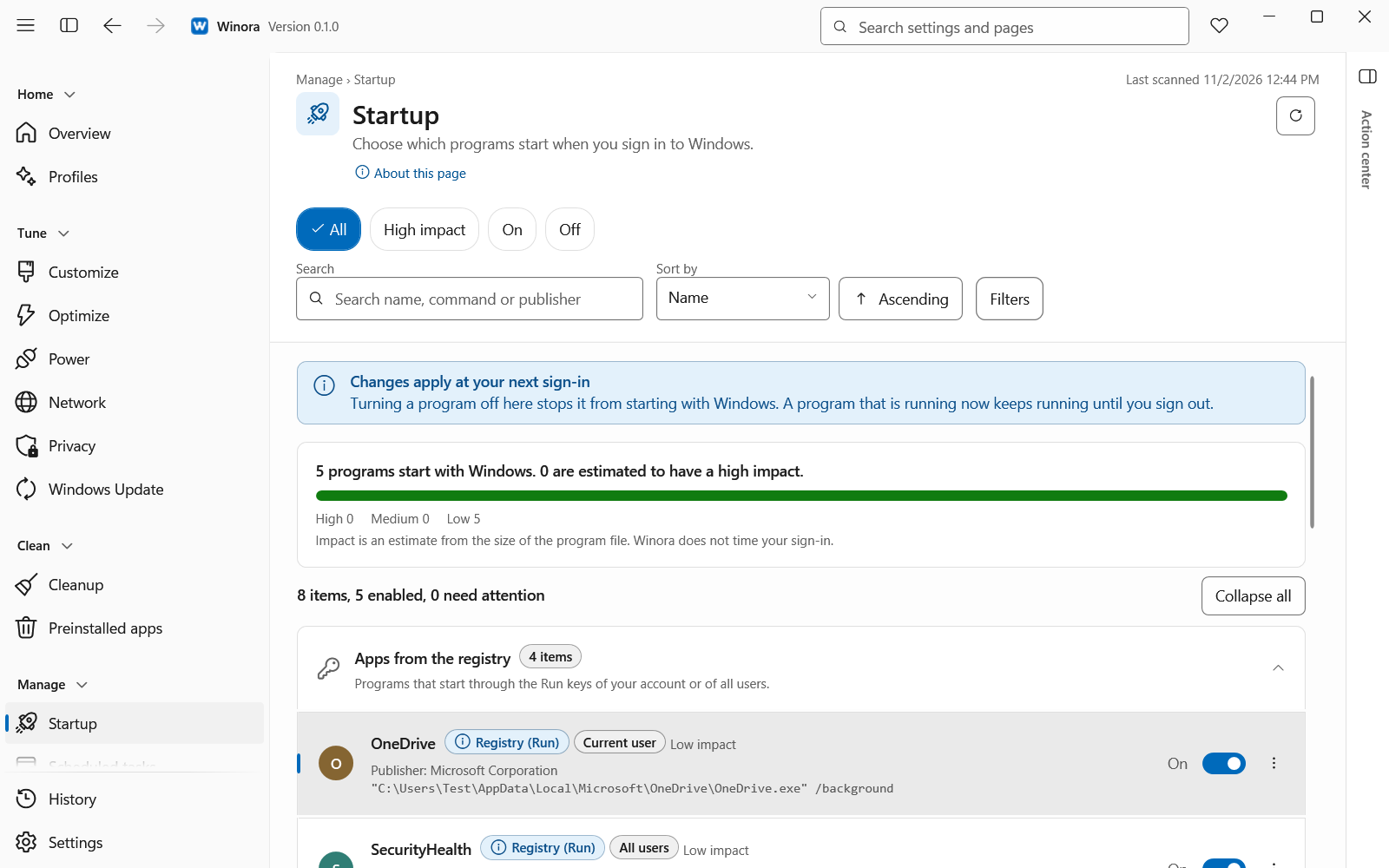
The Startup page with programs grouped by source, each with an on and off switchThe Startup page with programs grouped by source, each with an on and off switch
The Startup page with programs grouped by source, each with an on and off switch
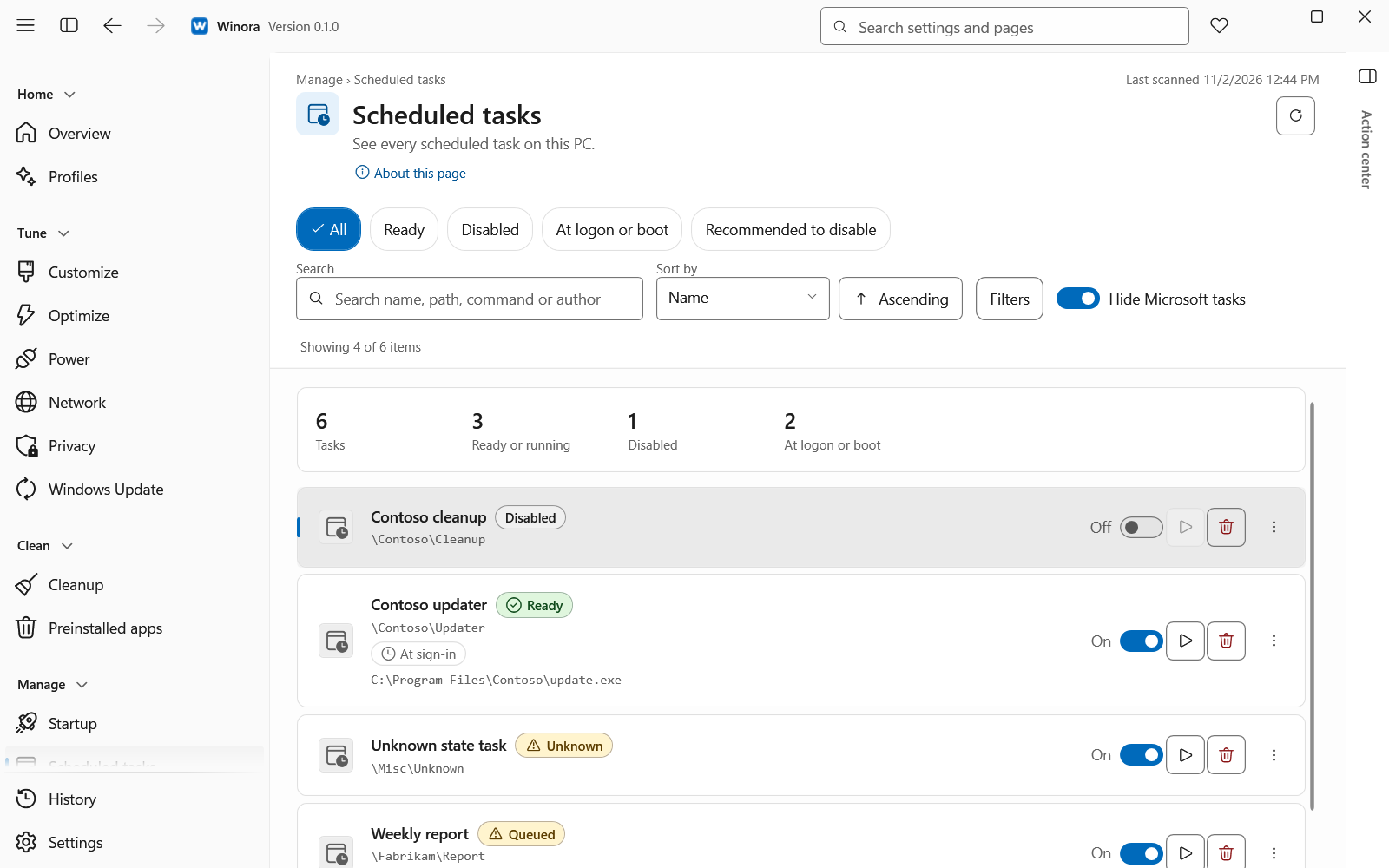
The Scheduled tasks page with a list of tasks and the details of the selected taskThe Scheduled tasks page with a list of tasks and the details of the selected task
The Scheduled tasks page with a list of tasks and the details of the selected task
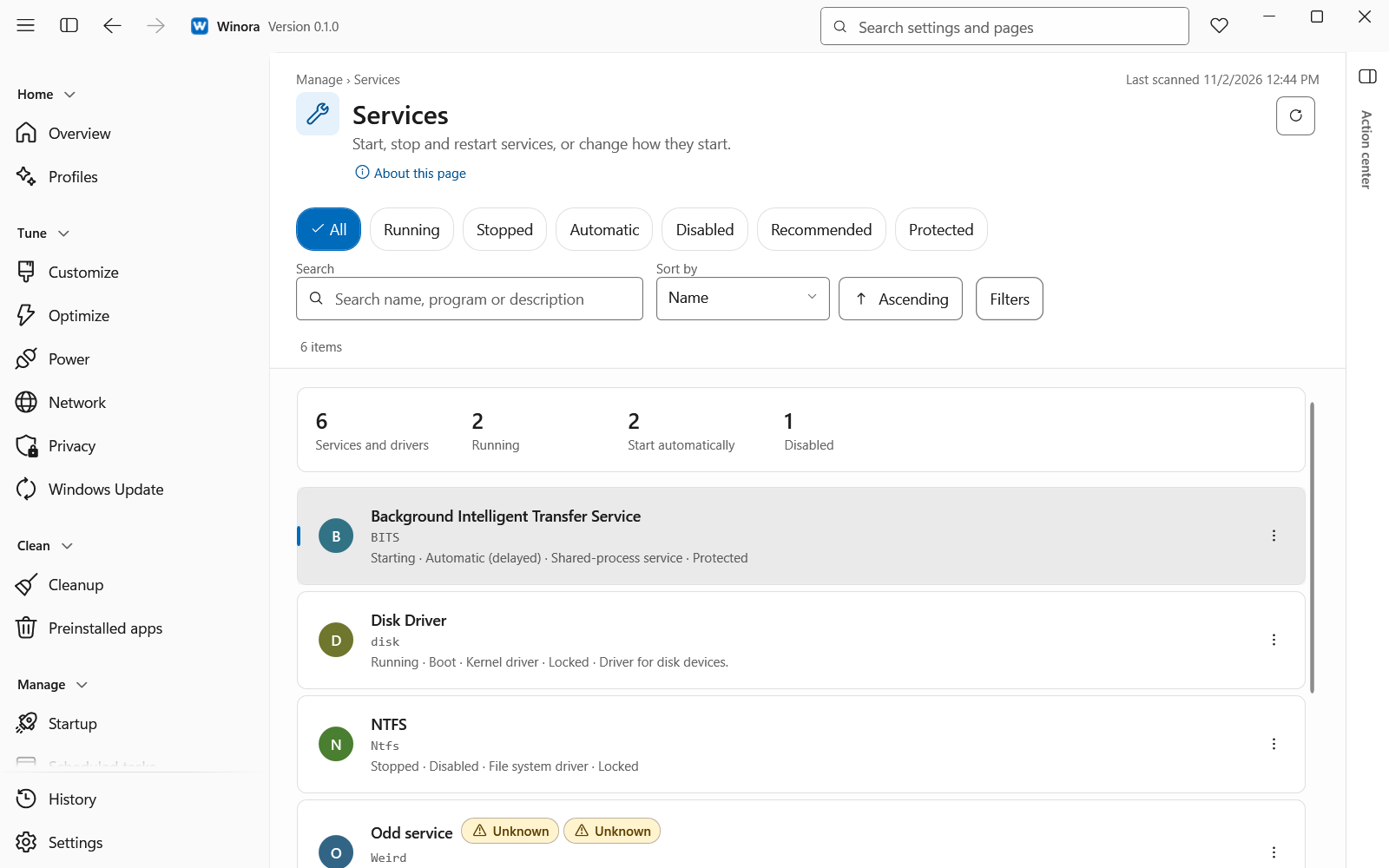
The Services page with services, their startup type and their stateThe Services page with services, their startup type and their state
The Services page with services, their startup type and their state
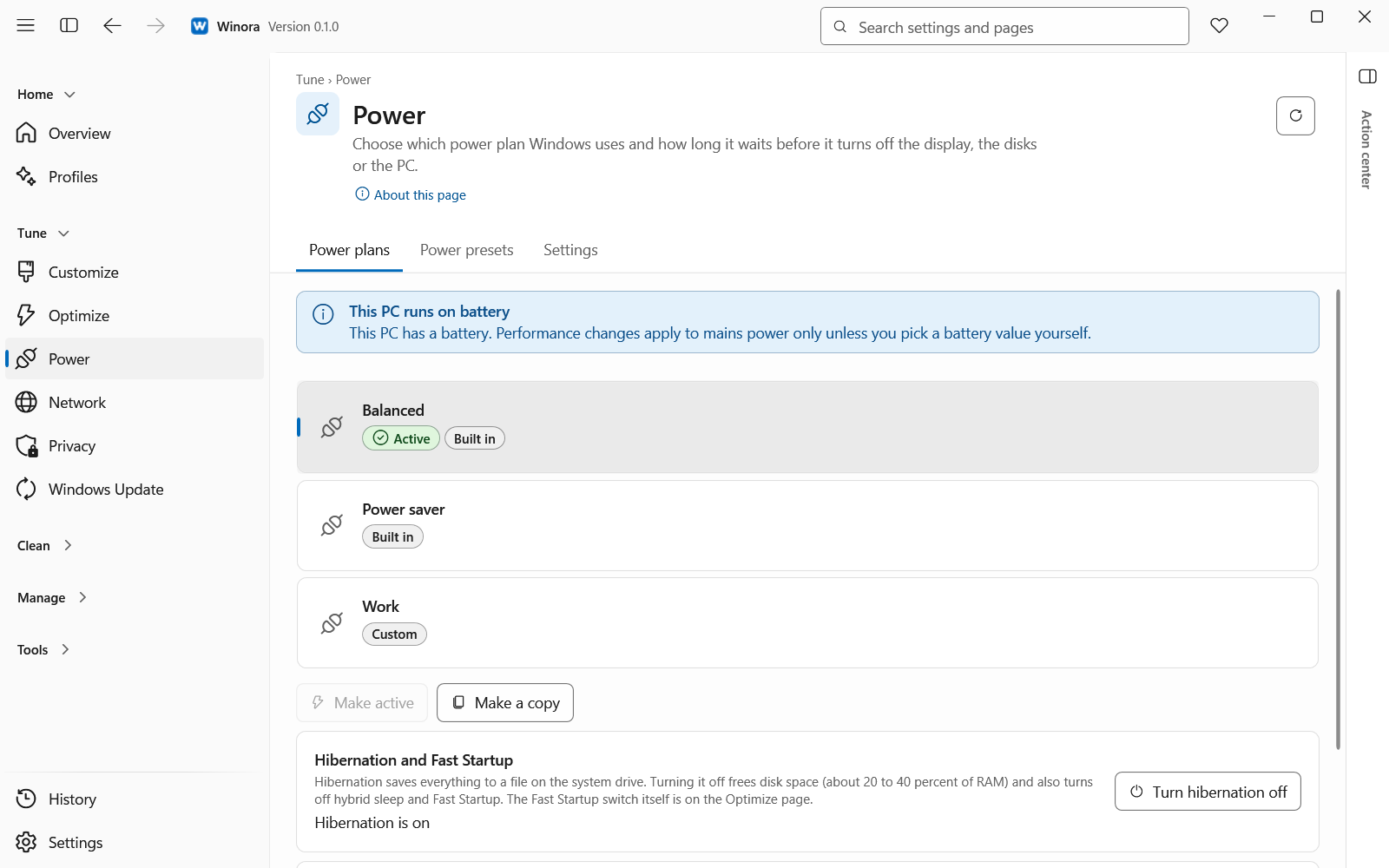
The Power page with the power plans and the settings of the selected planThe Power page with the power plans and the settings of the selected plan
The Power page with the power plans and the settings of the selected plan

What it does

  • Settings in one place. Customize, Optimize and Privacy cover File Explorer, the taskbar, Start, performance and privacy. Each setting shows its risk level.
  • A review before every change. You see the value now and the value after. Nothing changes until you confirm.
  • Undo from History. Every change Winora made is listed in History, and Undo puts the old value back.
  • Profiles. Balanced, Speed, Security, Privacy, Gaming and Minimal. You see the full plan and confirm it once.
  • Startup, tasks and services. Turn startup programs, scheduled tasks and services on or off.
  • Apps and cleanup. Remove preinstalled apps and programs, free up space and see what fills your drive.
  • Power, network and updates. Power plans, DNS and how Windows Update installs updates.
  • English and Persian. Light and dark themes and a full right-to-left layout.

Privacy and data

WhatHow
networkWinora sends nothing over the network. There is no account, no telemetry, no ads and no auto-update.
storedYour history and preferences stay on your PC, in %LOCALAPPDATA%\Winora and %ProgramData%\Winora.
rightsWinora runs as administrator, because it changes settings for the whole PC, services, scheduled tasks and installed programs.
diagnosticsA diagnostics file is made only when you choose Export diagnostics in Settings, and it is saved in a folder you pick.
full policyRead the privacy policy of Winora

Guides

Feedback

Found a bug or have an idea? Tell me here. I read every message.

What do you want to send?

A short example that shows the problem helps most. Do not paste passwords, keys or personal data. Remove them from logs and screenshots first.

I use it only to answer this message.

Have an account? Sign in to follow the status of your reports.